This is the full developer documentation for LangAlpha
# LangAlpha documentation
> Open-source AI agents that research the market, build the thesis, and trade your own brokerage account within the permissions you set. Hosted at langalpha.ai or on your own machine.
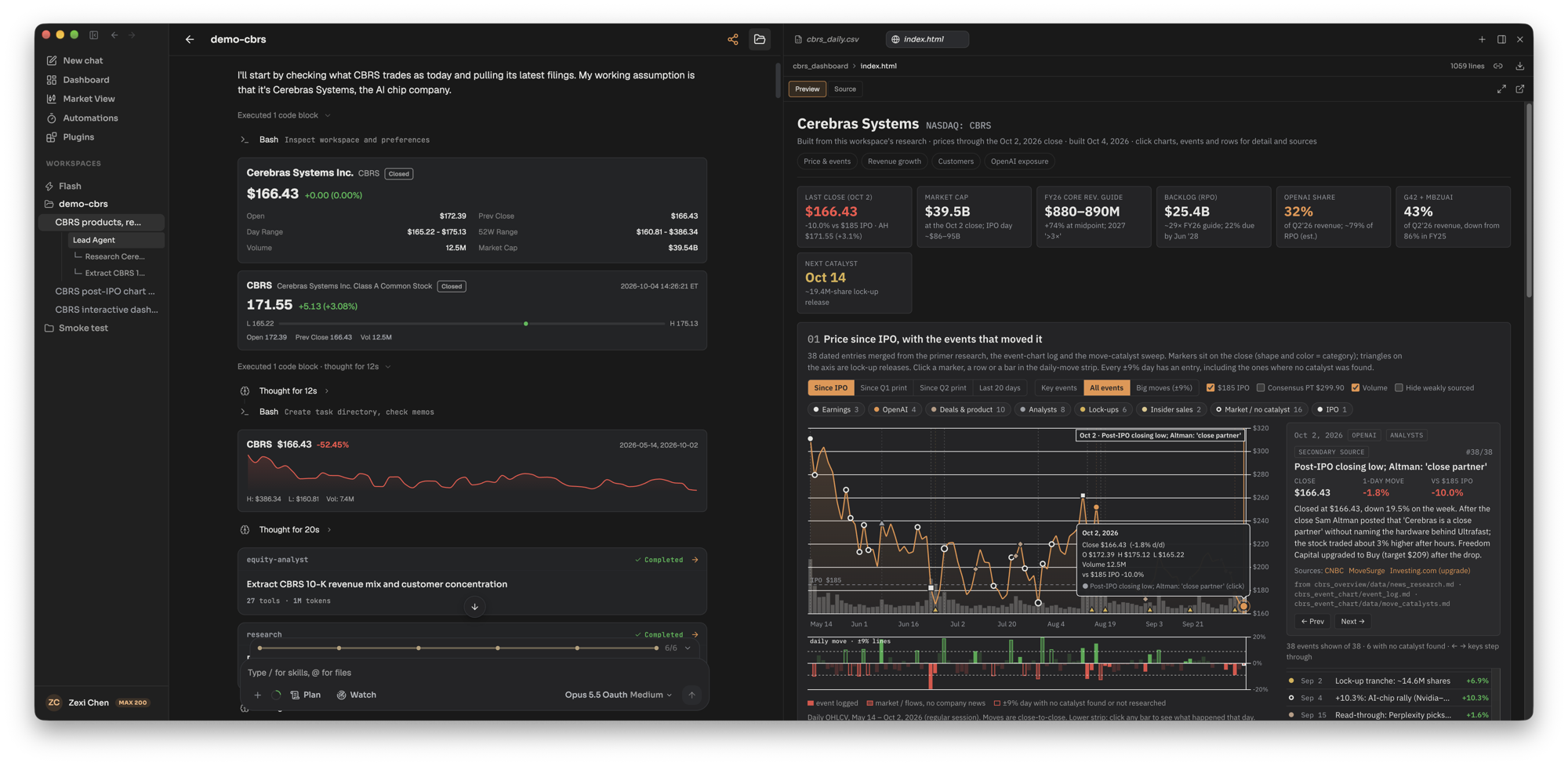
LangAlpha is a harness for AI agents that work on financial markets. You ask a question in a workspace, and an agent with its own computer reads filings, pulls market data, writes and runs code, and hands back a deliverable: a report, a workbook, a dashboard, or an order waiting for your approval. The workspace keeps the files, notes and memory, so the next session builds on the last.
## Start here
[Section titled “Start here”](#start-here)
* [What is LangAlpha](/get-started/what-is-langalpha/): the product in one page.
* [Hosted or self-hosted](/get-started/hosted-or-self-hosted/): what changes between langalpha.ai and your own install.
* [Self-hosting quickstart](/get-started/self-hosting-quickstart/): `make config`, then `make up`.
* [How it fits together](/concepts/overview/): users, computers, workspaces, threads and turns.
## Questions people ask
[Section titled “Questions people ask”](#questions-people-ask)
* [Chief of Staff or Analyst?](/compare/chief-of-staff-or-analyst/) Which agent should take a request.
* [Automation or wakeup?](/compare/automation-or-wakeup/) Two ways to make the agent come back later.
* [Memory, memo or scratchpad?](/compare/memory-memo-or-scratchpad/) Where a piece of context belongs.
* [Skill, plugin or MCP server?](/compare/skill-plugin-or-mcp-server/) What to build when you extend LangAlpha.
* [Which computer should I use?](/compare/which-computer/) Docker, Daytona, E2B or your own machine.
## What you can do
[Section titled “What you can do”](#what-you-can-do)
* [Write an initiation report](/explore/initiation-report/) with a team of research subagents.
* [Prepare for earnings](/explore/earnings-preview/) and update the model after the print.
* [Build valuation models](/explore/valuation-models/) as real Excel workbooks.
* [Watch a stock and act on a price move](/explore/price-move-automation/).
* [Review your portfolio](/explore/portfolio-review/) against your investing profile.
* [Build dashboards and annotate charts](/explore/dashboards-and-charts/).
* [Get results in Slack and other chat apps](/explore/deliver-to-slack/).
## Command line and API
[Section titled “Command line and API”](#command-line-and-api)
* [The LangAlpha CLI](/cli/overview/): `langalpha`, or `la` for short, runs threads, workspaces, computers and automations from a terminal or a script.
* [Scripting recipes](/cli/scripting/): start a thread and wait for the answer, follow a turn, schedule an automation, answer an approval.
* [Using the CLI inside a computer](/cli/inside-a-computer/): what the agent can do with the CLI on its own machine.
* [HTTP API](/api/overview/) and [Authentication](/api/authentication/): call LangAlpha from your own code.
## For agents
[Section titled “For agents”](#for-agents)
Every page is also served as Markdown at its URL plus `.md` (for example [/concepts/computers.md](/concepts/computers.md)). The whole site is indexed in [/llms.txt](/llms.txt), with the full text in [/llms-full.txt](/llms-full.txt).
Caution
LangAlpha is software, not a financial adviser. Nothing it produces is investment advice. Agents act only within the permissions you grant, and you are responsible for every order placed on your accounts.
# Hosted or self-hosted
> Compare the hosted LangAlpha platform with a self-hosted install, covering sign-in, market data, price triggers, chat apps, models and operations.
LangAlpha runs in two ways from the same open-source code. The hosted platform at [langalpha.ai](https://langalpha.ai) gives you an account with market data, cloud computers, brokerage connections and chat apps set up for you. A self-hosted install runs the backend, web app, Postgres and Redis on your own machine with Docker, under your control. Agents, workspaces, automations, wakeups, skills, plugins, MCP servers, memory, memos, sharing and governed orders behave the same in both.
## At a glance
[Section titled “At a glance”](#at-a-glance)
| | Hosted | Self-hosted |
| ---------------------------- | ----------------------------------------------------------------------------------------------- | ---------------------------------------------------------------------------------------------------------------------------------------------------- |
| Sign-in | An account per person, with separate data per user. | No sign-in. One local user, so anyone who can reach the server acts as you, connected brokerages included. |
| Market data | Live quotes for US equities and options, with extended hours. | Yahoo Finance, and FMP when you add a key. Quotes refresh every 60 seconds and show as delayed. |
| Options and market structure | Options chains and snapshots, short interest, float and top movers. | Not available. |
| Price triggers | Fire on live ticks. | Poll about every 30 seconds against the delayed quotes. |
| Chat apps | Slack, Discord, Telegram, Feishu and iMessage. | Not included. Automation results can go to a webhook you run. |
| Models | Models included with the platform, your own API keys, or Claude, ChatGPT and Grok sign-in. | Your own keys, coding plans, subscription sign-in, and local servers such as Ollama, LM Studio and vLLM. Keys in the server’s `.env` count as yours. |
| Computers | The computer types the platform offers. Your plan can limit computer size, count and always-on. | The providers you configure: Docker, Daytona, E2B, and machines you add over SSH. No limits on size or count. |
| Availability | Runs around the clock, so automations and price triggers fire while your laptop sleeps. | Runs only while your machine and its Docker stack are up. |
| Operations | Upgrades, migrations, backups and sandbox capacity are handled for you. | You run upgrades, database migrations and backups. Docker sandboxes share your machine’s CPU, memory and disk. |
| Desktop app | The LangAlpha edition opens hosted sign-in. | The LangAlpha OSS edition asks for your server’s address on first run. |
## When to choose hosted
[Section titled “When to choose hosted”](#when-to-choose-hosted)
Choose hosted when you want live US market data and options, chat apps, and automations that keep running while your own computer is off, without operating a server.
## When to choose self-hosted
[Section titled “When to choose self-hosted”](#when-to-choose-self-hosted)
Choose self-hosting when you want everything on your own hardware or network, when you want to run local models, or when you want to read, change or extend the code that every order passes through. You need Docker. See the [self-hosting quickstart](/get-started/self-hosting-quickstart/).
Caution
A self-hosted server has no sign-in. The web app and API listen on every network interface, so your local network can reach them. Keep the server on your own machine or a private network, and put a VPN or an authenticating proxy in front of it before exposing it anywhere else.
## How differences are marked in these docs
[Section titled “How differences are marked in these docs”](#how-differences-are-marked-in-these-docs)
Pages describe the behavior both setups share. Where they differ, a note titled “Hosted and self-hosted” says what each one does:
Hosted and self-hosted
**Hosted:** what you see on langalpha.ai.
**Self-hosted:** what an open-source install does, and the setting that controls it.
## Related
[Section titled “Related”](#related)
* [What is LangAlpha](/get-started/what-is-langalpha/)
* [Self-hosting quickstart](/get-started/self-hosting-quickstart/)
* [Which computer should I use?](/compare/which-computer/)
* [Chat apps](/concepts/chat-apps/)
* [Models and your own keys](/concepts/models-and-keys/)
# Self-hosting quickstart
> Run LangAlpha on your own machine with Docker. Clone the repository, answer the make config wizard, start the stack with make up and open the web app.
You can run the whole LangAlpha stack (Postgres, Redis, the backend and the web app) on your own machine with Docker in two commands: `make config` writes your settings, and `make up` starts everything. With no data keys at all you still get Yahoo Finance prices, fundamentals, analyst data and screening, SEC EDGAR filings, and sandboxes in local Docker.
## Requirements
[Section titled “Requirements”](#requirements)
* Docker with Docker Compose, running.
* `git` and `make`.
* Free ports 8000 (backend), 5173 (web app), 5432 (Postgres) and 6379 (Redis). The wizard checks these for you.
* A way to reach a model: a Claude, ChatGPT or Grok subscription, a coding plan, an API key, or a local model server.
## 1. Get the code
[Section titled “1. Get the code”](#1-get-the-code)
```bash
git clone https://github.com/ginlix-ai/langalpha.git
cd langalpha
```
## 2. Run the setup wizard
[Section titled “2. Run the setup wizard”](#2-run-the-setup-wizard)
```bash
make config
```
The wizard asks seven questions and writes your answers to `.env` (keys and service settings) and `agent_config.yaml` (models, MCP servers, search provider). Press Enter to take the default on any step.
| Step | Choices | Default |
| -------------- | --------------------------------------------------------------------------------------------------------------------------------------------- | --------------------------- |
| LLM provider | Connect a subscription or coding plan in the web app, enter an API key and pick main and background models, or skip and choose in the web app | Subscription or coding plan |
| Financial data | Yahoo Finance (no key), FMP (`FMP_API_KEY`, free tier available), or both | Yahoo Finance |
| Sandbox | Docker (local containers), Daytona (`DAYTONA_API_KEY`), or E2B (`E2B_API_KEY`) | Docker |
| Web search | None, or one of the supported search providers with its key | None |
| Web fetch | The built-in crawler, or a provider that upgrades extraction on JavaScript-heavy pages | Built-in |
| Cloud storage | None, AWS S3, Cloudflare R2 or Alibaba Cloud OSS | None |
| Infrastructure | Postgres and Redis in Docker Compose, or your own instances | Docker Compose |
It then checks that Docker is running and the ports are free, and generates the key that encrypts the API keys and sign-in tokens you save in the app.
## 3. Start the stack
[Section titled “3. Start the stack”](#3-start-the-stack)
```bash
make up
```
The first run builds the backend image and installs the web app, which takes a few minutes. The backend applies database migrations each time it starts. When the logs settle, open .
The sandbox step of the wizard writes your choice to `SANDBOX_PROVIDER` in `.env`. To change it later, edit that line, or pass it for one run, for example `make up PROVIDER=docker`, which also builds the Docker sandbox image before starting.
## 4. Finish in the web app
[Section titled “4. Finish in the web app”](#4-finish-in-the-web-app)
If you skipped the model step or chose a subscription, the web app opens a setup wizard: choose how to connect (a subscription, an API key, or a model server you run locally), connect a provider, and pick your default models. You can leave it with **Exit setup** and come back from Settings later.
Then create a workspace and ask a question. The first workspace on a Docker computer builds the sandbox image, so the first answer takes longer than the rest.
The API listens on port 8000, with interactive API docs at .
## Optional keys and what they add
[Section titled “Optional keys and what they add”](#optional-keys-and-what-they-add)
Add these to `.env` and restart with `make up`.
| Key or setting | Adds |
| ---------------------------------------------------------------------------------------- | --------------------------------------------------------------------------------------------------------------------------------- |
| `FMP_API_KEY` | Fundamentals, financial statements, macro and analyst data. |
| `DAYTONA_API_KEY` or `E2B_API_KEY` | Cloud sandboxes instead of local Docker. `make daytona-snapshots` and `make e2b-templates` prebuild them for every resource tier. |
| `sandbox.offered_providers` in `agent_config.yaml` including `ssh` | Computers on your own Linux machines and Macs over SSH. See [Sandboxes and SSH computers](/concepts/sandboxes-and-ssh/). |
| `TAVILY_API_KEY`, `SERPER_API_KEY`, `EXA_API_KEY`, `PARALLEL_API_KEY` or `BOCHA_API_KEY` | Web search. `search_api` in `agent_config.yaml` picks the default engine, and each user can change it in Settings. |
| `FIRECRAWL_API_KEY` | Upgraded web fetch and site crawling. |
| `R2_*`, `S3_*` or `OSS_*`, with `storage.provider` in `agent_config.yaml` | Object storage for workspace file backups, memos, attachments and downloads. Without it these stay in Postgres. |
| `AUTOMATION_WEBHOOK_URL` and `AUTOMATION_WEBHOOK_SECRET` | Where automation results are posted when an automation picks a delivery method. See [Chat apps](/concepts/chat-apps/). |
## Stop, restart and upgrade
[Section titled “Stop, restart and upgrade”](#stop-restart-and-upgrade)
* `make down` stops the stack. Your data stays in Docker volumes.
* `make up` starts it again.
* To upgrade, pull the latest code and run `make up`. The images rebuild and the backend migrates the database on start.
* `make clean` stops the stack and removes leftover Docker sandbox containers.
* `make help` lists every target.
To run the backend and web app directly on your host for development, see [CONTRIBUTING.md](https://github.com/ginlix-ai/langalpha/blob/main/CONTRIBUTING.md).
Caution
A self-hosted server has no sign-in, and the backend and web app ports listen on every network interface. Anyone who can reach them acts as you, connected brokerages included. Keep the machine on a private network, or put a VPN or an authenticating proxy in front of it.
## Related
[Section titled “Related”](#related)
* [Hosted or self-hosted](/get-started/hosted-or-self-hosted/)
* [Which computer should I use?](/compare/which-computer/)
* [Models and your own keys](/concepts/models-and-keys/)
* [How it fits together](/concepts/overview/)
# What is LangAlpha
> LangAlpha is an open-source harness for AI agents that research markets, keep an investment thesis in a workspace and trade within limits you set.
LangAlpha is an open-source harness for AI agents that work on financial markets. An agent researches a question, builds and maintains an investment thesis inside a workspace, produces deliverables such as reports, Excel models and dashboards, and can place orders in a brokerage account you connect, within permissions you set. You can use it on the hosted platform at [langalpha.ai](https://langalpha.ai) or run the same open-source code on your own machine.
## The idea behind it
[Section titled “The idea behind it”](#the-idea-behind-it)
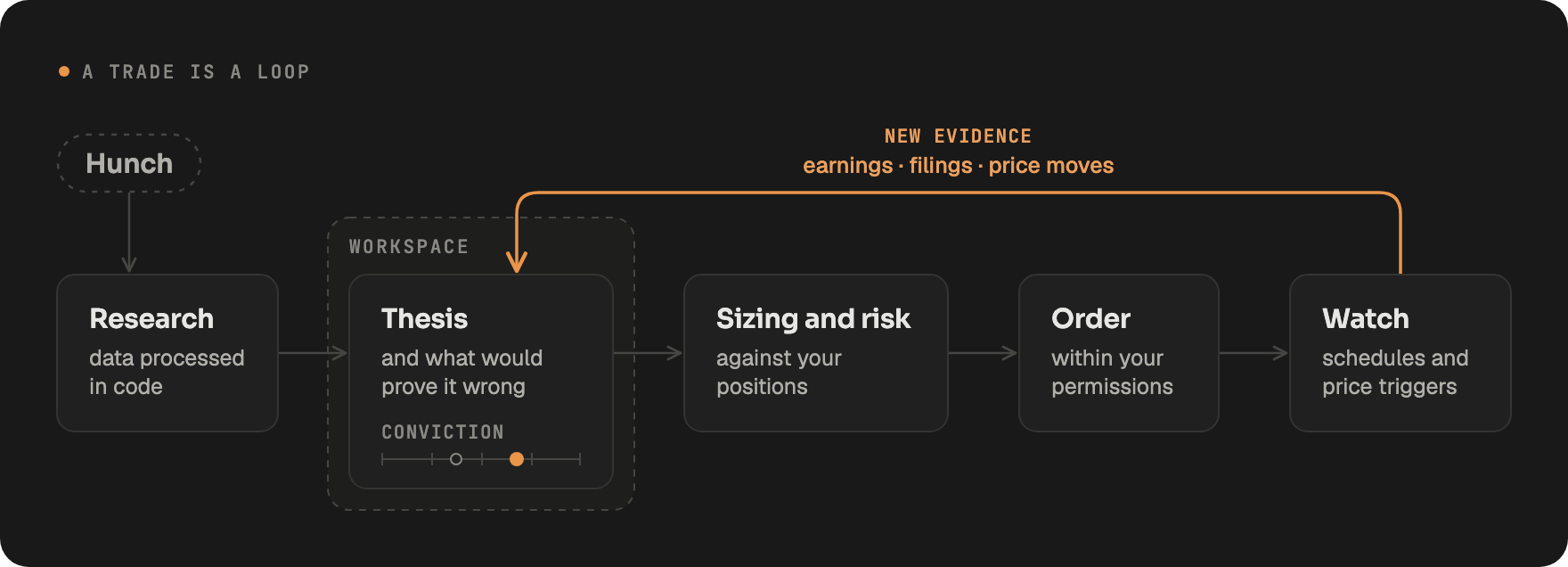
Investment research is a loop, not a single question. You write down a thesis and what would prove it wrong, then each earnings print, filing and price move raises or lowers your conviction. LangAlpha keeps that loop in one place. A workspace holds the files, the agent’s notes and its memory, so a session next week starts from what this week’s session found instead of from a blank prompt.
## What the agent can do
[Section titled “What the agent can do”](#what-the-agent-can-do)
* **Research with data in code.** The agent writes Python that calls market-data, fundamentals, SEC filing and web tools, so it can pull ten years of prices for a dozen tickers, transform them and chart them in one step. See [Plugins, MCP servers and programmatic tool calling](/concepts/plugins-mcp-ptc/).
* **Work as a team.** The main agent hands pieces of a question to subagents that run in parallel and report back findings. You can send a message at any time to redirect a running agent.
* **Hand back deliverables.** Built-in skills produce DCF and comps workbooks, initiation reports, earnings previews, morning notes, slide decks, PDFs and interactive dashboards. See [Skills](/concepts/skills/).
* **Keep watch.** Automations run on a schedule or when a price crosses a level, and the agent can schedule its own follow-up turns. See [Automations, wakeups and background commands](/concepts/automations-wakeups-commands/).
* **Trade within limits.** Brokerage connections carry only the capabilities you switch on, and each order follows one governed path with your approval by default. See [Brokerages and orders](/concepts/brokerages-and-orders/).
* **Show its sources.** A Sources panel lists every filing, page, data call and file the agent touched in a turn.
## The building blocks
[Section titled “The building blocks”](#the-building-blocks)
| Term | What it is |
| -------------- | ---------------------------------------------------------------------------------------------------------------------------------------- |
| Computer | The machine your workspaces run on: a cloud or Docker sandbox, or your own machine over SSH. |
| Workspace | A folder on a computer for one thesis, sector or portfolio, with its own files, notes and memory. |
| Thread | One conversation inside a workspace. |
| Turn | One run of the agent answering a message. |
| Analyst | The agent working inside a workspace. |
| Chief of Staff | The agent for work that belongs to no single workspace. It runs in a folder called Home and hands new research to a workspace’s Analyst. |
[How it fits together](/concepts/overview/) explains how these relate.
## Where you use it
[Section titled “Where you use it”](#where-you-use-it)
LangAlpha runs in the browser and in a desktop app for macOS, Windows and Linux. On the hosted platform you can also chat with it and receive results in Slack, Discord, Telegram, Feishu and iMessage.
It works with the model you already use: sign in with a Claude, ChatGPT or Grok subscription, connect a coding plan, bring an API key, or run a local model when you self-host. See [Models and your own keys](/concepts/models-and-keys/).
## Open source
[Section titled “Open source”](#open-source)
The backend, agent, web app, desktop app and built-in plugins are in one repository under the Apache 2.0 license at [github.com/ginlix-ai/langalpha](https://github.com/ginlix-ai/langalpha). Every check an order passes is code you can read.
## Related
[Section titled “Related”](#related)
* [Hosted or self-hosted](/get-started/hosted-or-self-hosted/)
* [Self-hosting quickstart](/get-started/self-hosting-quickstart/)
* [How it fits together](/concepts/overview/)
* [Chief of Staff or Analyst?](/compare/chief-of-staff-or-analyst/)
# How LangAlpha fits together
> The LangAlpha hierarchy of user, computer, workspace, thread and turn, the two agent roles, and which data lives where and follows you across computers.
LangAlpha organizes work in five levels: a **user** owns one or more **computers**, each computer holds **workspaces**, each workspace holds **threads**, and each thread is a series of **turns**. One agent does the work, in one of two roles: the **Analyst** inside a workspace, or the **Chief of Staff** for work that belongs to no single workspace. Some data belongs to a workspace’s folder on a computer, and some belongs to you and follows you to every computer.
## The hierarchy
[Section titled “The hierarchy”](#the-hierarchy)
| Level | What it is | Learn more |
| --------- | ----------------------------------------------------------------------------------------------------------------------------------------------------------------------------------------------- | ------------------------------------------------------ |
| User | You: your account on the hosted platform, or the single local user of a self-hosted install. Your memory, profile, skills, plugins, MCP servers, secrets and brokerage connections belong here. | [Models and your own keys](/concepts/models-and-keys/) |
| Computer | The machine your workspaces run on: a Daytona, E2B or Docker sandbox, or your own machine over SSH. It has a size, a disk shared by its workspaces, and is started and stopped as one. | [Computers](/concepts/computers/) |
| Workspace | A folder on a computer for one thesis, sector or portfolio. It keeps files, the agent’s notes and workspace memory across threads. | [Workspaces](/concepts/workspaces/) |
| Thread | One conversation in a workspace, with its own history. | [Threads and turns](/concepts/threads-and-turns/) |
| Turn | One run of the agent answering a message, from your message to its final reply. A thread runs one turn at a time. | [Threads and turns](/concepts/threads-and-turns/) |
## One agent, two roles
[Section titled “One agent, two roles”](#one-agent-two-roles)
Every turn runs the same agent with the same tools. What changes is the role, picked from where the turn happens:
* **Analyst**: a turn inside a workspace. The Analyst does the research and produces the deliverables, which stay in that workspace.
* **Chief of Staff**: a turn outside any workspace. It runs in a folder called **Home** on your computer, beside the workspace folders. It answers quick questions and anything your workspaces already hold, reading their folders and past threads, and hands new research to a workspace’s Analyst, which reports back when it is done. Chat apps list it as “All workspaces”.
See [Chief of Staff or Analyst?](/compare/chief-of-staff-or-analyst/) for which one to ask.
## What lives where
[Section titled “What lives where”](#what-lives-where)
Workspace files live in the workspace’s folder on its computer, and are backed up so they survive the computer stopping or being rebuilt. Everything else the agent reads is held by the server and shown on every computer as ordinary files, so it carries across computers and rebuilds:
| Store | Belongs to | What it holds |
| --------------- | ------------------ | ------------------------------------------------------------------- |
| Workspace files | Workspace | Data, models, reports and the agent’s notes for the workspace. |
| Memory | User and workspace | Durable preferences and findings the agent saves and keeps current. |
| Memos | User | Documents you upload. Read-only to the agent. |
| Profile | User | Your portfolio, watchlists and investing preferences. |
| Automations | User | One file per automation. |
| Workflows | User | Saved scripts that fan work out to many subagents. |
| Transcripts | Thread | Every past thread, searchable by the agent. Read-only. |
See [Files and what persists](/concepts/files/) and [Memory, memos and scratchpad](/concepts/memory-memos-scratchpad/).
## What the agent works with
[Section titled “What the agent works with”](#what-the-agent-works-with)
* **Tools** to run Python and shell commands, read and write files, search and fetch the web, and look up quotes, filings and fundamentals.
* **MCP servers** for data and services, which the agent calls from the Python it writes. See [Plugins, MCP servers and programmatic tool calling](/concepts/plugins-mcp-ptc/).
* **Skills** that teach it how to produce a deliverable, loaded when needed. See [Skills](/concepts/skills/).
* **Subagents** it runs in parallel for pieces of a larger question.
* **Brokerage connections**, limited to the capabilities you switch on. See [Brokerages and orders](/concepts/brokerages-and-orders/).
## Work that happens later
[Section titled “Work that happens later”](#work-that-happens-later)
A turn ends when the agent replies, but work can continue: an **automation** you set runs on a schedule or a price move, a **wakeup** the agent sets brings it back to the same thread, and a long **background command** reports back to the thread when it finishes. See [Automation or wakeup?](/compare/automation-or-wakeup/).
## Related
[Section titled “Related”](#related)
* [What is LangAlpha](/get-started/what-is-langalpha/)
* [Computers](/concepts/computers/)
* [Workspaces](/concepts/workspaces/)
* [Threads and turns](/concepts/threads-and-turns/)
* [Chief of Staff and Analysts](/concepts/chief-of-staff-and-analysts/)
# Authentication
> How callers outside the LangAlpha web app authenticate to its API. Bearer tokens from a browser sign-in, scopes, the CLI sign-in discovery route, and self-hosted servers with no sign-in.
A caller outside the web app, such as the [CLI](/cli/overview/) or another app you sign in to with your LangAlpha account, authenticates by sending a token in the `Authorization` header:
```text
Authorization: Bearer
```
The [CLI’s browser sign-in](/cli/signing-in/) is how you get one.
## Kinds of credential
[Section titled “Kinds of credential”](#kinds-of-credential)
| Credential | Looks like | Who uses it |
| ----------------------------------- | --------------------- | ------------------------------------------------------------------------------------------- |
| Access token from a browser sign-in | An OAuth access token | The CLI after `langalpha login`, and other apps you sign in to with your LangAlpha account. |
| A computer’s token | `lac1....` | The CLI inside a [computer](/cli/inside-a-computer/), for the agent’s commands. |
| The web app’s sign-in | A session token | The web app itself. |
The server tells them apart by their form, and a token it refuses is refused outright, never retried as another kind.
Hosted and self-hosted
**Hosted:** All three are accepted. Apps you signed in to are listed under Connected apps in your account settings, where Disconnect removes their access.
**Self-hosted:** With the default `HOST_MODE=oss` no credential is needed: a request without one acts as the local user. With sign-in turned on, the server accepts browser sign-in tokens once `OAUTH_RESOURCE_ISSUER`, `OAUTH_RESOURCE_JWKS_URL` and `OAUTH_RESOURCE_AUDIENCE` are set, plus `OAUTH_CLI_CLIENT_ID` for the CLI. Computers’ tokens work as on hosted.
## Scopes
[Section titled “Scopes”](#scopes)
A token reaches only the routes that declare a scope it holds:
| Scope | What it covers |
| ----------------- | ---------------------------------------------------------------------------------------------------------- |
| `agent:read` | Reading threads, their turns and streams, workspaces, computers, automations, and your model list. |
| `agent:run` | Starting, steering, answering, retrying and cancelling turns, and running an automation now. |
| `workspace:write` | Creating, changing, archiving and deleting workspaces and automations, and archiving and deleting threads. |
| `computer:write` | Adding, starting, stopping, changing and removing computers. |
| `data:read` | Market data, news, calendars, your portfolio and watchlists. |
Routes that declare no scope answer only to the web app’s sign-in, whatever token you send. That keeps brokerage orders, secrets, publishing and your account identity out of any token’s reach. An order waiting for approval is answered only in the app, and a token that tries gets a 403 with type `order_decision_forbidden`.
## When a token is refused
[Section titled “When a token is refused”](#when-a-token-is-refused)
| Status | Body or header | What to do |
| ------ | ------------------------------------------------------------------------ | ------------------------------------------------------------------------------------- |
| 401 | `WWW-Authenticate: Bearer error="invalid_token"` | The token is unknown, expired or revoked. Sign in again. |
| 403 | `detail.type` is `insufficient_scope`, with the `scopes` the route needs | Use a token that holds them. |
| 403 | `detail.type` is `forbidden_for_token` | The action is closed to this kind of token, such as a delete with a computer’s token. |
| 503 | `Retry-After` | The server cannot check the token right now. Retry after the time given. |
## Who am I
[Section titled “Who am I”](#who-am-i)
`GET /api/v1/auth/principal` answers who the server takes the caller for. Every token reaches it, whatever its scopes.
| Field | Meaning |
| ------------- | ------------------------------------------------------------------- |
| `user_id` | Your user id. |
| `auth` | How you authenticated: `session`, `oauth`, `computer` or `service`. |
| `client_id` | The app a browser sign-in token was issued to. |
| `scopes` | What the token may do. Empty for a session, which needs none. |
| `computer_id` | The computer, for a computer’s token. |
## How a client learns to sign in
[Section titled “How a client learns to sign in”](#how-a-client-learns-to-sign-in)
`GET /api/v1/auth/cli` is public: a client calls it before it holds any credential, and the CLI’s `login` does exactly that.
| Field | Meaning |
| --------------- | ------------------------------------------------------------------------------------------------------------------------------------------------------------ |
| `auth_required` | `false` on a server that asks for no credential. |
| `issuer` | The sign-in provider to use for a browser sign-in, whose discovery document sits beside it. `null` when the server takes no browser sign-in. |
| `client_id` | The public client a CLI signs in as. `null` with `issuer`. |
| `scopes` | The scopes to ask the provider for, besides who the user is. Empty where the server grants scopes from your account rather than reading them from the token. |
A default self-hosted install answers with these fields:
```json
{
"auth_required": false,
"issuer": null,
"client_id": null,
"scopes": ["agent:read", "agent:run", "workspace:write", "computer:write", "data:read"]
}
```
## Related
[Section titled “Related”](#related)
* [Signing in with the CLI](/cli/signing-in/)
* [HTTP API](/api/overview/)
* [Using the CLI inside a computer](/cli/inside-a-computer/)
# HTTP API
> An overview of LangAlpha's HTTP API. The base URL, JSON requests and errors, turns streamed as server-sent events, resuming a stream, and safe retries with a request key.
Everything the web app and the [CLI](/cli/overview/) do goes through LangAlpha’s HTTP API, and you can call it from your own code. This page covers how the API behaves in general. A full endpoint reference is coming; until then, the [CLI’s source](https://github.com/ginlix-ai/langalpha/tree/main/cli/src) is a compact, working example of the routes most people need.
## Base URL
[Section titled “Base URL”](#base-url)
Every route lives under `/api/v1` on your LangAlpha server, for example `http://localhost:8000/api/v1/threads` on a default self-hosted install.
Hosted and self-hosted
**Hosted:** The same routes, on the hosted server. Calls need a credential; see [Authentication](/api/authentication/).
**Self-hosted:** The server also serves interactive API documentation generated from its routes at `/docs`, for example `http://localhost:8000/docs`. In the default `HOST_MODE=oss` no credential is needed.
## Requests and errors
[Section titled “Requests and errors”](#requests-and-errors)
Requests and responses are JSON. An error comes back with an HTTP status and a `detail` field, which is one of:
* a sentence, such as `{"detail": "Thread not found"}`;
* an object with a `message` and a machine-readable `type` or `code`, such as `insufficient_scope`;
* for a request that does not validate (422), a list of the problems found.
| Status | Meaning |
| -------- | ------------------------------------------------------------------------------------------ |
| 400, 422 | The request is invalid. |
| 401 | No credential, or one the server refuses. |
| 403 | The credential may not do this. |
| 404 | Not found. |
| 409 | A conflict with the current state, such as answering a thread that is waiting for nothing. |
| 429 | Too many requests; the `Retry-After` header says how many seconds to wait. |
| 503 | The server cannot answer right now; retry after `Retry-After` when it is set. |
## Turns stream as server-sent events
[Section titled “Turns stream as server-sent events”](#turns-stream-as-server-sent-events)
Sending a message runs a turn, and the response is a stream of [server-sent events](https://html.spec.whatwg.org/multipage/server-sent-events.html) (`text/event-stream`) that lasts as long as the turn:
* `POST /api/v1/threads/messages` starts a new thread. The body names a `workspace_id` and `messages`, a list holding one `{"role": "user", "content": "..."}`, and optionally an `llm_model`.
* `POST /api/v1/threads/{thread_id}/messages` sends to an existing thread. If a turn is running there, the message steers it.
Each event has a name, a numbered `id`, and JSON data. Among the first is `metadata`, which names the thread and the run. `message_chunk` events carry the reply as it is written, and tool calls and their results come as events of their own. The stream ends on `interrupt` when the agent waits for an answer, on `error` or `retry` when the turn fails (each says whether to retry the run or send again, in `recovery`), and on `run_end` with the run’s outcome. Comment lines keep an idle connection open every 15 seconds.
## Reconnecting and reading back
[Section titled “Reconnecting and reading back”](#reconnecting-and-reading-back)
Closing the connection does not stop the turn; it keeps running on the server.
* `GET /api/v1/threads/{thread_id}/messages/stream` reconnects to the thread’s latest turn, or to one run with `?run_id=`. Pass the last event id you received as the `Last-Event-ID` header (or `?last_event_id=`) and the stream resumes after it, without repeating what you already have.
* `GET /api/v1/threads/{thread_id}/messages/replay` reads back a thread’s turns, finished ones included, as the same kind of events.
* `POST /api/v1/threads/{thread_id}/cancel` stops the running turn.
## Safe retries with a request key
[Section titled “Safe retries with a request key”](#safe-retries-with-a-request-key)
A send can carry a `request_key`, a UUID you generate for that one message. If the connection drops before you know whether the send arrived, send the same request again with the same key: the server recognizes it and connects you to the run the first copy started, rather than starting a second turn. A send without a key is never deduplicated.
## Related
[Section titled “Related”](#related)
* [Authentication](/api/authentication/)
* [The LangAlpha CLI](/cli/overview/)
* [Threads and turns](/concepts/threads-and-turns/)
# Get good research output
> Practical ways to get sourced, decision-ready research from LangAlpha: give context, name the deliverable, check Sources, choose model effort and steer mid-run.
Good output from LangAlpha depends on three things you control: the context the agent starts with, the deliverable you name, and how you steer while it works. The built-in research skills also enforce conventions that tell you what to ask for and what to check.
## Give the agent what it cannot guess
[Section titled “Give the agent what it cannot guess”](#give-the-agent-what-it-cannot-guess)
Each of these has a different reach, so use the one that fits:
* **Memos** hold your own documents: past theses, notes, models, filings. Upload Markdown, text, CSV, JSON or PDF files up to 5 MB each. They belong to your account, so every workspace can read them, and the agent cannot edit them. It reads the memo index first and cites memos it uses.
* **Memory** holds durable preferences and facts: your mandate, benchmark, horizon, how you want reports written. Say “remember this”. User memory applies in every workspace, and workspace memory applies only in that workspace. The research skills read your mandate from memory and ask only about what it leaves open.
* **Workspace files** are the work so far. Type `@` in the chat box to point the agent at a file in the workspace, and attach files or a chart when a thread needs them. If you already have a model or a deck, say whether to extend it or build alongside it. That is one of the few things the research skills ask about, because guessing wrong wastes the whole build.
## What the research conventions enforce
[Section titled “What the research conventions enforce”](#what-the-research-conventions-enforce)
The `research-conventions` skill sits under the research skills, so you get these without asking:
* **Evidence labels.** Every load-bearing figure is tagged as reported, a management statement, a consensus estimate, our estimate, a judgement or an assumption. Delivered documents print the plain-word version.
* **Source order.** A filing beats an investor deck, and a deck beats a news summary. When two sources disagree on a figure that matters, the agent writes a conflict table instead of picking silently or averaging.
* **Timestamps.** Prices, multiples, consensus, short interest and any “currently” sentence carry an as-of. Consensus is fresh for seven days. A figure past its threshold is marked aging or stale, and a stale figure is refreshed or dropped.
* **A readiness line.** Each deliverable states one posture near the top: decision-grade, review-ready, screen-grade, not-ready or blocked. Read it first. It tells you whether the inputs support acting.
* **Depth.** A first pass runs 400 to 1,200 words, a working analysis 2,500 to 5,000, and a diligence package 25 to 50 pages. Name the depth you want. A short version of a finished report is rebuilt, not truncated.
* **Few questions.** The agent asks at most three questions before starting, with a recommended option first. If you skip, it takes the recommendation and tells you what it assumed. Put the horizon, the scope and the audience in your request to avoid the questions.
## Ask for the deliverable by name
[Section titled “Ask for the deliverable by name”](#ask-for-the-deliverable-by-name)
Naming the skill or the format beats describing it. Type `/` in the chat box to browse skills such as `dcf-model`, `comps-analysis`, `earnings-preview`, `earnings-analysis`, `initiating-coverage`, `morning-note` and `thesis-tracker`. For the file type, ask for Excel, Word, PowerPoint, PDF, an HTML report or an interactive dashboard, and the agent loads the matching format skill. The [Explore](/explore/earnings-preview/) pages show full examples.
## Check the Sources panel
[Section titled “Check the Sources panel”](#check-the-sources-panel)
Open the Sources pill in a thread to see what the agent read. You can scope it to the current turn or the whole thread. Entries are grouped as web search, web pages, files, memos, memory, SEC filings, market data and financial data tools, and each shows details such as the time, size and arguments. Use it to confirm that a figure came from the filing and not from a search snippet. It records what the agent accessed. It does not prove the agent read it correctly, so open the source for any number you will act on.
## Choose model and effort for hard work
[Section titled “Choose model and effort for hard work”](#choose-model-and-effort-for-hard-work)
Reasoning effort runs on one scale from none to max, and a model that lacks a level gets the nearest one it offers. Pick it with the Effort control next to the model name in the chat box. It stays on that thread, and your default lives in Settings. The effort menu shows an estimate of cost per task at each level, so you can spend high effort on a valuation or an initiation and keep lookups low. Subagents have their own model and effort under Plugins, then Subagents.
For long research threads, the compaction profile in Settings sets how early older turns fold into a summary.
## Steer mid-run instead of restarting
[Section titled “Steer mid-run instead of restarting”](#steer-mid-run-instead-of-restarting)
A message you send while the agent works lands before its next model call, so correct course as soon as you see it drifting: add a constraint, name a source, narrow the scope. Everything the agent already pulled stays in context and in the workspace. Use Stop to halt it.
Avoid editing an earlier message to fix a run. The app warns that messages after the edited one are replaced and cannot be recovered.
## Related
[Section titled “Related”](#related)
* [Memory, memos or scratchpad?](/compare/memory-memo-or-scratchpad/)
* [Models and keys](/concepts/models-and-keys/)
* [Delegate work well](/best-practices/when-to-delegate/)
* [Write your own skills](/best-practices/writing-skills/)
* [Earnings preview](/explore/earnings-preview/)
# Structure your workspaces
> How to split research into workspaces and threads, when a separate computer helps, and how to keep a workspace rebuildable after a move or restore.
A workspace is the unit that keeps your work together: its files, its `agent.md` notebook, its workspace memory and every thread you run in it. How you cut workspaces decides what the agent can build on, what it can see and what survives a move to another computer.
## One workspace per thesis, sector or portfolio
[Section titled “One workspace per thesis, sector or portfolio”](#one-workspace-per-thesis-sector-or-portfolio)
Each workspace has its own Analyst. Every thread in it shares the same files, and the Analyst keeps `agent.md` current: the workspace’s purpose, key findings, and what each task produced and where. Workspace memory (thesis, watchlist, research plan) is shared by the threads in that workspace and is invisible to other workspaces. Your user memory and your memos follow you into every workspace.
So put work that should build on itself in one workspace, and give a new thesis its own: “NVDA”, “Semis supply chain” and “Core portfolio” keep three notebooks and three memories. The Analyst is told to keep `agent.md` under about 2,000 words, so a workspace that covers everything has to squeeze all of it into that one notebook.
## Start a new thread or continue one
[Section titled “Start a new thread or continue one”](#start-a-new-thread-or-continue-one)
Continue the thread when you are iterating on one deliverable, because the agent still holds the whole conversation. Start a new thread for a new question in the same workspace: the files, `agent.md` and workspace memory carry over, and the context starts clean. A long thread is compacted when its context fills: older turns are folded into a summary, and the full transcript is saved so the agent can read back what the summary left out. The summary is a paraphrase, so anything you cannot afford to lose belongs in a file or in `agent.md`. You can also run `/compact` yourself once a turn has finished.
Two more behaviors shape the choice:
* A thread runs one turn at a time. A message you send while the agent is working steers that turn instead of starting a second one. For parallel work, start another thread or let the agent use subagents.
* Threads in one workspace share its files, so ask each parallel thread to use its own task directory.
Caution
Archiving a thread removes its scratchpad notes. Move anything lasting into `agent.md`, memory or a file before you archive.
## Use a separate computer for separation
[Section titled “Use a separate computer for separation”](#use-a-separate-computer-for-separation)
Workspaces on one computer run as the same operating system user. Code in one workspace can read its siblings’ files, and the computer’s connector wiring covers every workspace on it. Switching a connector on for only one workspace routes the agent’s tool use. It is not a lock.
If one workspace must stay out of another’s reach, such as client work or a connector with sensitive access, put it on its own computer. A separate computer separates files and running code. It does not separate secrets: connectors and keys belong to your account and reach every computer you own, so keeping a key away from a workspace takes a separate account. [Which computer?](/compare/which-computer/) compares the options.
## Keep a computer rebuildable
[Section titled “Keep a computer rebuildable”](#keep-a-computer-rebuildable)
LangAlpha backs up each workspace’s files so a lost folder can be restored. Moving a workspace to another computer likewise leaves out installed dependencies, caches and `.git` history. The backup skips folders that can be regenerated, at any depth in the tree:
| Skipped | Examples |
| ------------------------------------- | ------------------------------------------------------------------------------------------------ |
| Dependencies and virtual environments | `node_modules`, `.venv`, `venv`, `vendor` |
| Caches and build output | `.cache`, `.next`, `.nuxt`, `__pycache__`, `.pytest_cache`, `.mypy_cache`, `.ruff_cache`, `.npm` |
| Version control and tool state | `.git`, `.config`, `.local`, `.ipython` |
| Compiled files | `.pyc`, `.pyo`, `.so`, `.dylib`, `.o` |
Three habits follow:
1. Keep a requirements file (or an install script) in the workspace and ask the agent to reinstall from it after a restore. A restored workspace comes back without its installed packages.
2. Do not store irreplaceable data in a folder with one of those names. A folder called `vendor` holding vendor data is skipped as well.
3. Commit and push cloned repositories. A repository comes back as a plain working tree without its history.
Files too large for the deployment’s transfer path are listed as not saved. On a computer you connect over SSH, a Back up files switch controls whether the backup keeps updating. Turn it off and the last backup stays as it was.
## Use Home for cross-workspace questions
[Section titled “Use Home for cross-workspace questions”](#use-home-for-cross-workspace-questions)
Home is the Chief of Staff’s folder. The Chief of Staff can read every workspace, so ask it for questions that cross workspaces: “compare what my NVDA and AMD workspaces concluded” is answered from their `agent.md` notebooks and latest files, and the comparison is written in Home. For new hands-on work it hands off to the workspace’s Analyst. Its answers are only as current as each `agent.md`.
## Related
[Section titled “Related”](#related)
* [Workspaces](/concepts/workspaces/)
* [Chief of Staff or Analyst?](/compare/chief-of-staff-or-analyst/)
* [Which computer?](/compare/which-computer/)
* [Memory, memos or scratchpad?](/compare/memory-memo-or-scratchpad/)
* [Delegate work well](/best-practices/when-to-delegate/)
# Delegate work well
> When to hand work to subagents, workflows or a workspace Analyst, what each built-in subagent can do, and the limits on custom subagents and workflows.
Delegating means the agent hands part of a job to a helper that works in its own context and reports back. LangAlpha has three levels: subagents inside one turn, workflows that script many subagents, and the Chief of Staff handing work to a workspace’s Analyst. Each helper spends model tokens of its own, so delegate large or independent work, not everything.
## Choose the built-in subagent by its tools
[Section titled “Choose the built-in subagent by its tools”](#choose-the-built-in-subagent-by-its-tools)
Five subagents ship with LangAlpha. They differ in what they can reach, which is the quickest way to pick one.
| Subagent | Can use | Use it for |
| ----------------- | ------------------------------------------- | ------------------------------------------------------------------------------------------------------------------------------------ |
| `research` | Web search and files | One topic or question at a time, answered with citations. It cannot run code or call market-data tools. |
| `general-purpose` | Code, shell, files, market data, web search | Multi-step operations, data processing and file work. |
| `data-prep` | Code, shell, files, market data | Bulk pulls across tickers, cleaning, and saving structured datasets. No web search. Several can run at once. |
| `equity-analyst` | Code, shell, files, market data, web search | Company analysis, valuation, earnings and sector work with models and charts. Available to Analysts only, not to the Chief of Staff. |
| `report-builder` | Code, shell, files | DOCX, XLSX, PPTX and PDF output. It loads the matching format skill first, so hand it finished analysis. |
## Delegate what is heavy and independent
[Section titled “Delegate what is heavy and independent”](#delegate-what-is-heavy-and-independent)
The agent is instructed to delegate work that takes three or more tool calls and does not need intermediate results to decide the next step, such as bulk data, many fetches or independent comparisons. It does quick lookups itself. Subagents run in the background in their own context and return a concise result, which keeps the main thread free for reasoning. The agent is told to launch up to three independent subagents in one response and is notified as each finishes.
Split comparisons by element (“one subagent per peer”). A subagent knows only what its prompt says, since it does not see your conversation, so ask for the task directory and the output file to be named in the prompt.
You can turn subagents off in Settings, or per thread with the Subagents switch in the chat input. Type `/subagent` to ask for them on a single task.
## Steer a running subagent
[Section titled “Steer a running subagent”](#steer-a-running-subagent)
A message you send while agents work lands before the next model call. To direct one subagent, click it while it runs and type in its “Add instruction for this agent” box. A finished subagent can be resumed with a follow-up (“now also add a chart”) instead of repeating its work.
## Write your own subagents
[Section titled “Write your own subagents”](#write-your-own-subagents)
Open Plugins, then Subagents, or ask in any chat: “Set up a subagent that …”. The limits come from the validation rules:
* Up to 20 subagents of your own. The name is 1 to 48 lowercase letters, digits or hyphens.
* The description is at most 400 characters and is how the agent decides when to hand work over, so say when to pick this subagent. Two subagents with the same description trigger a warning, because the agent would choose between them at random.
* Instructions are at most 16 KB.
* Tools come from four sets: web, market_data, code and shell. A new subagent gets all four unless you narrow them to what the job needs.
* Each can have its own model and reasoning effort, brokerage access, connector access, memory access and preferred skills, and you choose whether Analysts, the Chief of Staff or both can use it.
You cannot edit a built-in subagent’s instructions. Duplicate it to write your own, or change its model, effort and tools, switch it off, or reset it.
Hosted and self-hosted
**Hosted:** a subagent’s model must be one your plan allows, or one whose provider you added your own key for.
**Self-hosted:** any model you have configured can be picked.
## Use workflows for fan-out at scale
[Section titled “Use workflows for fan-out at scale”](#use-workflows-for-fan-out-at-scale)
When the same job repeats per ticker, filing or finding, ask the agent for a workflow. It writes a short JavaScript script that dispatches subagents with `agent()`, `pipeline()` and `parallel()`, and the run reports back when it finishes. Use `pipeline` when each item has several stages, so a slow item does not hold the others up.
| Limit | Default |
| --------------------------- | --------------------- |
| Subagent dispatches per run | 64 |
| Running at once | 8 (extra calls queue) |
| Time per subagent | 30 minutes |
| Concurrent runs per thread | 2 |
Know these properties before you start:
* Every dispatch is a full subagent run with its own tokens, so a 64-way fan-out spends about 64 subagents’ worth. Try it on three items first.
* A subagent that fails or times out comes back as null, so ask for a synthesis that survives partial results.
* Each subagent starts blank and cannot see the conversation or its siblings. The script cannot read workspace files; the subagents can.
* Saved workflows persist across threads under `.agents/workflows/`.
A self-hosted install can change these limits, or turn workflows off, in the `workflow:` block of `config.yaml`.
## Hand work from the Chief of Staff to an Analyst
[Section titled “Hand work from the Chief of Staff to an Analyst”](#hand-work-from-the-chief-of-staff-to-an-analyst)
The Chief of Staff answers quick questions and anything the workspaces already hold itself. New hands-on work, such as research, a model or a report, goes to the workspace’s Analyst, who keeps the files and history there. The Chief of Staff creates the workspace first if none fits (with your approval, unless you gave it in advance), and tells you when the Analyst finishes. A follow-up to a running hand-off goes to the same thread instead of starting over.
## Related
[Section titled “Related”](#related)
* [Chief of Staff or Analyst?](/compare/chief-of-staff-or-analyst/)
* [Chief of Staff and Analysts](/concepts/chief-of-staff-and-analysts/)
* [Structure your workspaces](/best-practices/structuring-workspaces/)
* [Get good research output](/best-practices/research-output/)
# Write your own skills
> How to write a skill LangAlpha loads at the right time: SKILL.md format, slash command rules, upload limits, tiers, GitHub install and plugin packaging.
A skill is a folder with a `SKILL.md` file that teaches the agent one repeatable job, such as your house format for an earnings note. LangAlpha uses the open Agent Skills format: YAML front matter with a `name` and a `description`, followed by Markdown instructions, plus optional files the instructions point to. This page covers how to write a skill the agent picks up at the right moment and how to install it.
## Write the description as a trigger
[Section titled “Write the description as a trigger”](#write-the-description-as-a-trigger)
The agent does not read every skill. On each turn it sees one line per enabled skill, the name and the description, and it reads a skill’s `SKILL.md` only when a task fits that line. The description alone decides whether your skill loads. It costs context on every model call, and it is capped at 1,024 characters.
Say what the skill produces and when to use it, with the phrases you would actually type. The built-in `earnings-preview` skill does this:
```yaml
---
name: earnings-preview
description: "Pre-print setup for a company about to report: the expectation bar, EPS-quality watch, call questions, scenarios and the reaction framework. Triggers on earnings preview, what to watch for [company] earnings, pre-earnings setup, preview Q[N]."
---
```
## Keep SKILL.md short and push detail into files
[Section titled “Keep SKILL.md short and push detail into files”](#keep-skillmd-short-and-push-detail-into-files)
The whole `SKILL.md` body is loaded into context when the skill runs, and it can be at most 64 KB. Put the steps in it and move long reference material into a `references/` folder, then tell the agent when to read each file. The built-in `research-conventions` skill is a worked example: its `SKILL.md` lists five reference files, each with the situation that calls for it. `earnings-preview` ends each step with a “Complete when” line so the agent knows when the step is done.
## Name it and give it a slash command
[Section titled “Name it and give it a slash command”](#name-it-and-give-it-a-slash-command)
A name is 1 to 64 characters: lowercase letters, digits and single hyphens, with no leading or trailing hyphen. You run a skill by typing `/` in the chat box. The command defaults to the skill name. Set a `command:` line in the front matter, or use Edit command on the skill’s page, to change it. A command uses lowercase letters, digits and hyphens, up to 64 characters.
You cannot reuse the name or command of a built-in skill, or the composer’s own commands: `subagent`, `compact`, `compaction`, `summarize`, `offload` and `truncate`. An upload that clashes is refused with the reason.
## Upload limits
[Section titled “Upload limits”](#upload-limits)
| Limit | Value |
| ------------------ | ------------------------ |
| Archive (zip) | 2 MB |
| Uncompressed total | 8 MB |
| One file | 1 MB |
| Files per skill | 64 |
| `SKILL.md` | 64 KB |
| Description | 1,024 characters |
| Skills per account | 200, with 32 MB in total |
Open Plugins, then Skills, and upload a folder, a .zip or a `SKILL.md`, or paste one in. A zip needs `SKILL.md` at its root or inside one top-level folder. The upload drops hidden files (including a stray `.env`), `node_modules` and macOS leftovers, and it rejects symlinks and unsafe paths.
## Choose a tier
[Section titled “Choose a tier”](#choose-a-tier)
An uploaded skill is available in every workspace. You can instead keep a skill in one workspace. A copy uploaded to a workspace shadows a user skill of the same name there, so you can run a variant in one place without changing the rest. Moving a skill between the two scopes is refused when the destination already has that name. Built-in and plugin skills can be switched off per workspace but not deleted.
## Install from GitHub, or package a plugin
[Section titled “Install from GitHub, or package a plugin”](#install-from-github-or-package-a-plugin)
On the Plugins page you can install from a public git URL. A repository with no `plugin.json` still installs when it holds folders with a `SKILL.md`: each becomes a skill of a plugin named after the folder or repository. You can also ask the agent to install a skill from a repository into the workspace.
To ship skills together with connectors, make a plugin. It follows the Agent Plugins format: a `plugin.json`, an `mcp.json` for MCP servers, a `skills/` folder with one directory per skill, and an `agents/` folder for subagents. Uninstalling the plugin removes its skills, connectors and subagents together. [Skill, plugin or MCP server?](/compare/skill-plugin-or-mcp-server/) explains when to use which.
Hosted and self-hosted
**Hosted:** you add skills and plugins from the Plugins page.
**Self-hosted:** you can also drop a skill folder into `~/.ptc-agent/skills` (the `skills.user_skills_dir` setting), which overrides a shipped skill of the same name and reserves that name. The Discover tab lists a catalog only when `PLUGIN_MARKETPLACE_URL` is set in `.env`.
## Related
[Section titled “Related”](#related)
* [Skills](/concepts/skills/)
* [Skill, plugin or MCP server?](/compare/skill-plugin-or-mcp-server/)
* [Plugins, MCP and PTC](/concepts/plugins-mcp-ptc/)
* [Get good research output](/best-practices/research-output/)
# Sign-in commands
> Reference for langalpha login, logout and whoami, the CLI commands that sign you in to a LangAlpha server, sign you out, and show who the server takes you for.
These three commands manage your sign-in. [Signing in](/cli/signing-in/) explains the credential order and browser sign-in in full, including how to sign in on a remote machine. Every command also takes the [global options](/cli/overview/#global-options).
## login
[Section titled “login”](#login)
Sign in to a server through the browser.
```sh
langalpha login [--with-token] [--no-browser]
```
| Option | What it does |
| -------------- | --------------------------------------------------------------------------------------------------------------------------------- |
| `--with-token` | Read a personal access token from standard input. |
| `--no-browser` | Print the sign-in page without opening it. See [Signing in on a remote machine](/cli/signing-in/#signing-in-on-a-remote-machine). |
`login` asks the server how it takes a sign-in. A server that asks for none is only recorded as your default. Otherwise the CLI signs in through the browser. Either way the server becomes your default for later commands.
```sh
langalpha login --server https://
```
## logout
[Section titled “logout”](#logout)
Forget your sign-in to the server.
```sh
langalpha logout
```
Removes the saved sign-in for the default server, or for `--server`, and clears the default if it was that server. Prints “Not signed in to …” when there was nothing to forget. Nothing is revoked on the server.
## whoami
[Section titled “whoami”](#whoami)
Show who the server takes you for, and what you may do.
```sh
langalpha whoami
```
Prints the server, your user id, how you are signed in (`session`, `oauth`, `computer` or `service`), your scopes, and for a computer’s token the computer’s id. `--json` prints the server’s full answer. A token without `agent:read` can still run `whoami`, so it is a quick way to check that a token works at all.
## Related
[Section titled “Related”](#related)
* [Signing in](/cli/signing-in/)
* [Authentication](/api/authentication/)
# Automation commands
> Reference for langalpha automations list, create, edit, trigger, pause, resume and delete, the CLI commands that schedule LangAlpha's agent on a cron schedule or once.
An [automation](/concepts/automations-wakeups-commands/#automations) is an instruction the agent runs on its own, on a schedule. The CLI creates schedule (cron) and one-time automations; price automations are made in the app or by the agent. Each command also takes the [global options](/cli/overview/#global-options). Ids are the `AUTOMATION_ID` column of `automations list`.
## automations list
[Section titled “automations list”](#automations-list)
Your automations.
```sh
langalpha automations list [--status S] [--limit N]
```
| Option | What it does |
| ------------ | -------------------------------------------------------------- |
| `--status S` | Only automations in this status, such as `active` or `paused`. |
| `--limit N` | List at most this many. Defaults to 50. |
Prints each automation’s id, name, status, trigger, cron expression and next run.
## automations create
[Section titled “automations create”](#automations-create)
Schedule the agent to run a prompt, on a cron schedule or once.
```sh
langalpha automations create --name N --prompt P [--cron EXPR] [--at ISO] [--timezone TZ] -w WS [-m MODEL]
```
| Option | What it does |
| ---------------------- | ------------------------------------------------------------------------------------------------------------------- |
| `--name N` | Required. The automation’s name. |
| `--prompt P` | Required. What the agent is asked on each run. |
| `--cron EXPR` | Run on this five-field cron schedule, such as `0 9 * * 1-5` for weekdays at 9:00. |
| `--at ISO` | Run once, at this time, as an ISO 8601 date and time. |
| `--timezone TZ` | The schedule’s time zone, such as `America/New_York`. Defaults to the time zone of the machine running the command. |
| `-w`, `--workspace WS` | Required. Where each run goes: a workspace id, its exact name, or `home` for the Chief of Staff. |
| `-m`, `--model MODEL` | The model each run uses. |
Pass exactly one of `--cron` and `--at`. The workspace is always named, even for Home, so an automation never lands somewhere you did not say.
```sh
langalpha automations create --name "Morning brief" \
--prompt "Summarize overnight moves in my watchlist" \
--cron "30 8 * * 1-5" --timezone America/New_York -w home
```
## automations edit
[Section titled “automations edit”](#automations-edit)
Change an automation.
```sh
langalpha automations edit [--name N] [--prompt P] [--cron EXPR] [--at ISO] [--timezone TZ] [-w WS] [-m MODEL]
```
| Option | What it does |
| ---------------------- | ---------------------------------------------- |
| `--name N` | A new name. |
| `--prompt P` | A new prompt. |
| `--cron EXPR` | A new cron schedule. |
| `--at ISO` | A new one-time run. |
| `--timezone TZ` | A new time zone. |
| `-w`, `--workspace WS` | Move the runs to another workspace, or `home`. |
| `-m`, `--model MODEL` | A new model. |
Only the options you pass change. A trigger’s kind is fixed when the automation is created, so a schedule automation takes a new `--cron` and a one-time one a new `--at`, and the server refuses a switch between them.
## automations trigger
[Section titled “automations trigger”](#automations-trigger)
Run an automation now.
```sh
langalpha automations trigger
```
Starts a run at once, outside the schedule. The run is a thread you can open or follow.
## automations pause
[Section titled “automations pause”](#automations-pause)
Pause an automation.
```sh
langalpha automations pause
```
## automations resume
[Section titled “automations resume”](#automations-resume)
Resume a paused automation.
```sh
langalpha automations resume
```
Also resumes one that [switched itself off](/concepts/automations-wakeups-commands/#automations) after failing, once you have fixed the cause.
## automations delete
[Section titled “automations delete”](#automations-delete)
Delete an automation and its run history.
```sh
langalpha automations delete [-y]
```
| Option | What it does |
| ------------- | ------------------------------------------------------------- |
| `-y`, `--yes` | Skip the confirmation. Required when no terminal is attached. |
## Related
[Section titled “Related”](#related)
* [Automations, wakeups and background commands](/concepts/automations-wakeups-commands/)
* [Automation or wakeup?](/compare/automation-or-wakeup/)
* [Scripting recipes](/cli/scripting/#create-a-cron-automation)
# Computer commands
> Reference for langalpha computers list, add, start, stop and remove, the CLI commands that manage the machines your LangAlpha workspaces run on, SSH machines included.
A [computer](/concepts/computers/) is the machine your workspaces run on. These commands list, add, start, stop and remove computers. Each command also takes the [global options](/cli/overview/#global-options). Ids are the `COMPUTER_ID` column of `computers list`.
## computers list
[Section titled “computers list”](#computers-list)
Your computers.
```sh
langalpha computers list
```
Prints each computer’s id, name, kind (`daytona`, `e2b`, `docker` or `ssh`), status and resource tier.
## computers add
[Section titled “computers add”](#computers-add)
Add a computer. With `--ssh`, add a machine that LangAlpha logs in to.
```sh
langalpha computers add [--name N] [--kind K] [--tier T] [--ssh USER@HOST[:PORT]] [--root DIR] [--host-key-fingerprint FP] [-y]
```
| Option | What it does |
| --------------------------- | ----------------------------------------------------------------------------------------------------------------------------------------------------------- |
| `--name N` | The computer’s name. |
| `--kind K` | The sandbox provider: `daytona`, `e2b` or `docker`. Defaults to the server’s. |
| `--tier T` | The resource tier: `standard`, `performance`, `max` or `xlarge` (Small, Medium, Large and Extra Large in the app). See [Sizes](/concepts/computers/#sizes). |
| `--ssh USER@HOST[:PORT]` | Add your own machine over SSH, logging in as `USER`. The port defaults to 22; write an IPv6 address in brackets. |
| `--root DIR` | With `--ssh`: the folder on the machine where the computer’s files go. Defaults to the one the server proposes, `~/langalpha` or the next free name. |
| `--host-key-fingerprint FP` | With `--ssh`: the machine’s host key fingerprint you expect. The add is refused if the machine shows another. |
| `-y`, `--yes` | With `--ssh`: trust the host key the machine shows. |
Without `--ssh` the server creates a cloud or Docker computer. Your plan or the server’s settings decide which kinds and tiers you may pick.
With `--ssh` the server first logs in to the machine with its own SSH key:
* If the machine does not accept the key yet, the command prints the one-line command that adds it, to run on the machine as `USER`, and exits. Run it there, then run `computers add` again.
* If the machine cannot run a computer, the command lists why and adds nothing. Problems that do not block it, such as a missing Node.js (the agent then has no CLI on that machine), are printed as notes.
* The machine’s host key is pinned on first use, as `ssh` does. Pass `--yes` to accept the key the machine shows, or `--host-key-fingerprint` to require a key you checked yourself. Without either, the command prints the fingerprint and stops.
[Bringing your own machine over SSH](/concepts/sandboxes-and-ssh/#bringing-your-own-machine-over-ssh) covers what the agent can do there.
## computers start
[Section titled “computers start”](#computers-start)
Start a computer and every workspace on it.
```sh
langalpha computers start
```
## computers stop
[Section titled “computers stop”](#computers-stop)
Stop a computer and every workspace on it.
```sh
langalpha computers stop
```
Stopping affects every workspace on the computer, as in the app. See [Starting and stopping](/concepts/computers/#starting-and-stopping).
## computers remove
[Section titled “computers remove”](#computers-remove)
Remove a computer and delete its machine.
```sh
langalpha computers remove [-y]
```
| Option | What it does |
| ------------- | ------------------------------------------------------------- |
| `-y`, `--yes` | Skip the confirmation. Required when no terminal is attached. |
Removing a computer deletes the workspaces on it and their threads. Your primary computer cannot be removed.
## Related
[Section titled “Related”](#related)
* [Computers](/concepts/computers/)
* [Sandboxes and SSH computers](/concepts/sandboxes-and-ssh/)
* [Workspace commands](/cli/workspaces/)
# Using the CLI inside a computer
> Every LangAlpha computer has the CLI on the agent's command path with a token of its own. What the agent can do with it there, and what that token is never allowed to do.
Every [computer](/concepts/computers/) carries the CLI, so the agent can use it from its own commands: start a thread in another workspace, check on an automation, archive a finished thread. Bash and code the agent runs find it on their `PATH` as both `la` and `langalpha`. The agent’s commands run without your shell’s aliases, so `la` is safe there.
The CLI runs on the machine’s own Node.js and needs version 20 or later. Daytona, E2B and Docker computers ship it. On a machine you added [over SSH](/concepts/sandboxes-and-ssh/#bringing-your-own-machine-over-ssh) it is whatever the machine has installed, and adding a machine without it warns that the agent will have no CLI there. A machine without it answers `la` with “needs Node.js 20 or newer on this computer”.
## The computer’s token
[Section titled “The computer’s token”](#the-computers-token)
The agent does not use your sign-in. The server gives each computer a token of its own and sets `LANGALPHA_TOKEN_FILE` in the environment of every agent command, naming a file that holds the token and the server it belongs to. The CLI reads that file on every request, so a long command keeps working while the server replaces the token.
A computer’s token lasts about an hour and is renewed while the computer runs. Stopping or deleting the computer revokes it at once, so a copy taken off the machine stops working. Because `LANGALPHA_TOKEN_FILE` is set, the CLI in an agent command never falls back to a sign-in of yours that happens to be saved on the same machine, and never sends the computer’s token to another server.
## What the agent can do there
[Section titled “What the agent can do there”](#what-the-agent-can-do-there)
A computer’s token holds the `agent:read`, `agent:run`, `workspace:write`, `computer:write` and `data:read` scopes, but only for what that computer holds. In practice the agent can:
* list and read threads, workspaces and automations on its computer;
* start a thread in another workspace on the same computer, or send to one of its threads;
* create workspaces on its computer, create, edit and pause automations there, and archive threads;
* start its own computer.
## What it is never allowed to do
[Section titled “What it is never allowed to do”](#what-it-is-never-allowed-to-do)
Some actions are refused to a computer’s token whatever scopes it holds, because the agent itself holds that token:
| Refused | Why |
| ------------------------------------------------ | --------------------------------------------------------------------------------------------------------------------------------------------------- |
| Anything in Home, or on another computer | Home runs the [Chief of Staff](/concepts/chief-of-staff-and-analysts/), which reaches every computer, and each computer reaches only what it holds. |
| Deleting anything | The agent archives or pauses instead; deletes stay with you. |
| Adding or pairing a computer | A machine it added would hold a token of its own that outlives this one. |
| Stopping, archiving or removing its own computer | It would cut off the command that asked. |
| Answering an approval or a question | An agent approving its own requests would defeat them. |
| Editing or regenerating a turn | That would drop the turns after it. |
| Sending into the thread the command runs in | That would loop the conversation into itself. This covers stopping that thread’s turn and triggering an automation that runs into it. |
A refused call exits with code 3 and the server’s reason, for example “A computer’s token never reaches Home”. A computer is also limited to 10 requests a second, with short bursts up to 60, which only a loop reaches.
## How its work shows up
[Section titled “How its work shows up”](#how-its-work-shows-up)
A thread the CLI starts from inside a computer, or a message it sends, is marked as coming from the thread whose command ran it, and the app shows it as “From another thread”, linked to that thread. The server records every call a computer’s CLI makes with that thread, refused calls included.
## Example
[Section titled “Example”](#example)
From a turn in the NVDA workspace, the agent can hand a side task to the Semis workspace on the same computer and keep going:
```sh
la threads new "Update the peer comps table with this quarter's results" -w Semis --detach --json
la threads follow --json
```
Hosted and self-hosted
**Hosted:** Every computer has the CLI and its token.
**Self-hosted:** The same. A self-hosted server writes each computer’s token itself and needs no hosted platform for it.
## Related
[Section titled “Related”](#related)
* [The LangAlpha CLI](/cli/overview/)
* [Signing in](/cli/signing-in/)
* [Chief of Staff and Analysts](/concepts/chief-of-staff-and-analysts/)
* [Sandboxes and SSH computers](/concepts/sandboxes-and-ssh/)
# Model commands
> Reference for langalpha models list, the CLI command that lists the models you can pick for a turn or automation and who each one bills to.
Each command also takes the [global options](/cli/overview/#global-options).
## models list
[Section titled “models list”](#models-list)
The models you can pick, and who each one bills to.
```sh
langalpha models list
```
Prints each model’s name, its provider, and who a turn on it bills to: your LangAlpha account, the server’s own key, your API key, a subscription you signed in with (and whether you are still signed in), or nobody for a local model. A model you added yourself is marked “(yours)”. A model you cannot use yet says why: it is not on your plan, or it needs your API key.
Pass a name from this list to `-m` on [`threads new`](/cli/threads/#threads-new), [`threads send`](/cli/threads/#threads-send) or [`automations create`](/cli/automations/#automations-create). [Models and keys](/concepts/models-and-keys/) explains the ways to connect a model.
## Related
[Section titled “Related”](#related)
* [Models and keys](/concepts/models-and-keys/)
* [Thread commands](/cli/threads/)
# The LangAlpha CLI
> langalpha, or la for short, runs your threads, workspaces, computers and automations from a terminal, a script, or the agent inside a computer. How to install it and how its commands behave.
`langalpha` is LangAlpha’s command line. It starts and follows threads, answers the agent’s questions and approvals, and manages workspaces, computers and automations, all against the same server the web app talks to. It is made for three kinds of caller: a person at a terminal, a script, and the agent inside one of your [computers](/concepts/computers/), where every computer already has it.
The current release candidate is 0.1.0-rc.1.
## Install
[Section titled “Install”](#install)
The CLI is published to npm as `langalpha` and needs Node.js 20 or later.
```sh
npm install -g langalpha@next
langalpha --version
```
Name the `next` tag: until the first stable release the CLI ships as a prerelease, and npm’s default `latest` tag does not carry it yet. The package puts both `langalpha` and `la` on your `PATH`.
### Build it from source
[Section titled “Build it from source”](#build-it-from-source)
To run the code on LangAlpha’s main line, or to change it, build the `cli/` folder of the LangAlpha repository. It needs Node.js 20 or later and pnpm.
```sh
git clone https://github.com/ginlix-ai/langalpha.git
cd langalpha/cli
pnpm install
pnpm build # writes dist/la.mjs, one file with no dependencies
node dist/la.mjs --help
```
To run it by name, make the file executable and link it onto your `PATH` under both names:
```sh
chmod +x dist/la.mjs
ln -s "$PWD/dist/la.mjs" ~/.local/bin/langalpha
ln -s "$PWD/dist/la.mjs" ~/.local/bin/la
```
## Two names: langalpha and la
[Section titled “Two names: langalpha and la”](#two-names-langalpha-and-la)
`langalpha` is the full name and `la` the short one. Both run the same program.
Many shells already alias `la` to `ls` (oh-my-zsh does, and so does Ubuntu’s default `.bashrc`), and an alias wins over a program. If `la --version` lists files instead of printing a version, type `langalpha`, or `command la` to skip the alias. The usage lines and hints the CLI prints name `la` only when that is what you typed, so they always show a command that works in your shell.
Inside a computer the agent’s commands run without your aliases, so `la` is safe there. These docs write `langalpha` throughout.
## How commands are shaped
[Section titled “How commands are shaped”](#how-commands-are-shaped)
A command is a group, an action, its operands, then options:
```sh
langalpha threads send [-m MODEL] [--wait] [--detach]
```
* Each command accepts exactly the options it declares, plus the global options below. Anything else is refused as a usage error, so a typo never swallows the next word as its value.
* An option takes its value as the next word or after `=`: `--limit 5` and `--limit=5` are the same.
* A last operand written `` takes every remaining word, so a message needs no quotes unless your shell would read something in it. Put `--` before a message that starts with a dash.
* Global options may come before the command’s words, as in `langalpha --server http://localhost:8000 threads list`.
* `langalpha threads` on its own lists that group’s commands, and `langalpha --help` prints one command’s options.
Wherever a command takes a workspace (`-w WS`, ``), `WS` is a workspace id, its exact name, or `home` for [Home](/concepts/workspaces/#home). A name is matched exactly across all your workspaces. If no workspace has it the command exits with code 4, and if two do it asks for the id.
## Global options
[Section titled “Global options”](#global-options)
Every command takes these.
| Option | What it does |
| -------------- | --------------------------------------------------------------------------------------------------------------------------------------------------------------------- |
| `--server URL` | The LangAlpha server to talk to. Without it, `LANGALPHA_URL`, then the server you last signed in to, then `http://localhost:8000`. |
| `--token T` | A token for this one call, ahead of every other credential. |
| `--json` | Machine-readable output. A command prints one JSON value; a turn’s stream prints one JSON event per line; an error goes to stderr as `{"error", "status", "detail"}`. |
| `-h`, `--help` | Show the commands, or one command’s options. |
| `--version` | Print the version. |
## Output
[Section titled “Output”](#output)
Without `--json`, lists print as aligned tables with the columns most worth reading, and a cell longer than 60 characters is cut short. `--json` prints every field the server returned, whole. Text that comes from the server or the agent is stripped of terminal control characters before it is shown, so a thread title cannot rewrite your terminal.
A delete asks for confirmation at a terminal. With no terminal attached, as in a script, it is refused unless you pass `--yes`.
## Exit codes
[Section titled “Exit codes”](#exit-codes)
Exit codes are part of the CLI’s contract, so scripts and agents can act on them.
| Code | Meaning |
| ---- | -------------------------------------------------------------------------------------------------------------- |
| `0` | Success. |
| `1` | An error: the server could not be reached, the stream closed before the turn ended, or the server failed. |
| `2` | A usage error: a missing operand, an unknown option, or a request the server rejected as invalid (400 or 422). |
| `3` | Not signed in, or not allowed (401 or 403). |
| `4` | Not found (404). |
| `5` | Conflict (409), for example approving a thread that is not waiting for an answer. |
| `6` | The turn is waiting for an approval or an answer. See [threads approve](/cli/threads/#threads-approve). |
| `7` | The turn failed or was cancelled. |
## Commands
[Section titled “Commands”](#commands)
| Group | Commands |
| -------------------------------- | ---------------------------------------------------------------------------------------------------- |
| [Sign-in](/cli/auth/) | `login`, `logout`, `whoami` |
| [Computers](/cli/computers/) | `list`, `add`, `start`, `stop`, `remove` |
| [Workspaces](/cli/workspaces/) | `list`, `create`, `archive`, `delete` |
| [Threads](/cli/threads/) | `list`, `show`, `new`, `send`, `follow`, `retry`, `approve`, `reject`, `cancel`, `archive`, `delete` |
| [Automations](/cli/automations/) | `list`, `create`, `edit`, `trigger`, `pause`, `resume`, `delete` |
| [Models](/cli/models/) | `list` |
## Related
[Section titled “Related”](#related)
* [Signing in](/cli/signing-in/)
* [Using the CLI inside a computer](/cli/inside-a-computer/)
* [Scripting recipes](/cli/scripting/)
* [HTTP API](/api/overview/)
# Scripting recipes
> Recipes for scripting the LangAlpha CLI. Start a thread and wait for the answer, follow a turn as JSON events, create a cron automation, answer an approval, and retry a failed turn.
These recipes run on a machine where you have signed in with [`langalpha login`](/cli/signing-in/), or against a self-hosted server that asks for no sign-in. They use `--json` and the CLI’s [exit codes](/cli/overview/#exit-codes), which are part of the CLI’s contract. The examples use `jq` to read JSON. Commands that start a turn are covered in [Thread commands](/cli/threads/).
## Start a thread and wait for the answer
[Section titled “Start a thread and wait for the answer”](#start-a-thread-and-wait-for-the-answer)
`--wait` prints only the agent’s reply once the turn ends:
```sh
langalpha threads new "Summarize the risk factors in AAPL's latest 10-Q" -w AAPL --wait > summary.md
```
With `--json` you also get the thread id and how the turn ended, whatever the outcome:
```sh
langalpha threads new "Summarize the risk factors in AAPL's latest 10-Q" -w AAPL --wait --json > turn.json
code=$?
thread=$(jq -r .thread_id turn.json)
case $code in
0) jq -r .text turn.json ;;
6) echo "Waiting for an answer in thread $thread" ;;
7) echo "Failed: $(jq -r .error turn.json)" ;;
*) echo "Exit code $code" ;;
esac
```
## Start now, follow later
[Section titled “Start now, follow later”](#start-now-follow-later)
`--detach` returns as soon as the turn has started:
```sh
thread=$(langalpha threads new "Build a DCF for MSFT" -w MSFT --detach --json | jq -r .thread_id)
# ... later, or from another machine:
langalpha threads follow "$thread"
```
The turn runs on the server whether or not anything is following it.
## Follow a turn as JSON events
[Section titled “Follow a turn as JSON events”](#follow-a-turn-as-json-events)
`--json` without `--wait` prints every event of the turn’s stream as one JSON line, with the event’s name in `event`:
```sh
langalpha threads follow "$thread" --json | jq -c 'select(.event == "tool_calls" or .event == "run_end")'
```
Events you will see include `metadata` (names the thread and run), `message_chunk` (a piece of the reply, or of the agent’s reasoning when `content_type` says so), `tool_calls` and `tool_call_result`. The stream ends on exactly one of `interrupt` (waiting for you), `error` or `retry` (failed), or `run_end` (the run’s own ending, with an `outcome`). If the connection drops before then, the command exits with code 1 and prints the command to follow the thread again.
## Create a cron automation
[Section titled “Create a cron automation”](#create-a-cron-automation)
```sh
langalpha automations create --name "Morning brief" \
--prompt "Summarize overnight moves and news for my watchlist" \
--cron "30 8 * * 1-5" --timezone America/New_York -w home --json | jq -r .automation_id
```
The cron expression has five fields, and seconds are refused. `-w home` runs it as the Chief of Staff; name a workspace to run it there. To try it at once, then pause it until you are ready:
```sh
langalpha automations trigger
langalpha automations pause
```
For a single run at a set time, pass `--at 2026-11-03T13:30:00Z` instead of `--cron`.
## Answer an approval or a question
[Section titled “Answer an approval or a question”](#answer-an-approval-or-a-question)
A turn that stops to ask you exits with code 6 and prints what it is waiting on, with the command that answers it:
```text
The agent asks: Which filing should I use?
options: 10-K | 10-Q
Answer with: langalpha threads approve 3f2a... --message "" (langalpha threads reject 3f2a... skips it)
```
Answer from any machine signed in as you:
```sh
langalpha threads approve "$thread" --message "10-K" --wait # answer the question
langalpha threads approve "$thread" --wait # approve an action
langalpha threads reject "$thread" --message "Use the newer filing" --wait
```
When a thread waits on several requests, `--interrupt` picks one by id; the `interrupt.interrupt_id` field of a `--json` result names it. An order at a brokerage is the one thing the CLI cannot answer: approve or reject it in the LangAlpha app.
## Retry a failed turn
[Section titled “Retry a failed turn”](#retry-a-failed-turn)
A failed turn exits with code 7 and says how to run it again. When the server kept the failed run:
```sh
langalpha threads retry "$thread" --wait
```
When the turn never started, there is nothing to retry; send the message again with `threads send`.
## Related
[Section titled “Related”](#related)
* [Thread commands](/cli/threads/)
* [Automation commands](/cli/automations/)
* [Signing in](/cli/signing-in/)
# Signing in
> How the LangAlpha CLI picks a server and a credential, signs in through the browser, including on a remote machine with no browser, and where it keeps your sign-in.
Every CLI command talks to one LangAlpha server with one credential. This page explains how the CLI picks both, and how `langalpha login` signs you in.
## Which credential a command uses
[Section titled “Which credential a command uses”](#which-credential-a-command-uses)
The CLI takes the first credential it finds, in this order:
1. **`--token T`** on the command line.
2. **`LANGALPHA_TOKEN_FILE`**, the path of a file holding a token. Inside a [computer](/cli/inside-a-computer/) the agent’s commands have it set. The file is read again on every request, and once more after a refused one, because the server rewrites it while commands run. Where it is set, nothing below is tried: a file with no token in it is an error, never a reason to fall back to your own sign-in.
3. **Your saved sign-in** for the server, from `langalpha login`.
4. **None**, which a self-hosted server that asks for no sign-in accepts.
## Which server
[Section titled “Which server”](#which-server)
The server is `--server URL` if you pass it, then `LANGALPHA_URL` (an empty value counts as unset), then the server you last signed in to, and finally `http://localhost:8000`, the default address of a self-hosted install.
Signing in to a server makes it the default for later commands, so you usually pass `--server` once, to `login`.
When `LANGALPHA_TOKEN_FILE` is set, the file names the server its token belongs to, and the CLI refuses to send that token anywhere else: a `--server` or `LANGALPHA_URL` naming another server is an error.
## Signing in with langalpha login
[Section titled “Signing in with langalpha login”](#signing-in-with-langalpha-login)
`langalpha login` first asks the server how it takes a sign-in (`GET /api/v1/auth/cli`, described in [Authentication](/api/authentication/#how-a-client-learns-to-sign-in)). Then it goes one of two ways.
**No sign-in needed.** A server that asks for no credential answers so, and `login` only records it as your default server: “ needs no sign-in.”
**In the browser.** When the server names a sign-in provider, `login` prints a sign-in link and opens it in your browser. Sign in there, and the browser hands the result back to the CLI on a port of `127.0.0.1` on your machine; the tab then says you can close it. The CLI waits up to 5 minutes. Pass `--no-browser` to print the link without opening it. To sign in on a machine with no browser, see the next section.
```sh
langalpha login --server https://
```
A browser sign-in renews itself. The CLI refreshes the access token shortly before it runs out, and again if the server refuses it. When the refresh itself is refused, the sign-in has ended, and the command says to run `langalpha login` again (exit code 3).
A server that asks for sign-in but offers the CLI no way to do it answers that it “takes no CLI sign-in”, and `login` exits with code 3.
## Signing in on a remote machine
[Section titled “Signing in on a remote machine”](#signing-in-on-a-remote-machine)
On a machine you reach over SSH and that has no browser, run `langalpha login --no-browser` there. It prints the sign-in page instead of opening it and waits up to 5 minutes. The page sends the browser back to `127.0.0.1` on the machine running `langalpha`, so a browser on your laptop can only finish the sign-in if you forward that port to the remote machine over SSH.
The port is not fixed. The CLI asks the operating system for a free one each time it runs, so it differs on every `login`. You read it from the printed page: the `redirect_uri` part of the link holds the callback address, with the port after `127.0.0.1%3A`. In `redirect_uri=http%3A%2F%2F127.0.0.1%3A44387%2Fcallback` the port is `44387`.
1. On the remote machine, run `langalpha login --no-browser --server https://` and leave it running.
2. Find the port in the printed link, here `44387`.
3. On your laptop, in a second terminal, forward that port to the remote machine, and keep the connection open:
```sh
ssh -L 44387:127.0.0.1:44387 @
```
4. Open the printed page in the browser on your laptop and sign in. The browser is sent to `http://127.0.0.1:44387/callback` on your laptop, SSH carries that to the remote machine, and the CLI there finishes the sign-in.
Do steps 3 and 4 within the 5 minutes. The port is free to use on your laptop only if nothing else holds it there; if `ssh` reports that it cannot listen on the port, stop `login` and start it again to get a new one. The sign-in is saved on the remote machine, where you ran `login`.
Hosted and self-hosted
**Hosted:** `langalpha login` opens the browser to sign in with your LangAlpha account. What the CLI may then do follows your account and plan, and the CLI is listed under Connected apps in your account settings, where Disconnect signs it out.
**Self-hosted:** With the default `HOST_MODE=oss`, the server asks for no sign-in and every request acts as the local user, so `login` only records the server. With sign-in turned on, the browser sign-in works once the operator sets `OAUTH_RESOURCE_ISSUER`, `OAUTH_RESOURCE_JWKS_URL`, `OAUTH_RESOURCE_AUDIENCE` and `OAUTH_CLI_CLIENT_ID` in `.env`, and the CLI then asks that provider for the scopes the server lists.
## Where the sign-in is kept
[Section titled “Where the sign-in is kept”](#where-the-sign-in-is-kept)
`login` saves one sign-in per server in `~/.config/langalpha/credentials.json` (or under `$XDG_CONFIG_HOME/langalpha/` when that is set), along with which server is the default. The folder is readable only by you and the file is written owner-only.
Commands run side by side share the file safely. A refresh holds a lock beside it, so parallel commands spend the rotating refresh token once and reuse what it bought, and a refresh never writes back a sign-in that `logout` or a new `login` replaced in the meantime. If the file cannot be read, the CLI leaves it as it is and asks you to fix or remove it before signing in again.
## Signing out
[Section titled “Signing out”](#signing-out)
`langalpha logout` forgets your saved sign-in for the server (the default one, or `--server`), and clears the default if it was that server. It does not revoke anything on the server. To end a browser sign-in for good on the hosted platform, disconnect the CLI under Connected apps.
## Checking who you are
[Section titled “Checking who you are”](#checking-who-you-are)
`langalpha whoami` asks the server who it takes you for:
```text
server http://localhost:8000
user local-dev-user
via session
scopes all
```
`via` is how you are signed in: `session` (the web app’s sign-in, or a server with none), `oauth` (a browser sign-in), `computer` (a computer’s own token, which adds a `computer` line), or `service`. `scopes` lists what a token may do; a session holds every permission, and a token holding none prints `none`.
## Scopes
[Section titled “Scopes”](#scopes)
A token reaches only the routes whose scope it holds. The CLI’s commands need these:
| Scope | Commands |
| ----------------- | -------------------------------------------------------------------------------------------------------------------------------- |
| `agent:read` | Every `list` and `show`, `threads follow`, `models list`, and the workspace lookup behind `-w` |
| `agent:run` | `threads new`, `send`, `retry`, `approve`, `reject`, `cancel`, and `automations trigger` |
| `workspace:write` | `workspaces create`, `archive`, `delete`; `threads archive`, `delete`; `automations create`, `edit`, `pause`, `resume`, `delete` |
| `computer:write` | `computers add`, `start`, `stop`, `remove` |
A command missing a scope fails with exit code 3 and names the scope. `data:read` covers market data routes, which the CLI does not call. Some actions take no scope at all and stay with the web app: approving or rejecting a brokerage order is one.
## Related
[Section titled “Related”](#related)
* [The LangAlpha CLI](/cli/overview/)
* [Sign-in commands](/cli/auth/)
* [Using the CLI inside a computer](/cli/inside-a-computer/)
* [Authentication](/api/authentication/)
# Thread commands
> Reference for langalpha threads, the CLI commands that start, follow, answer, retry, cancel, archive and delete LangAlpha threads and their turns.
A [thread](/concepts/threads-and-turns/) is one conversation in a workspace, and a turn is one run of the agent answering it. Each command also takes the [global options](/cli/overview/#global-options). Ids are the `THREAD_ID` column of `threads list`.
## How a turn prints
[Section titled “How a turn prints”](#how-a-turn-prints)
`threads new`, `send`, `retry`, `approve`, `reject` and `follow` all run or watch a turn, and print it the same way:
* **By default** the agent’s reply streams to your terminal as it is written. Its reasoning and tool calls are not shown.
* **`--wait`** prints nothing until the turn ends, then only the reply. With `--json` it prints one object: `thread_id`, `run_id`, `status`, `text`, and when they apply `interrupt`, `error` and `recovery`.
* **`--detach`** returns as soon as the server has started the turn and named its thread and run, and leaves the turn running. With `--json` it prints `{"thread_id", "run_id", "status": "detached"}`. Follow it later with `threads follow`.
* **`--json` alone** prints every event of the stream as one JSON line, `{"event": ..., ...}`, which is what a script reading the live turn wants. See [Scripting recipes](/cli/scripting/#follow-a-turn-as-json-events).
`--wait` and `--detach` cannot be combined. Without `--json` or `--detach`, the thread id is printed to standard error at the end, so you can pick it up for the next command.
How the turn ended decides the exit code:
| Ending | Exit code | What is printed |
| ------------------- | --------- | ------------------------------------------------------------------------------------------------------------------------------------------- |
| Finished | `0` | The reply. |
| Waiting for you | `6` | What the agent is waiting on, and the command that answers it. |
| Failed | `7` | The error, and how to run it again: `threads retry` when the server kept the failed run, or “send the message again” when it never started. |
| Cancelled | `7` | “Turn cancelled.” |
| Stream closed early | `1` | The turn may still be running; the command to follow it. |
Closing the CLI, or losing the connection, does not stop a turn. It keeps running on the server, and `threads follow` picks it up again.
## threads list
[Section titled “threads list”](#threads-list)
Your threads, newest first.
```sh
langalpha threads list [-w WS] [--archived] [--limit N]
```
| Option | What it does |
| ---------------------- | ----------------------------------------------------------------- |
| `-w`, `--workspace WS` | Only threads in this workspace: an id, its exact name, or `home`. |
| `--archived` | Archived threads instead. Needs `--workspace`. |
| `--limit N` | List at most this many. Defaults to 20. |
Prints each thread’s id, title, status, workspace and last update.
## threads show
[Section titled “threads show”](#threads-show)
A thread’s details.
```sh
langalpha threads show
```
Prints the thread’s fields one per line; `--json` prints all of them, nested ones included.
## threads new
[Section titled “threads new”](#threads-new)
Start a thread in a workspace with a message, and run its turn.
```sh
langalpha threads new -w WS [-m MODEL] [--wait] [--detach]
```
| Option | What it does |
| ---------------------- | ----------------------------------------------------------------------------------------------------------------------------------------------------- |
| `-w`, `--workspace WS` | Required. The workspace to start the thread in: an id, its exact name, or `home` to ask the [Chief of Staff](/concepts/chief-of-staff-and-analysts/). |
| `-m`, `--model MODEL` | The model to run the turn on, as `models list` names it. Defaults to your default model. |
| `--wait` | Print only the reply, once the turn ends. |
| `--detach` | Return once the turn has started, with its thread and run. |
```sh
langalpha threads new What changed in NVDA guidance this quarter -w NVDA --wait
```
## threads send
[Section titled “threads send”](#threads-send)
Send a message to a thread, and run its turn.
```sh
langalpha threads send [-m MODEL] [--wait] [--detach]
```
| Option | What it does |
| --------------------- | ---------------------------------------------------------- |
| `-m`, `--model MODEL` | The model to run the turn on. |
| `--wait` | Print only the reply, once the turn ends. |
| `--detach` | Return once the turn has started, with its thread and run. |
If the thread is already running a turn, the message [steers](/concepts/threads-and-turns/#sending-a-message-while-the-agent-works) that turn instead of starting a second one.
## threads follow
[Section titled “threads follow”](#threads-follow)
Stream the turn a thread is running.
```sh
langalpha threads follow
```
Attaches to the thread’s latest turn and prints it from the start, then live until it ends, the same way `threads new` prints. Use it after `--detach`, after a dropped connection, or from another machine.
## threads retry
[Section titled “threads retry”](#threads-retry)
Run a thread’s failed turn again.
```sh
langalpha threads retry [-m MODEL] [--wait] [--detach]
```
| Option | What it does |
| --------------------- | ---------------------------------------------------------- |
| `-m`, `--model MODEL` | Run the retry on this model instead. |
| `--wait` | Print only the reply, once the turn ends. |
| `--detach` | Return once the turn has started, with its thread and run. |
A failed turn says when `retry` applies. A turn that never started has nothing to retry: send the message again with `threads send`.
## threads approve
[Section titled “threads approve”](#threads-approve)
Approve what the agent is waiting on, or answer its question with `--message`.
```sh
langalpha threads approve [--message M] [--interrupt I] [--wait] [--detach]
```
| Option | What it does |
| --------------- | ---------------------------------------------------------------------------------- |
| `--message M` | The answer to the agent’s question. |
| `--interrupt I` | Which request to answer, when the thread waits on several. Defaults to the latest. |
| `--wait` | Print only the reply, once the resumed turn ends. |
| `--detach` | Return once the resumed turn has started. |
The CLI asks the server what the thread is waiting on now, so you can answer from any machine, not only the one that started the turn. An approval approves every action in the request. A thread that is not waiting for an answer exits with code 5.
[Brokerage orders](/concepts/brokerages-and-orders/) are the exception: an order is approved or rejected only in the LangAlpha app, and the command exits with code 3 when the thread waits on one.
## threads reject
[Section titled “threads reject”](#threads-reject)
Reject what the agent is waiting on, or skip its question.
```sh
langalpha threads reject [--message M] [--interrupt I] [--wait] [--detach]
```
| Option | What it does |
| --------------- | ---------------------------------------------------------------------------------- |
| `--message M` | Why, for the agent. |
| `--interrupt I` | Which request to answer, when the thread waits on several. Defaults to the latest. |
| `--wait` | Print only the reply, once the resumed turn ends. |
| `--detach` | Return once the resumed turn has started. |
A rejected question reaches the agent as skipped.
## threads cancel
[Section titled “threads cancel”](#threads-cancel)
Stop the turn a thread is running.
```sh
langalpha threads cancel
```
Asks the server to stop the turn, as Stop does in the app. The work saved so far stays in the thread.
## threads archive
[Section titled “threads archive”](#threads-archive)
Archive a thread.
```sh
langalpha threads archive
```
An archived thread leaves the default list. `threads list -w WS --archived` shows it.
## threads delete
[Section titled “threads delete”](#threads-delete)
Delete a thread and its conversation.
```sh
langalpha threads delete [-y]
```
| Option | What it does |
| ------------- | ------------------------------------------------------------- |
| `-y`, `--yes` | Skip the confirmation. Required when no terminal is attached. |
## Related
[Section titled “Related”](#related)
* [Threads and turns](/concepts/threads-and-turns/)
* [Scripting recipes](/cli/scripting/)
* [Workspace commands](/cli/workspaces/)
# Workspace commands
> Reference for langalpha workspaces list, create, archive and delete, the CLI commands that manage LangAlpha workspaces from a terminal or script.
A [workspace](/concepts/workspaces/) is a folder on one of your computers with its own threads and files. Wherever a command takes ``, pass a workspace id, its exact name, or `home`. Each command also takes the [global options](/cli/overview/#global-options).
## workspaces list
[Section titled “workspaces list”](#workspaces-list)
Your workspaces.
```sh
langalpha workspaces list [--include-home] [--limit N]
```
| Option | What it does |
| ---------------- | --------------------------------------------------------------------------- |
| `--include-home` | List Home as well. |
| `--limit N` | List at most this many. Defaults to 100, the most the server lists at once. |
Prints each workspace’s id, name, status and computer.
## workspaces create
[Section titled “workspaces create”](#workspaces-create)
Create a workspace.
```sh
langalpha workspaces create [--description D] [--computer C]
```
| Option | What it does |
| ----------------- | -------------------------------------------------------------------------- |
| `--description D` | A description for the workspace. |
| `--computer C` | The id of the computer to create it on. Defaults to your primary computer. |
The name becomes the workspace’s folder name, so the [naming rules](/concepts/workspaces/#names-and-folders) apply. A name with spaces needs quotes.
## workspaces archive
[Section titled “workspaces archive”](#workspaces-archive)
Archive a stopped workspace’s computer, and with it every workspace on that computer.
```sh
langalpha workspaces archive
```
Archiving acts on the whole computer, as in the app: it must be stopped first, and it takes longer to start again. See [Archive](/concepts/computers/#archive).
## workspaces delete
[Section titled “workspaces delete”](#workspaces-delete)
Delete a workspace, its threads and its files.
```sh
langalpha workspaces delete [-y] [--delete-files]
```
| Option | What it does |
| ---------------- | ---------------------------------------------------------------------------------------------------------------------- |
| `-y`, `--yes` | Skip the confirmation. Required when no terminal is attached. |
| `--delete-files` | On a machine you added over SSH, delete the workspace’s folder there too. Without it the folder stays on your machine. |
Home cannot be deleted.
## Related
[Section titled “Related”](#related)
* [Workspaces](/concepts/workspaces/)
* [Computer commands](/cli/computers/)
* [Thread commands](/cli/threads/)
# Automation or wakeup?
> Compare automations, wakeups, background commands and workflows in LangAlpha: who creates each, where it runs, how it reports back, and its limits.
Use an **automation** for recurring or standing work you want to own: it runs on a schedule, once, or on a price move, whether or not you are around. Use a **wakeup** when the agent is mid-task and needs to come back to the same thread later; the agent sets it, not you. A **background command** is a long Bash or code run that reports back when it ends. A **workflow** is a saved script that fans out many subagents at once. Concepts are explained in [Automations, wakeups and background commands](/concepts/automations-wakeups-commands/); this page helps you choose.
## Side by side
[Section titled “Side by side”](#side-by-side)
| | Automation | Wakeup | Background command | Workflow |
| ---------------------------- | ----------------------------------------------------------------------------- | ------------------------------------------------------------------------------ | ---------------------------------------------- | ------------------------------------- |
| Who creates it | You, or the agent at your request | The agent, on its own | The agent, by running a command | The agent, from a saved or new script |
| Who owns it | You (your account) | The thread | The thread | The thread |
| Where it runs | A workspace or Home, in a new thread each run or one ongoing thread | The same thread it was set in | On the computer, reporting to the thread | As background subagents of the thread |
| Triggers | Cron, once, price move | At a time, cron, price move, order fills or ends | Starts now, ends when the command ends | Starts now |
| Reports back | A thread per run, the Automations feed, optional chat app or webhook delivery | A new turn in the thread, or arrives in the running turn; quiet if nothing new | The thread, as a turn or into the running turn | The thread, when the run finishes |
| Survives you closing the tab | Yes | Yes | Yes (within the hour rule below) | Yes |
| You can stop it | Pause, delete, Skip, Stop a run | Cancel in the chip above the message box | The agent stops it, or you stop its turn | Stop the task or the turn |
## Limits that decide it
[Section titled “Limits that decide it”](#limits-that-decide-it)
| | Limit |
| ------------------------- | ---------------------------------------------------------------------------------------------------------------- |
| Automation failures | Switches off after 3 failed runs in a row by default (1 to 100); a rejected provider key switches it off at once |
| Automation price cooldown | At least 4 hours when recurring |
| Wakeup lead time | 1 minute to 7 days ahead |
| Wakeup cron | At least 5 minutes apart, at most 24 fires or 7 days per series |
| Pending wakeups | 10 per thread (a series counts as one) |
| Command wait | 5 minutes by default, up to 10 for Bash; then it is handed off |
| Command after the turn | Stopped an hour after the thread’s last turn on a computer the idle sweep would stop |
| Workflow | 64 dispatches, 8 at once, 30 minutes per child, 2 runs per thread |
## Choosing
[Section titled “Choosing”](#choosing)
**You want something to happen every day, or every Friday.** Automation. A wakeup lasts at most 7 days and a series at most 24 fires, and it belongs to one thread.
**You want an alert when a price crosses a level and you want it to outlast this conversation.** Automation. A price wakeup lasts through the market’s next full session, then lapses unless the agent sets it again. See [Price-move automation](/explore/price-move-automation/).
**The agent is partway through something and needs to check back.** Wakeup. “Check the order at 3:30”, “look again in 20 minutes”, “tell me when it fills”. It continues the same thread with all the context, and you do not have to create anything.
**A model run, backtest or download takes more than a few minutes.** Background command. The agent keeps working or ends its turn and is told when the job ends. If the job needs longer than an hour past the turn, the agent can schedule a wakeup to check on it.
**You have forty tickers to brief the same way.** Workflow. One brief per ticker as parallel subagents, then a synthesis.
## Examples
[Section titled “Examples”](#examples)
* “Every weekday at 8:00 send me a market briefing on Slack.” An automation, cron, delivered to Slack.
* “Alert me if TSLA moves 5% from the previous close.” An automation with a price trigger, recurring with a cooldown if you want repeats.
* “Run the backtest and tell me when it is done.” A background command.
* “Watch NVDA this morning and tell me if it dips below 190.” A wakeup, because the agent is in the middle of a conversation about NVDA and needs to return to it.
* “Review the latest 10-Q for these 30 companies.” A workflow.
## Related
[Section titled “Related”](#related)
* [Automations, wakeups and background commands](/concepts/automations-wakeups-commands/)
* [Price-move automation](/explore/price-move-automation/)
* [Threads and turns](/concepts/threads-and-turns/)
* [Chat apps](/concepts/chat-apps/)
# Chief of Staff or Analyst?
> Ask the Chief of Staff for quick answers and questions about past work. Open a workspace and use its Analyst for hands-on work you want to keep in one place.
Ask the **Chief of Staff** when a request is quick, spans several workspaces, or is about work you already have. Open a **workspace** and talk to its **Analyst** when the work is hands-on and you want the files, history and follow-ups to live in one place. If you are unsure, start with the Chief of Staff: it answers what it can, and hands real analysis to the right Analyst (creating a workspace if none fits) without you picking one. The roles are the same agent working in two places, described in [Chief of Staff and Analysts](/concepts/chief-of-staff-and-analysts/).
## Side by side
[Section titled “Side by side”](#side-by-side)
| | Chief of Staff | Analyst (in a workspace) |
| ----------------------------------- | ---------------------------------------------------------------- | ------------------------------------------------ |
| Where it works | Home, across all workspaces | One workspace’s folder |
| Best for | Quick facts, “what did we conclude?”, digests, setting things up | New research, models, charts, reports, code |
| Output lives in | Home | The workspace, with its threads |
| Reads other workspaces | Yes, their folders, notes and past threads | Works inside its own workspace |
| Starts new analysis | Hands it to a workspace’s Analyst | Does it itself, with all five built-in subagents |
| Creates workspaces, manages threads | Yes | No |
| In chat apps | “All workspaces” | A workspace you pick with `/workspace` |
| Reports back | Tells you when a handed-off task finishes | You read the thread |
## Requests that suit the Chief of Staff
[Section titled “Requests that suit the Chief of Staff”](#requests-that-suit-the-chief-of-staff)
* “Morning, anything new?” It gives a short catch-up from your recent threads, today’s automation runs (failures first) and your holdings.
* “What did NVDA close at?” or “Is MSFT expensive right now?” A few sentences, no files. It then offers to have an Analyst run a full valuation.
* “What did my NVDA analysis conclude?” It reads that workspace’s notes and latest report, summarizes the findings and links the file.
* “Compare what my NVDA and AMD workspaces concluded.” It reads both and writes the comparison in Home.
* “Start fresh on lithium miners.” It creates a workspace and hands the first task to its Analyst.
* “Set up a weekday 8:00 briefing and send it to Slack.” It manages [automations](/concepts/automations-wakeups-commands/) for you.
## Requests that suit a workspace’s Analyst
[Section titled “Requests that suit a workspace’s Analyst”](#requests-that-suit-a-workspaces-analyst)
* “Build a DCF for NVDA and stress test the margin assumptions.” It runs code, pulls financial data, and saves the model beside earlier work.
* “Write an initiation report on this company, with charts.” The report and charts land in the workspace’s file panel.
* “Continue the earnings preview from last week and add the new guidance.” It builds on that workspace’s past threads and files.
* Long, iterative sessions where you read, steer and revise as it works. You can [steer a running turn](/concepts/threads-and-turns/#sending-a-message-while-the-agent-works) in any thread.
## When the choice matters
[Section titled “When the choice matters”](#when-the-choice-matters)
**Keep related work together.** Give each real task its own workspace, such as one per company or theme, so threads share files and data. Asking the Chief of Staff to do substantial work leads to the same place anyway: it hands the task to that workspace’s Analyst. See [Structuring workspaces](/best-practices/structuring-workspaces/) and [When to delegate](/best-practices/when-to-delegate/).
**Know who has the files.** Whatever the Chief of Staff builds itself goes in Home. If you want it with the rest of a workspace’s research, ask for the task to go to that workspace.
**Say so if you want it done in Home.** The Chief of Staff hands off complex analysis by default. If you say “build it here yourself, do not hand it off”, it builds it in Home.
## Related
[Section titled “Related”](#related)
* [Chief of Staff and Analysts](/concepts/chief-of-staff-and-analysts/)
* [Workspaces](/concepts/workspaces/)
* [When to delegate](/best-practices/when-to-delegate/)
* [Chat apps](/concepts/chat-apps/)
# Memory, memo or scratchpad?
> Which of LangAlpha's three stores to use: memory for what the agent should always know, memos for documents it should cite, scratchpad for one thread's work.
Use **memory** for durable facts about you and your work that the agent should know before it acts, use a **memo** for a document you want the agent to read and cite, and use the **scratchpad** for temporary files and task notes that only matter inside one thread. The three differ in who writes them, how far they reach and how long they last.
| | Memory | Memo | Scratchpad |
| ----------------------- | -------------------------------------------------------------------------------------- | ------------------------------------------------------------------------------- | -------------------------------------------------------------- |
| What it holds | Short notes: your preferences, mandate, conventions, a workspace’s thesis | Whole documents: theses, reports, decks, models, filings | Scripts, drafts, logs, and the agent’s running notes on a task |
| Who writes it | The agent, when you tell it something worth keeping (say “remember this”) | You, by upload or by adding a workspace file | The agent |
| Can the agent change it | Yes: it adds, updates and removes entries | No: read-only to the agent | Yes |
| Can you read it | Yes, in the file panel’s Memory tab (read-only) | Yes, in the Memos panel, and you can edit or delete | It is the agent’s own working space, not a place you manage |
| Reach | User tier: every workspace and thread. Workspace tier: one workspace. Home has its own | All your workspaces and threads | One thread |
| Loaded into context | An index (`memory.md`) every turn; details when relevant | A catalog of names and one-line descriptions; a memo is opened only when needed | A folder path; files only when the agent opens them |
| Size limit | The index is cut at 32,768 characters (about 200 lines) | 5 MB per upload, 1 MB of extracted text, 500 PDF pages | No stated limit |
| Lifetime | Until removed | Until you delete it | Until the thread is archived or deleted |
## What to put where
[Section titled “What to put where”](#what-to-put-where)
**Memory** is for facts that should shape many future turns:
* “I run a concentrated long-only book, benchmark the S\&P 500, and never use margin.”
* “Reports should lead with the conclusion and put tables after it.”
* In one workspace: “This workspace tracks the semiconductor supply chain thesis; the watchlist is NVDA, AMD, TSM.”
Keep market data, one-off results, headlines and price targets out of memory. They go stale by the next turn, and the agent is told not to save them.
**A memo** is for source material you want quoted accurately. Upload your own IC memo, a 10-K PDF, a valuation framework or a term sheet. The agent reads the catalog first, then opens the memos that match the question and cites them. Because a memo is the same on every thread, it is the right place for anything long, and anything you want the agent unable to rewrite. Scanned PDFs without a text layer are refused, so use a text version.
**The scratchpad** is for work in progress. The agent uses it for throwaway scripts and drafts so they stay out of your deliverables, and for a note per task: your request, your decisions, why it took an approach, findings and what remains. If a long conversation is summarized to free up context, the agent goes back to these notes. Nothing needs to survive the thread. When you archive a thread, its scratchpad is deleted, so anything you want to last should be saved in a workspace file, in memory, or in a memo.
## How to decide
[Section titled “How to decide”](#how-to-decide)
* Will you want this in a different thread next week? If it is a short fact, use **memory**. If it is a document, use a **memo**.
* Do you want the agent to quote it exactly and never change it? Use a **memo**.
* Is it only useful until this task is done? Leave it in the **scratchpad**, which the agent manages itself.
* Is it a deliverable, such as a model or report? It belongs in the workspace’s files, not in any of these. See [Files](/concepts/files/).
The scratchpad is on by default and can be switched off in Settings, where it is called “Scratchpad and working notes”. Memory and memos are managed by you through conversation and the Memos panel.
## Related
[Section titled “Related”](#related)
* [Memory, memos and scratchpad](/concepts/memory-memos-scratchpad/)
* [Files](/concepts/files/)
* [Skill, plugin or MCP server?](/compare/skill-plugin-or-mcp-server/)
* [Threads and turns](/concepts/threads-and-turns/)
# Skill, plugin or MCP server?
> Choose between a skill (instructions), an MCP server (new tools) and a plugin (a package of both). Learn how they nest and when to write each one.
Write a **skill** when you want to teach the agent how to do something, write an **MCP server** when the agent needs a new tool or a connection to a service, and use a **plugin** to ship or install either of them together. A plugin is not a third kind of capability: it is a package that can bundle MCP servers and skills.
| | Skill | MCP server | Plugin |
| --------------------- | ------------------------------------------------------------------------------------- | -------------------------------------------------------------------------- | ------------------------------------------------------------------ |
| What it is | A folder with a `SKILL.md` of instructions, plus optional scripts and reference files | A program or web service that exposes tools | A package (`plugin.json`, optional `mcp.json`, optional `skills/`) |
| What it adds | Know-how: a workflow, a house style, a checklist | New tools: data feeds, a scraper, a broker, a database | Any mix of servers and skills, installed as one unit |
| Can it add a tool | No | Yes | Only through the servers it carries |
| How the agent uses it | Reads it on demand: one line in a manifest every turn, the full text when it fits | Imports the tools as Python modules in the sandbox, or calls them directly | Uses what the plugin contains |
| Where it lives | Your account, or one workspace | Your account, switched on per workspace | Your account |
| You add it by | Uploading a folder, zip or `SKILL.md` | Add MCP server form, or importing a config | Install plugin from a zip or git URL |
| Credentials | None | Secrets referenced as `${vault:NAME}` | Declares the secrets its servers need |
## How they nest
[Section titled “How they nest”](#how-they-nest)
A plugin sits on top. Inside it you can have several MCP servers (listed in `mcp.json`) and several skills (one folder each under `skills/`). Installing a plugin adds all of them at once, switching the plugin off switches all of them off, and uninstalling removes them. LangAlpha’s own tools and skills arrive this way, in six built-in plugins. Skills that call a server’s tools are the common pairing: the server provides the capability, and the skill says when and how to use it.
## When to write which
[Section titled “When to write which”](#when-to-write-which)
* **You keep correcting the same behavior.** Write a **skill**. For example: how your firm formats an earnings note, or your checklist before a model goes out. Skills are plain text, load only when relevant, and cost nothing until used.
* **The agent needs data or an action it cannot reach.** Add an **MCP server**: a vendor’s research API, a private database, a market data feed. A skill cannot add a tool, no matter what it says. If the vendor already publishes a server, add it with the form; if you are writing your own, run it isolated with a pinned version, and keep its keys in secrets.
* **You want to share or reinstall a set of related pieces.** Build a **plugin**: one folder with the servers and skills that belong together, installed from a git URL or zip in one step, with the secrets it needs requested at install.
* **You only need it in one workspace.** Upload a **workspace skill** from that workspace’s settings. It overrides one of yours with the same name, and applies nowhere else.
* **You need to place orders.** None of these. Brokerages are their own connection type with approval controls. See [Brokerages and orders](/concepts/brokerages-and-orders/).
A useful test: if deleting the thing would remove a capability the agent cannot do any other way, it is a server. If deleting it would only change how the agent goes about a task, it is a skill.
## Related
[Section titled “Related”](#related)
* [Skills](/concepts/skills/)
* [Plugins, MCP servers and programmatic tool calling](/concepts/plugins-mcp-ptc/)
* [Writing skills](/best-practices/writing-skills/)
* [Brokerages and orders](/concepts/brokerages-and-orders/)
# Which computer should I use?
> Compare Docker, Daytona, E2B, your own SSH machine and Mac Remote control for LangAlpha, and learn when a second computer is worth creating.
Use the default computer your LangAlpha gives you unless a specific need points elsewhere. On the hosted service that is a cloud computer. On a self-hosted install it is whichever provider you set up, which is Docker if you chose no cloud account. Pick your own machine over SSH when the work needs data, tools or a network that only that machine has, and use Remote control when that machine is the Mac you are sitting at.
You do not decide per workspace. A workspace lives on a [computer](/concepts/computers/), and a computer keeps its provider for life, so the choice is about where you want a group of workspaces to run. [Sandboxes and SSH computers](/concepts/sandboxes-and-ssh/) explains each option in depth.
## The options side by side
[Section titled “The options side by side”](#the-options-side-by-side)
| | Docker | Daytona | E2B | SSH computer | Remote control |
| --------------------------- | ---------------------------------------------------- | -------------------------------------- | ---------------------------------------------------------- | --------------------------------------------------------- | ------------------------------------------------------------ |
| Where it runs | A container on the server’s own machine | A cloud sandbox | A cloud microVM | Your Linux server or Mac, reached over SSH | The Mac running the desktop app |
| Stop and resume | Stops the container, disk kept | Stops the sandbox, disk kept | Pauses it, memory and disk kept, resumes in about a second | Ends the computer’s processes, your machine keeps running | The same as SSH |
| Archive | No | Yes, after 7 days stopped by default | No | No | No |
| Sizes | Operator’s container size, raised by a size choice | Small, Medium, Large | Small, Medium, Large, Extra Large | None, it uses the machine as it is | None |
| Always-on | Yes | Yes | No | Yes | Yes |
| Rebuilt from backup if lost | Yes | Yes | Yes | Never | Never |
| Who can offer it | The self-hosted default when no cloud account is set | Both, with an API key when self-hosted | Both, with an API key when self-hosted | Where the deployment offers SSH | Mac desktop app, where the deployment offers SSH and tunnels |
On a hosted plan, which providers, sizes and how many computers you can create can be limited. A self-hosted install has no such limits.
## Which one fits your work
[Section titled “Which one fits your work”](#which-one-fits-your-work)
**You just want it to work.** Use the default. On hosted, that is a ready cloud computer. Self-hosting without cloud accounts, Docker needs nothing but the Docker daemon, but it shares the server’s CPU, memory and disk.
**You run heavy or long jobs.** Pick a larger size, or E2B’s Extra Large (4 vCPU, 8 GB, 20 GB disk) for the most room. Remember that a size covers the whole computer, so all its workspaces share it. Changing size later recreates the machine and keeps only backed-up files.
**You want fast pauses and resumes.** E2B resumes in about a second and keeps memory, but it cannot be always-on because E2B limits how long one sandbox may run. If automations or wakeups need a machine that stays up, use Daytona or Docker.
**You want a machine that is yours.** Use an SSH computer for a server in your own account, data that must stay on a private network, or software installed only there. LangAlpha never rebuilds it, and its files stay on your disk when you remove the computer unless you choose to delete them. The trade is trust: the agent acts with the login user’s full power, so create an account for it.
**You are on a Mac and want the agent on it.** Use Remote control in the Mac desktop app. It needs no SSH server, works when LangAlpha is closed, and also works behind a home router. It carries the same trust trade as any SSH machine, and it is in preview.
## When to make a second computer
[Section titled “When to make a second computer”](#when-to-make-a-second-computer)
A second computer is rarely needed for a new idea, because a new workspace is just a new folder. Make one when you need a real boundary:
* **Isolation.** All workspaces on a computer share an operating system user and credentials. Put work you want kept apart on separate computers.
* **Different resources.** One heavy modeling workspace on a Large computer, with the rest staying on Small ones, instead of enlarging every workspace together.
* **Separate disk.** One workspace that fills the disk should not stall the others.
* **Separate power state.** Starting and stopping applies to every workspace on a computer. Keep the workspaces that need always-on on one computer and let the rest stop when idle.
* **Your own machine for part of your work.** Keep the cloud computer as primary for most work and add an SSH computer or This Mac for the workspaces that need it. A computer you brought can never be primary.
You can [move a workspace](/concepts/computers/#moving-a-workspace-to-another-computer) between computers later, so the first choice is not final.
## Related
[Section titled “Related”](#related)
* [Computers](/concepts/computers/)
* [Sandboxes and SSH computers](/concepts/sandboxes-and-ssh/)
* [Workspaces](/concepts/workspaces/)
* [Hosted or self-hosted?](/get-started/hosted-or-self-hosted/)
# Automations, wakeups and background commands
> Four ways LangAlpha works later: automations you set, wakeups the agent sets, background commands that report back, and workflows that fan out subagents.
LangAlpha has four ways for work to happen when you are not watching. **Automations** are runs you set up: on a schedule, once, or when a price moves. **Wakeups** are follow-up turns the agent sets for itself inside one thread. **Background commands** are Bash or code runs that outlast the agent’s wait and report back when they end. **Workflows** are saved scripts that fan out many subagents at once. For a side-by-side view, see [Automation or wakeup?](/compare/automation-or-wakeup/).
## Automations
[Section titled “Automations”](#automations)
An automation is an instruction the agent runs on its own, without you present, until you pause or delete it. You make one on the Automations page (blank or from a template such as a morning briefing or earnings watch), or ask the agent in chat. The agent writes it for you after summarizing the schedule and instruction and getting your yes.
From the CLI
`langalpha automations create` makes a schedule or one-time automation from a terminal or a script, and `trigger`, `pause` and `resume` run or hold one. See [Automation commands](/cli/automations/).
**Triggers.** An automation has one of three kinds of trigger, and the kind cannot change after creation:
| Trigger | What it does |
| --------------- | ---------------------------------------------------------------------------------------------------------------------------------------------------------------------------------------------------------------------------------------------------------------------------- |
| Schedule (cron) | Runs on a five-field cron expression in a time zone you pick, such as `0 9 * * 1-5` for weekdays at 9:00. Seconds fields are refused. |
| Once | Runs one time at a future date and time. After it runs it is finished. |
| Price | Watches one US stock or index and runs when a condition holds: price above or below a level, or a percent change up or down from the previous close or the day’s open. Several conditions on one automation must all hold. Crypto, currency and futures symbols are refused. |
A price automation is either **one-shot** (fires once, then completes) or **recurring**. A recurring one re-arms after a cooldown you choose, at least 4 hours, or the next trading day if you leave the cooldown empty.
**Where each run goes.** Each automation names a workspace to run in, or Home to run as the Chief of Staff. It also names a thread strategy: a **new thread each run**, or **continue** one ongoing thread (its own, or one you pick). If a continuing automation is due while its thread is mid-turn, the run waits for that turn to end, for up to 30 minutes, and is then skipped. A frequent schedule never queues more than one waiting run.
**Delivery.** Every run is a thread you can open, and results land in the Automations feed. You can also deliver them to a chat app.
Hosted and self-hosted
**Hosted:** delivery goes to your connected chat apps (Slack, Discord, Telegram, iMessage, Feishu). A failed or stopped run posts a short notice there.
**Self-hosted:** there are no chat apps. Each run’s start, completion and failure is posted as JSON to the URL in `AUTOMATION_WEBHOOK_URL`. See [Chat apps](/concepts/chat-apps/#self-hosted-webhook-and-gateway).
**Failures.** Each automation has a *max failures* setting (1 to 100, default 3). After that many failed runs in a row it switches itself off, and the Automations page shows it under “Needs attention”. A run that fails because the model provider rejected your own API key switches the automation off at once. Failures that are not the automation’s fault never count: a usage limit, a server problem, a restart, or you pressing Stop. Resume a switched-off automation from the Automations page once the cause is fixed.
## Wakeups
[Section titled “Wakeups”](#wakeups)
A wakeup is a follow-up turn the agent schedules for itself in the thread it is working in. The agent uses it to carry on a task whose next step it already knows: “check back at 3 PM”, “look at NVDA every 15 minutes this morning”, “tell me when my order fills”. When a wakeup fires while the agent is working, it arrives in that turn. Otherwise it starts a new turn in the same thread, with no message from you.
A wakeup can fire:
* **At a time**, once, from 1 minute to 7 days ahead.
* **On a cron schedule**, at least 5 minutes between fires. A series stops after 24 fires or 7 days, whichever comes first, or sooner at an end time the agent sets. Every 5 minutes therefore ends after 2 hours.
* **On a price move**: a price level, or a percent move from the previous close or from the price when it was set. It lasts through the market’s next full session, and shortly before it lapses the agent is woken to renew it or let it go.
* **When an order fills or ends**, for an order placed in the same thread. It lasts until the order ends, at most 7 days.
A thread holds at most **10 pending wakeups**, and a repeating series counts as one. Only the main agent sets wakeups, and each thread keeps its own. A wake turn that finds nothing worth telling you about ends **quietly**: the thread stays marked as read, and the check appears in a collapsed list of quiet checks (“1 check, nothing new”). A turn that has a message from you in it cannot end quietly.
You see pending wakeups in a chip above the message box (“2 wakeups, next 3:00 PM”). Open it to cancel any of them or all of them. A wakeup that has already fired and is on its way to the agent cannot be cancelled. Use Stop to end that turn instead.
Hosted and self-hosted
**Hosted:** wakeups are on by default. Turn them off in Settings, Experiments, Wakeups. Turning them off cancels every pending wakeup.
**Self-hosted:** same toggle. An operator can also change the default in the `features` section of `config.yaml`.
## Background commands
[Section titled “Background commands”](#background-commands)
Every Bash or code run the main agent makes starts as a detached job on the computer, with its output going to a log file in the thread’s folder. The agent waits for a while. If the job ends within the wait, you get an ordinary result. If it outlasts the wait, it is **handed off**: the agent gets a short placeholder and carries on, the job keeps running, and when it ends the thread is told. A live turn takes the report in before its next model call, and otherwise the report starts a turn of its own.
* The wait is 5 minutes by default. Bash can ask for up to 10 minutes, or hand off at once.
* On a computer that the idle sweep would stop, a handed-off command is stopped an hour after the thread’s last turn ended. A time wakeup due inside that hour carries it to an hour past that wakeup, so the agent can keep a long job alive by scheduling checks on it. Computers the sweep never stops are not bound by the hour.
* A command you stop, or one stopped by the hour, does not wake the thread. Its notice waits for the thread’s next turn.
The agent’s **ThreadStatus** tool lists what is running or set to report back in the thread: background commands, subagent tasks, wakeups, automations that run there and, for the Chief of Staff, the Analysts it handed work to. It can also stop a command.
## Workflows
[Section titled “Workflows”](#workflows)
A workflow is a saved JavaScript script that fans out many subagents at once, for work that repeats one pattern across many items (a research brief per ticker, a filing review per company). The agent launches it with the RunWorkflow tool, which returns immediately and notifies the thread when the run finishes. Each subagent it dispatches is a background task you can open. Saved workflows persist across threads, and the agent runs one by name.
| Limit | Default |
| --------------------------- | -------------- |
| Subagent dispatches per run | 64 |
| Children running at once | 8 (more queue) |
| Time per child | 30 minutes |
| Whole run | 4.5 hours |
| Concurrent runs per thread | 2 |
A child that fails or times out returns no result. A self-hosted install sets these limits in the `workflow` section of `config.yaml`.
## Related
[Section titled “Related”](#related)
* [Automation or wakeup?](/compare/automation-or-wakeup/)
* [Threads and turns](/concepts/threads-and-turns/)
* [Chat apps](/concepts/chat-apps/)
* [Price-move automation](/explore/price-move-automation/)
* [Chief of Staff and Analysts](/concepts/chief-of-staff-and-analysts/)
# Brokerages and orders
> Connect Robinhood, Interactive Brokers, moomoo or Webull, choose what the agent may do, and see how every order is approved once and run exactly once.
LangAlpha can connect to your brokerage account so the agent can read your positions and, if you allow it, place orders. Four brokerages are supported: Robinhood, Interactive Brokers, moomoo and Webull. You choose what each connection may do, a trading permission setting controls which orders wait for your approval, and every order the agent proposes is recorded, approved once and sent exactly once.
Caution
LangAlpha is not financial advice. The agent can misread data, misunderstand an instruction or act on stale information. Orders are real and can lose money, and you are responsible for every order placed through your accounts, including any you did not see before they were sent.
## What each brokerage supports
[Section titled “What each brokerage supports”](#what-each-brokerage-supports)
You connect brokerages on the **Brokerages** tab of the Plugins page. Each card lists what the agent can do there before you link it.
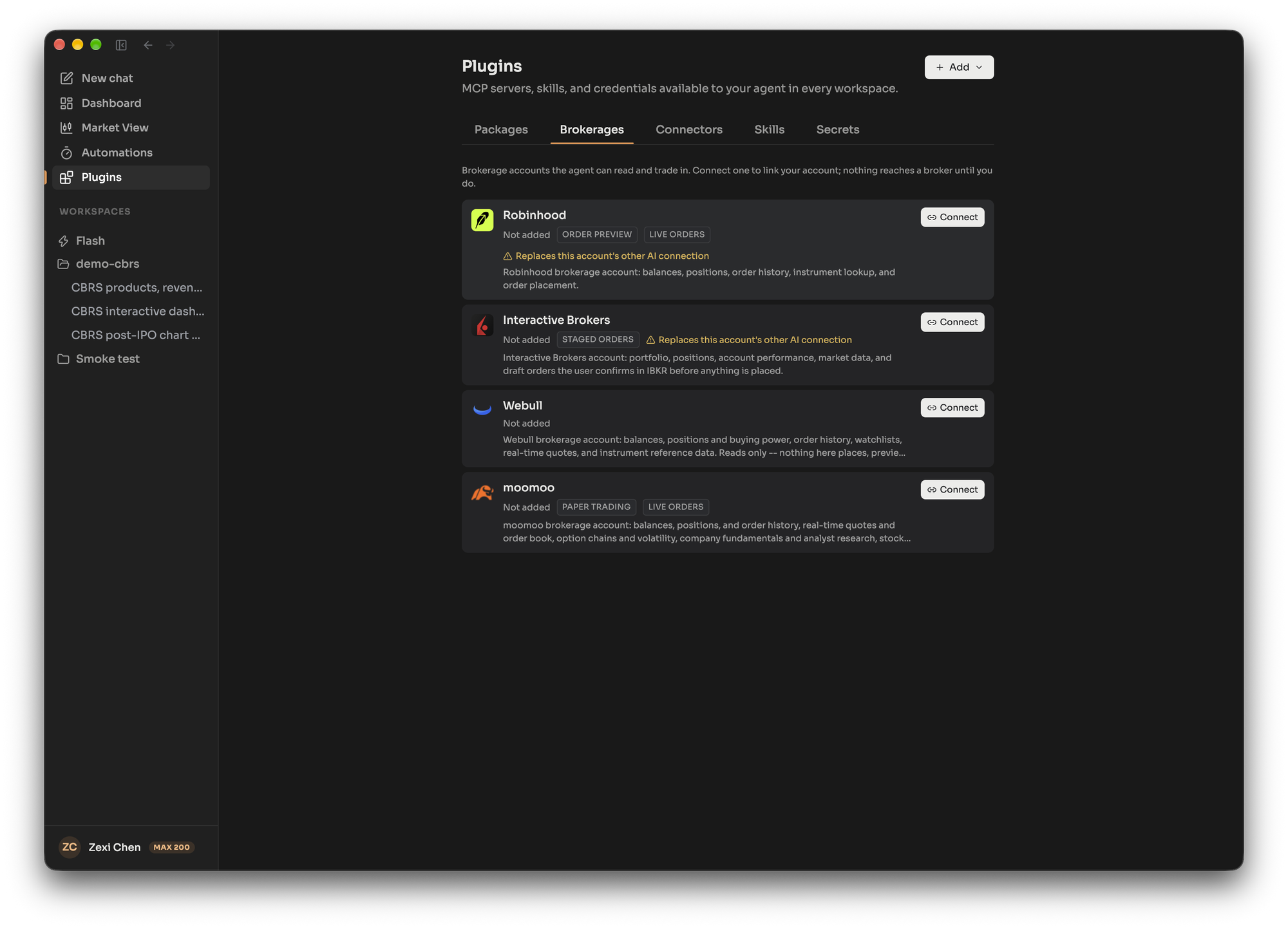
| | Robinhood | Interactive Brokers | moomoo | Webull |
| -------------------------------------------- | --------- | ------------------- | ------ | ------ |
| Account, positions, history | Yes | Yes | Yes | Yes |
| Market data and watchlists | Yes | Yes | Yes | Yes |
| Saved scanners and price alerts | Yes | Yes | No | No |
| Order preview | Yes | Yes | No | No |
| Paper trading | No | No | Yes | No |
| Staged orders, confirmed in the broker’s app | No | Yes | No | Yes |
| Live orders | Yes | Yes | Yes | No |
Markets covered: moomoo covers US, Greater China, Japan and Southeast Asia. Webull covers stocks, options, futures, event contracts and crypto, and every Webull order is a draft that you confirm in the Webull app before anything trades. Interactive Brokers handles live stock and single-leg option orders as well as staged drafts you confirm in the IBKR app.
**Robinhood connects from the desktop app.** Robinhood only accepts sign-ins that return to an app on your own computer, so the connection cannot be finished in a browser. Connecting Robinhood or Interactive Brokers also ends any other AI-platform connection on the same brokerage account, because those brokers allow only one. The card warns you first.
## Capability groups
[Section titled “Capability groups”](#capability-groups)
When you connect, you choose which groups of tools the connection carries. A group left off is refused when the agent asks for it, not just hidden. To change the choice later, reconnect.
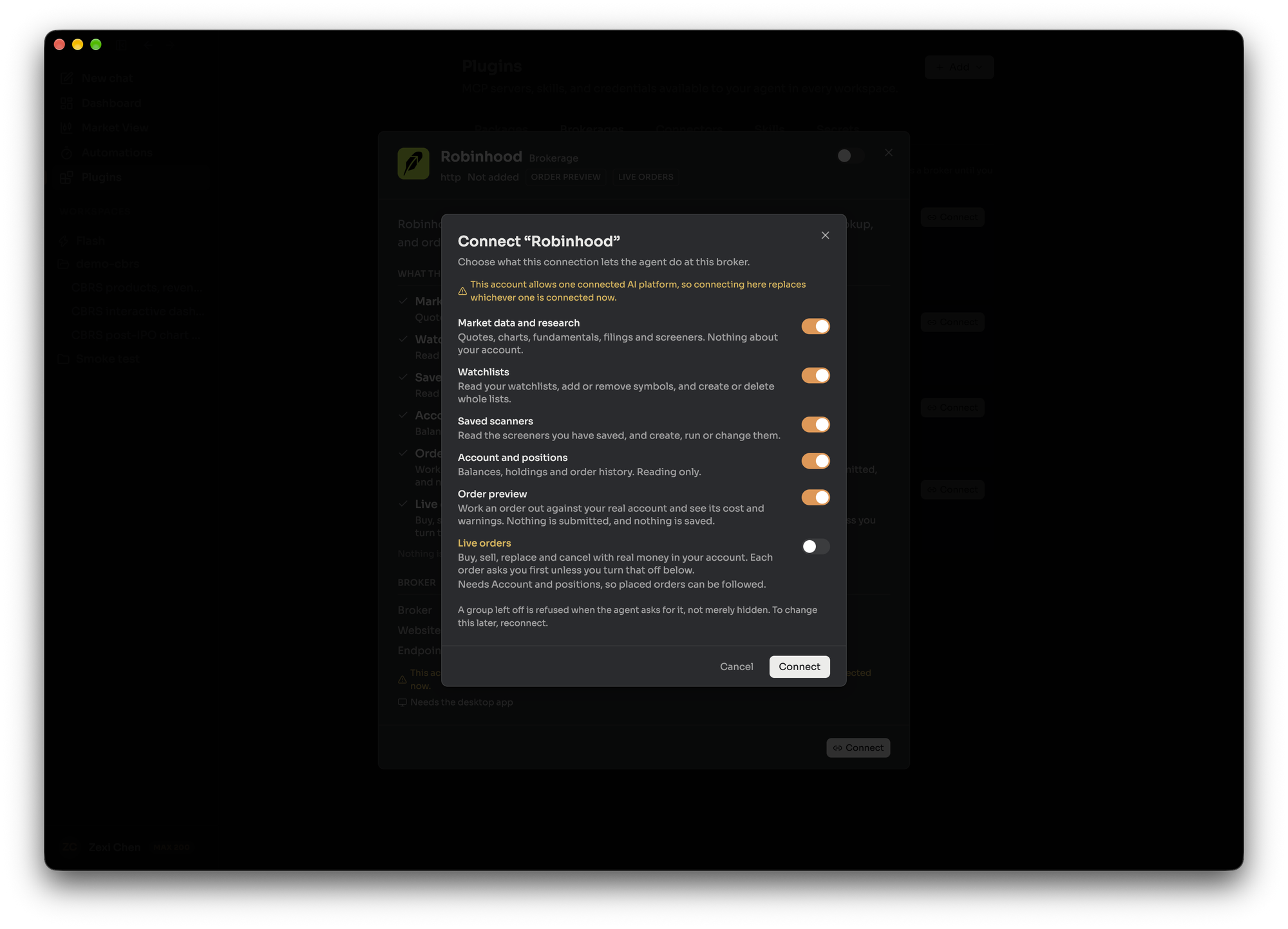
| Group | What it allows |
| ------------------------ | ------------------------------------------------------------------------------------------------------------------------ |
| Market data and research | Quotes, charts, fundamentals, filings and screeners. Nothing about your account |
| Watchlists | Read your watchlists and change them |
| Saved scanners | Read, create, run or change your saved screeners |
| Price alerts | Read, create, change or delete price alerts |
| Saved charts | Read and change saved chart layouts and indicators |
| Account and positions | Balances, holdings and order history, read only |
| Paper trading | Trade the broker’s simulated account, with no real money |
| Order preview | Price an order against your real account. Nothing is submitted or saved |
| Staged orders | Save a draft order into your account that you submit at the broker |
| Live orders | Buy, sell, replace and cancel with real money. Needs Account and positions switched on, so placed orders can be followed |
Not every group exists at every brokerage, as the table above shows. A few tools are held back deliberately and are refused whatever you grant.
## Trading permission
[Section titled “Trading permission”](#trading-permission)
Trading permission is one setting per person, in Settings under Preferences, that applies across your brokerage connections. It decides whether live orders and staged drafts stop for your approval. Paper orders are not affected.
| Level | What it means | Needs an agreement |
| ---------------------------------- | -------------------------------------------------------------------------------------------------------------------------------------------------------------- | ------------------ |
| No trading | The agent does not start trades. If you ask for a specific order, it still waits for your approval | No |
| Approve each order (default) | Every live order and staged instruction waits for your approval before it is sent | No |
| Trade without approval, plan first | The agent agrees a plan with you, then can place orders inside it without waiting on each one. The plan step is guidance to the agent, and nothing enforces it | Yes |
| Full autonomy | The agent trades on its own judgment toward what you asked. It may place orders you are not aware of or have not approved | Yes |
Only you can raise the level. The two levels that skip approval require you to accept a written agreement, which says you are responsible for every order. The agent cannot change the setting, and nothing said in a conversation lifts the approval step. If the agreement is updated, you drop back to Approve each order until you agree again. Each connection also has its own approval switches, which can only add questions, never remove them while your level asks.
## How an order is governed
[Section titled “How an order is governed”](#how-an-order-is-governed)
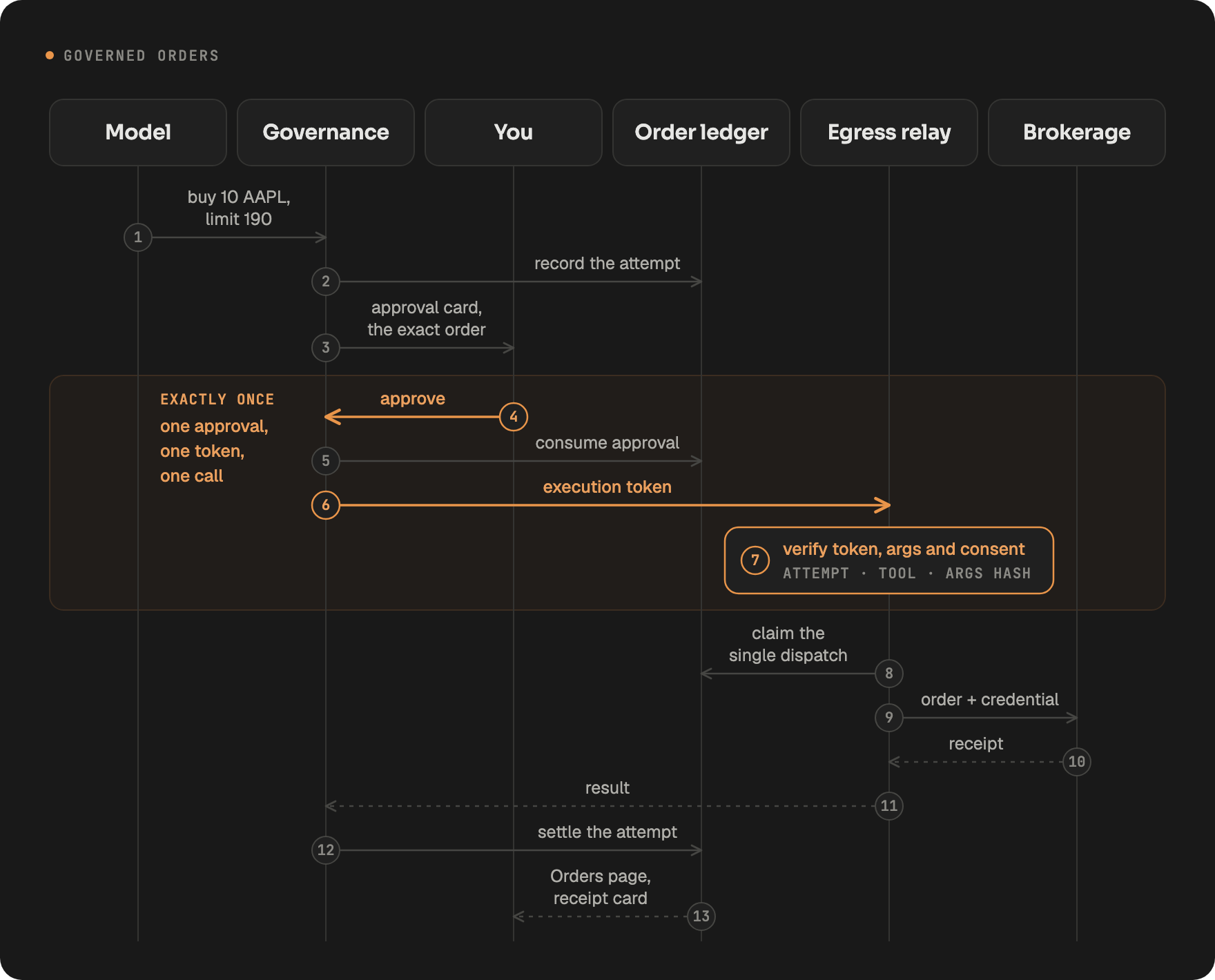
1. **Direct calls only.** Order tools always run as one visible tool call, never inside code the agent writes, so one call is one order that can be shown and stopped.
2. **Recorded first.** Every order call becomes a recorded attempt before anyone is asked. An attempt nobody answered is refused.
3. **Approved once.** When your level asks, the order appears as an approval card with its details. Your answer is written against that attempt.
4. **Executed exactly once.** An approval produces a short-lived token (valid for two minutes) tied to that attempt, that tool and the exact arguments. A changed argument, a replay or a second send is rejected before it reaches the broker.
5. **Credentials stay out of the sandbox.** Brokerage sign-in tokens are attached when the request leaves the server, so code the agent writes cannot see them.
6. **Followed to the end.** The **Orders page** lists every attempt across every conversation, with its time, mode, broker, instrument, side, size, price and status (for example awaiting your approval, open at the broker, filled, cancelled, rejected or failed). A background reconciliation job asks each broker what became of orders that are still open or were never confirmed. It only reads, and it never places, changes or cancels an order.
Hosted and self-hosted
**Hosted:** Governed orders, capability groups and trading permission work as described, with sign-in separate for each user.
**Self-hosted:** The same order path and controls apply. A self-hosted install has no sign-in by default, so anyone who can reach the server acts as you, connected brokerages included: keep it on your machine or a private network. The reconciliation job can be configured in `config.yaml`.
## Related
[Section titled “Related”](#related)
* [Plugins, MCP servers and programmatic tool calling](/concepts/plugins-mcp-ptc/)
* [Automations, wakeups and commands](/concepts/automations-wakeups-commands/)
* [Portfolio review](/explore/portfolio-review/)
* [Price-move automation](/explore/price-move-automation/)
# Chat apps
> On the hosted platform, talk to LangAlpha from Slack, Discord, Telegram, Feishu and iMessage. How messages route, the commands, and how self-hosting differs.
Chat apps let you talk to the LangAlpha agent from Slack, Discord, Telegram, Feishu or iMessage instead of the web app. On the hosted platform you connect an app to your account, message the agent there, receive files it produces, and have automations send their results to a chat. Each conversation in a chat app is an ordinary [thread](/concepts/threads-and-turns/), and its messages show in the web app marked “Via” and the app’s name. A self-hosted install includes no chat apps; automation results go to a webhook instead (see [below](#self-hosted-webhook-and-gateway)).
Hosted and self-hosted
**Hosted:** Settings, Integrations, Chat apps lists each app with Set up or Manage. It opens your account console, where you connect the app. Inside a chat, `/connect` also starts linking your account. iMessage appears in the list once it is linked.
**Self-hosted:** the Integrations section does not exist and no chat app is included. You can send automation results to a webhook, or run your own channel gateway.
## Where your agent works: All workspaces or one workspace
[Section titled “Where your agent works: All workspaces or one workspace”](#where-your-agent-works-all-workspaces-or-one-workspace)
Every conversation in a chat app runs in one place and keeps it as long as it lasts:
* **All workspaces** is the [Chief of Staff](/concepts/chief-of-staff-and-analysts/), answering from Home. It answers quick questions, reads your workspaces, and hands deep work to an Analyst.
* **One workspace** is that workspace’s [Analyst](/concepts/chief-of-staff-and-analysts/).
You choose the place with `/workspace`. In a group, each person has their own choice. A chat you have not set uses your account’s default place, and with no default it runs in All workspaces. Changing a chat’s place never moves a conversation already started; it applies to the next one.
## Which conversation a message reaches
[Section titled “Which conversation a message reaches”](#which-conversation-a-message-reaches)
* A message that is not a reply goes to the chat’s current conversation, or starts a new one (the table shows when).
* A reply goes to the conversation of the message it answers, not the chat’s current one. In Slack, Discord and Feishu a reply is a message in a thread or topic. In Telegram it is a message in a topic or, in a chat without topics, a reply to one message. In iMessage it is an inline reply.
* A message that starts with `/new` starts a new conversation and runs the rest of the message there, on every app.
* While an answer is running, a message you send in that conversation joins the answer. On Slack, Discord, Telegram and Feishu it steers the running turn (see [Threads and turns](/concepts/threads-and-turns/#sending-a-message-while-the-agent-works)). A `/new` with text, or the first message after a bare `/new`, waits and runs as a new conversation when the answer ends.
* When the Chief of Staff hands a task to an Analyst, the result comes back in the thread, topic or chat the request came from.
* Someone who has not connected their account gets a prompt to connect it, not an answer.
One chat can show answers from more than one conversation, because each person in a group has their own and the agent’s own sends and automation results sit in the chat too. In iMessage and in Telegram chats without topics they sit among the chat’s messages, so reply to the message you mean.
| | Slack | Discord | Telegram | Feishu | iMessage |
| --------------------- | ----------------------------------------------------------------------------------------- | ------------------------------------------------------------------------------------- | -------------------------------------------------------------------- | ----------------------------------------- | --------------------------------------------------------------- |
| Answers | DM: every message. Channel: mention the app to start; no mention needed inside its thread | Server: mention the app; the answer opens a thread. DM: one conversation until `/new` | Private chat: every message. Group: mention, reply, or use a command | DM: every message. Group: mention the app | Every message |
| New conversation | A message at the top of a DM or channel | Each mention in a channel; in a DM after `/new` | After 4 hours without topics; a new topic with topics | A message at the top starts a topic | Only after `/new` or a change of place |
| Stop a running answer | No command | No command | `/stop` | No command | `stop` turns off unprompted updates; it does not stop an answer |
In a Slack or Discord thread, only the person who started it can continue it; anyone else gets a lock and no answer.
## Commands
[Section titled “Commands”](#commands)
| Command | What it does |
| ------------ | ------------------------------------------------------------------------------------------------------------------------------------------------ |
| `/new` | Starts a new conversation. With text, it runs the text there at once. Alone, your next message within 24 hours starts one. |
| `/workspace` | Chooses where the agent works: All workspaces or a named workspace. On iMessage it shows a numbered list; `back` returns to your previous place. |
| `/model` | Chooses the model (Discord, Telegram and Feishu). |
| `/connect` | Connects your LangAlpha account to the app, where the app offers it (Discord, Telegram private chats and Feishu). |
| `/help` | Lists the commands. |
| `/stop` | Telegram only: stops your running answer. |
## The agent messaging you
[Section titled “The agent messaging you”](#the-agent-messaging-you)
The agent can send you a message, with up to 10 files attached and up to 20,000 characters of text, when you ask for something to be sent to you or to a chat. It reaches the conversation it is in, your direct messages, and the shared chats you allowed. The Chief of Staff can attach files from Home or from any workspace. In the web app each send shows as a delivery card with its status: sent, partly sent or failed. On iMessage, `stop` turns off everything the agent would send unasked, including automation and hand-off results, until you send `start`, and unprompted sends are limited to 20 a day.
## Automation delivery
[Section titled “Automation delivery”](#automation-delivery)
An [automation](/concepts/automations-wakeups-commands/) can deliver to a chat app. Set it under More options when you create or edit the automation, or ask the agent. You can name an app, which lands in the workspace’s default chat, then the app’s preferred chat, then your direct messages, or name one chat. Each run sends its result itself. A chat the agent missed gets the final answer, and a failed or stopped run posts a short notice. A reply in that thread continues the run’s conversation.
## Self-hosted: webhook and gateway
[Section titled “Self-hosted: webhook and gateway”](#self-hosted-webhook-and-gateway)
A self-hosted install has no chat apps, but two settings in `.env` cover the same ground.
**Automation webhook.** Set `AUTOMATION_WEBHOOK_URL`, and each automation run that picks a delivery method POSTs JSON there, one request per method, for three events: `automation.started`, `automation.completed` and `automation.failed`. The body holds the event, a timestamp, the automation’s id and name, the execution, thread, run and workspace ids, your user id, a title and, on failure, an error and a failure reason, plus `config.channel` naming the method. Without a gateway, a delivery method is an app name such as `slack`; naming one chat needs a gateway. If you also set `AUTOMATION_WEBHOOK_SECRET`, each request carries an `X-Webhook-Signature` header with `sha256=` followed by the HMAC-SHA256 of the raw request body under that secret. Check it before trusting a request.
**Your own gateway.** Set `CHANNEL_GATEWAY_URL` to the base URL of a channel gateway (with `INTERNAL_SERVICE_TOKEN` set) and the agent gets two tools: one to message you and one to list where it can message. Automations then deliver through the gateway, and the webhook is the fallback for a run the gateway does not take. This repository does not ship a gateway: you point the setting at one you run. Unset, the agent has neither tool.
## Related
[Section titled “Related”](#related)
* [Automations, wakeups and background commands](/concepts/automations-wakeups-commands/)
* [Chief of Staff and Analysts](/concepts/chief-of-staff-and-analysts/)
* [Deliver to Slack](/explore/deliver-to-slack/)
* [Hosted or self-hosted?](/get-started/hosted-or-self-hosted/)
# Chief of Staff and Analysts
> LangAlpha runs one agent in two roles. The Analyst works inside a workspace. The Chief of Staff works from Home across workspaces and hands off deep work.
LangAlpha has one agent that runs in one of two **roles** on each turn. The **Analyst** is the agent inside a workspace: it does the research and builds the deliverables, and they stay in that workspace. The **Chief of Staff** is the same agent working for you across all workspaces: it answers quick questions, reads what your workspaces already hold, and hands new hands-on work to the right workspace’s Analyst. Which role answers is decided by where you start the thread: in a workspace you get its Analyst, and in the Chief of Staff you get the Chief of Staff.
## The Analyst
[Section titled “The Analyst”](#the-analyst)
An Analyst works inside one [workspace](/concepts/workspaces/). Every thread in that workspace shares the same files, data and past work, so research builds on itself. The Analyst has the full toolset: running code, financial data tools, charts, filesystem tools and subagents, including the built-in `equity-analyst` subagent for company analysis. What it produces (Excel models, Word documents, PDFs, dashboards, code) is saved in the workspace’s folder, where you look for it.
## The Chief of Staff
[Section titled “The Chief of Staff”](#the-chief-of-staff)
The Chief of Staff works in **Home**, its own folder on your primary [computer](/concepts/computers/), beside your workspace folders. Whatever it produces itself, such as a comparison across workspaces, a digest or a quick chart, is kept in Home. Its threads are listed under Chief of Staff in the web app, and chat apps call it “All workspaces”.
It does four kinds of work:
1. **Answers directly.** Quick facts, prices, news and a quick read on a stock, in a few sentences and without writing code or files.
2. **Answers from work that already exists.** It can read every workspace’s folder and notes, read what the Analysts wrote in past threads, and search the transcripts of earlier conversations on your computers (see [Threads and turns](/concepts/threads-and-turns/#searching-past-threads)). Ask “what did my NVDA analysis conclude?” and it looks, links the report and summarizes the findings.
3. **Manages workspaces and threads.** It can list your workspaces, create one for new work or delete one, and list, stop or delete threads. Creating a workspace and deleting a workspace or thread wait for your confirmation, and in Settings, under approvals, you can let it create workspaces without asking.
4. **Hands work to an Analyst.** For new research, a model, a report or code that a workspace should keep, it sends the task to that workspace’s Analyst, creating the workspace first when none covers the topic.
It does not get the `equity-analyst` subagent, because new analysis belongs to a workspace’s Analyst, which keeps the work and its history. If you ask for something to be done in Home and not handed off, it will do it there.
## How a hand-off works
[Section titled “How a hand-off works”](#how-a-hand-off-works)
When the Chief of Staff hands off a task, it picks the workspace (or continues an existing Analyst thread), writes the task for the Analyst, and starts it in the background. The task is written to stand alone, because the Analyst does not see your conversation with the Chief of Staff. In the web app each hand-off shows as a card you can follow or stop. Handing off can ask for your approval first. Settings, under approvals, has “Hand off work without asking” to skip the card.
The Chief of Staff’s turn then ends: it tells you who is on it and does not wait. When the Analyst finishes, is stopped or fails, the Chief of Staff gets a message, reads what the Analyst wrote and tells you how it went. The Chief of Staff leaves the report-back off when you ask for none, for example because you plan to follow the work in that workspace yourself, and the result then waits in the workspace.
If you add to the task while the Analyst is still working, the Chief of Staff sends your addition to the same thread. The Analyst takes it in before its next step, as it would a message you typed in that thread (see [Threads and turns](/concepts/threads-and-turns/#sending-a-message-while-the-agent-works)).
## What the Chief of Staff starts with
[Section titled “What the Chief of Staff starts with”](#what-the-chief-of-staff-starts-with)
At the start of a thread the Chief of Staff is given an overview of what you have been doing, so “my analysis” or “that report” usually needs no explanation:
* your five most recently used workspaces and your five most recent threads,
* today’s automation runs (up to ten), with failures first,
* up to twenty of your portfolio holdings, and
* your computers and which workspaces sit on which.
It uses this to open with a short catch-up when you greet it, and to mention anything you have not yet heard: a failed run, a hand-off that finished or one waiting on an answer. For anything beyond the latest few, it lists workspaces and threads on demand.
## Several computers
[Section titled “Several computers”](#several-computers)
If you have more than one computer, the Chief of Staff can work on the others too. Its Bash, code and file tools accept a computer name, so it can read a workspace folder that lives on your Mac or on a second cloud computer. The data tools it uses in code run only on the computer that holds Home, so for work elsewhere it fetches the data there first and saves the result onto the other computer. See [Computers](/concepts/computers/).
## Where each role runs
[Section titled “Where each role runs”](#where-each-role-runs)
| | Analyst | Chief of Staff |
| ------------------------------------ | ------------------------------ | ----------------------------------------------------- |
| Works in | One workspace folder | Home |
| Started from | A workspace’s thread | The Chief of Staff, or “All workspaces” in a chat app |
| Keeps its output | In that workspace | In Home |
| Built-in subagents | All five by default | All except `equity-analyst` |
| Hands tasks to a workspace’s Analyst | No | Yes |
| Reads other workspaces | Works inside its own workspace | Yes, on any of your computers |
Not sure which to ask? See [Chief of Staff or Analyst?](/compare/chief-of-staff-or-analyst/).
## Related
[Section titled “Related”](#related)
* [Chief of Staff or Analyst?](/compare/chief-of-staff-or-analyst/)
* [Workspaces](/concepts/workspaces/)
* [Threads and turns](/concepts/threads-and-turns/)
* [Chat apps](/concepts/chat-apps/)
* [When to delegate](/best-practices/when-to-delegate/)
# Computers
> A computer is the machine your LangAlpha workspaces run on. How the primary computer, sizes, the shared disk, idle stop, always-on and moving workspaces work.
A **computer** is the machine your workspaces run on. Each workspace is a folder on a computer, and the agent runs its code, installs packages and keeps its files there. A computer can be a cloud sandbox, a Docker container on the LangAlpha server, or a Linux server or Mac that you bring yourself. Everything on one computer starts, stops and fills the same disk together.
You rarely manage one directly. Your first workspace creates your first computer, and every workspace after that lands on it unless you pick another. Open the Computers dialog when you want to see the state of a machine, change its size, stop it, or add another one.
## What a computer holds
[Section titled “What a computer holds”](#what-a-computer-holds)
* **Workspaces.** Each workspace is a folder named after it. All of them share the computer’s disk, its installed packages and its operating system user. See [Workspaces](/concepts/workspaces/) for the folder layout.
* **Home.** The folder the [Chief of Staff](/concepts/chief-of-staff-and-analysts/) works in. It sits beside your workspace folders on your primary computer.
* **Running work.** Turns, background commands and the programs the agent starts all run on the computer their workspace belongs to.
Different providers build the machine differently. [Sandboxes and SSH computers](/concepts/sandboxes-and-ssh/) explains what each one means, and [Which computer should I use?](/compare/which-computer/) helps you choose.
## The primary computer
[Section titled “The primary computer”](#the-primary-computer)
The primary computer is where new workspaces are created and where Home lives. Your first computer is primary. You can pick a different computer for a single new workspace, or use Make primary on a computer to change the default. Making a computer primary moves Home’s files to it, which takes a moment.
Two rules follow from Home living on the primary:
* A computer you brought over SSH can never be primary. The server can rebuild a cloud computer from its backup, but it cannot rebuild your own machine if the folder is wiped or the machine is gone, and Home would go with it.
* The primary computer cannot be removed. Any other computer can be removed, and the dialog lists every workspace on it first, because removing the computer deletes those workspaces and their threads.
## Sizes
[Section titled “Sizes”](#sizes)
A computer’s size is set when you create it and can be changed later. The dialog shows the names in the first column; the second column is what a self-hosted `agent_config.yaml` calls them.
| Size | Setting name | vCPU | Memory | Disk | Where it exists |
| ----------- | ------------- | ---- | ------ | ----- | -------------------- |
| Small | `standard` | 1 | 2 GB | 5 GB | Daytona, E2B, Docker |
| Medium | `performance` | 2 | 4 GB | 10 GB | Daytona, E2B, Docker |
| Large | `max` | 2 | 8 GB | 10 GB | Daytona, E2B, Docker |
| Extra Large | `xlarge` | 4 | 8 GB | 20 GB | E2B only |
Daytona’s largest sandbox is smaller than Extra Large, so only E2B offers it. On Docker the numbers are a floor set by the operator (2 CPUs and 4 GB of memory by default), so a size can raise a container but never shrinks it, and a disk size applies only when the Docker storage driver supports per-container quotas. A computer on your own SSH machine has no size: it uses the machine as it is.
### Changing the size
[Section titled “Changing the size”](#changing-the-size)
Choose Change on the computer card and pick another size. LangAlpha backs up every workspace on the computer, recreates the machine at the new size, and restores the files. Installed packages, caches and running programs are not kept, so the agent reinstalls what it needs. The workspaces are unavailable for a few minutes, and you can close the dialog while it runs.
The change is refused in three cases:
* An agent is working on the computer. Wait for the running turn to finish and try again.
* A size change is already running on that computer.
* Some files could not be backed up first. Nothing changes, and the dialog names the files so you can move or delete them.
If the computer is stopped, the new size applies the next time it starts.
## One disk for every workspace
[Section titled “One disk for every workspace”](#one-disk-for-every-workspace)
All workspaces on a computer share one disk, sized by the computer’s size. The storage view shows how full it is, splits the use by workspace, and adds a line for system files, caches and shared files. It can only measure a running computer, so for a stopped one you see the last reading.
LangAlpha reacts to free space on the whole disk:
| Free space | What happens |
| ------------ | ------------------------------------------------------------------------------------------------------------------------------------------------------------------------- |
| Under 250 MB | The storage bar changes color. |
| Under 100 MB | A banner warns that the computer is running low on disk space. |
| Under 50 MB | The banner turns critical and the agent is told, so it avoids installs and downloads. Saving files and running code can start to fail in every workspace on the computer. |
The warning comes late, so check free space before you ask the agent to download large data. If one workspace fills the disk, every other workspace on that computer feels it. Delete files, or [change to a size with more disk](#changing-the-size).
## Starting and stopping
[Section titled “Starting and stopping”](#starting-and-stopping)
Start and Stop apply to the whole computer and therefore to every workspace on it. The dialog shows the workspace count and warns before you stop one. A stopped computer starts again when you open a workspace on it and send a message, or when you press Start.
While a computer is stopped you can still browse and download the files that were backed up. Writing, uploading and running code need it running. [Files and what persists](/concepts/files/) lists what is kept across each kind of stop.
From the CLI
`langalpha computers start ` and `langalpha computers stop ` do the same from a terminal, and `langalpha computers list` shows each computer’s status. See [Computer commands](/cli/computers/).
### Idle stop
[Section titled “Idle stop”](#idle-stop)
A running computer stops by itself after about 50 minutes without activity. Activity on any workspace counts, and a computer with a running turn is never stopped. The 50 minutes is the provider’s 60 minute auto-stop minus a 10 minute margin, so the server stops the computer cleanly before the provider does.
### Always-on
[Section titled “Always-on”](#always-on)
Always-on keeps a computer from stopping when it is idle. Turn it on from the computer’s controls when you want automations, wakeups or long jobs to find the machine running. It is not offered on E2B, because E2B limits how long one sandbox can run continuously. On your own SSH machine it keeps the computer’s processes from being stopped on idle; the machine itself is yours.
Hosted and self-hosted
**Hosted:** Your plan can limit how many computers you can create, which sizes and providers you can pick, and whether you can use always-on.
**Self-hosted:** There are no plan limits. The idle window follows each provider’s `auto_stop_interval` in `agent_config.yaml` (3600 seconds by default). Which providers appear in the new computer dialog is set by `sandbox.provider` and `sandbox.offered_providers`.
## Archive
[Section titled “Archive”](#archive)
On Daytona, a computer that has been stopped for 7 days is archived, which moves its disk to cold storage. It keeps the whole disk but takes longer to start. After 90 days dormant the sandbox is deleted, and the next start builds a new machine and restores the workspace folders from their backup. Those intervals are `auto_archive_interval` and `auto_delete_interval` in `agent_config.yaml`.
You can also press Archive on a stopped computer in its overview. E2B pauses a sandbox instead, and resuming takes about a second. Docker does not archive.
## Moving a workspace to another computer
[Section titled “Moving a workspace to another computer”](#moving-a-workspace-to-another-computer)
Use Move to computer in a workspace’s menu to put it on another of your computers. Its files, threads and settings go with it. Installed dependencies, caches and version control history are not copied. They stay on the old computer and are removed after 7 days, except on a machine you brought yourself, where they are set aside in a leftovers folder and kept.
A move is refused while the workspace has work running, or while a command is still running on its computer, and only one move runs at a time. You can close the dialog and let it finish, and you can cancel it until it is far along. If the old computer cannot be reached, you can restore the workspace on the new computer from its last backup instead, which leaves out anything changed since then.
## Related
[Section titled “Related”](#related)
* [Sandboxes and SSH computers](/concepts/sandboxes-and-ssh/)
* [Workspaces](/concepts/workspaces/)
* [Files and what persists](/concepts/files/)
* [Which computer should I use?](/compare/which-computer/)
# Files and what persists
> How LangAlpha backs up workspace files after every turn, what a stop, archive or rebuild keeps, and how uploads, downloads and server-held files work.
Your workspace files live on a [computer](/concepts/computers/), but LangAlpha also keeps a **backup copy** of them on the server. The backup is why files survive a computer being stopped, archived, resized or rebuilt, and why you can browse them while the computer is off. Installed packages and running programs live only on the computer and do not come back after a rebuild.
## How workspace files are backed up
[Section titled “How workspace files are backed up”](#how-workspace-files-are-backed-up)
LangAlpha backs up a workspace folder after every completed turn, again when a computer stops (on a best-effort basis), and before it deletes or resizes a computer. Only files that changed since the last backup are sent. A file written after a turn ends waits for the next completed turn. The file browser also has a backup button, and it reports how many files were saved and which were not, with the reason.
The backup leaves out things that can be recreated or that would be huge:
* **Dependency and cache folders**, at any depth: `node_modules`, `.venv`, `venv`, `vendor`, `.next`, `.nuxt`, `.cache`, `.pytest_cache`, `.mypy_cache`, `.ruff_cache`, `.npm`, `.local`, `.config`, `.ipython` and `__pycache__`.
* **`.git`.** A cloned repository comes back as a plain working tree, without its history. Run `git clone` again if you need the history.
* **Compiled files**: `.pyc`, `.pyo`, `.so`, `.dylib` and `.o`, plus `.DS_Store` and `Thumbs.db`.
* **Agent working data** under `.agents/`: per-thread script copies and the generated tool wrappers, which are rebuilt on their own.
* **Files that are too large.** The limit depends on how the deployment stores files.
| How the deployment stores files | Per-file limit |
| ------------------------------------------------------------- | ------------------------------ |
| No object storage configured (files are kept in the database) | 100 MB |
| Object storage, with file bytes passing through the server | 256 MB |
| Object storage, with computers uploading directly | No fixed limit beyond the disk |
A file that is not saved shows a reason in the file browser: too large, path too long, unreadable, or changed while saving. Move or split a large file, keep one copy of heavy raw data outside the workspace, and rely on a `requirements.txt` or a setup script instead of an environment folder.
Hosted and self-hosted
**Hosted:** Files are backed up to the service’s storage, and the per-file limit follows how the service stores files. The file browser tells you which files were not saved.
**Self-hosted:** Without `storage.provider` (or `STORAGE_PROVIDER`) set, file bytes stay in Postgres and the limit is 100 MB per file. With an S3-compatible store, `storage.blob_transfer` chooses direct or relayed transfer, which sets the limit above.
Backup can only be turned off on a computer you brought over SSH. It is always on for cloud and Docker computers, because the server relies on it to rebuild them.
## What survives each event
[Section titled “What survives each event”](#what-survives-each-event)
| Event | Workspace files | Installed packages and `/tmp` | Running programs |
| ----------------------------- | ------------------------ | ----------------------------- | ---------------- |
| Stop, then start | Kept | Kept | Ended |
| Archive, then start (Daytona) | Kept | Kept | Ended |
| Rebuild | Restored from the backup | Lost, so reinstall | Ended |
Memory, profile, automations, workflows, memos and transcripts are held by the server, so every row above keeps them (see below).
A **rebuild** happens when the sandbox is gone: a size change, a Daytona sandbox deleted after 90 dormant days, a Daytona host that stayed unavailable for an hour, or a lost container. After a rebuild the workspace you open is restored before your turn starts; large tool results and scratch notes follow during the turn. Another workspace is restored when it is opened. Until a restore finishes, the file browser says some files may be missing.
On E2B, a stop pauses the sandbox, so programs other than the agent’s background commands can still be there after it resumes.
An [SSH computer](/concepts/sandboxes-and-ssh/) is never rebuilt. Your files stay on your machine, and if a workspace folder goes missing you are offered a restore from the backup.
## Files while a computer is stopped
[Section titled “Files while a computer is stopped”](#files-while-a-computer-is-stopped)
A stopped computer still serves your files. The file browser and downloads read the backup copy, read-only. Writing a file, uploading and running code need the computer running, so start it first. If a file was created after the last backup, the browser reports that it was not found in the backup and suggests starting the computer.
## Files the server holds for you
[Section titled “Files the server holds for you”](#files-the-server-holds-for-you)
Some of your data is not stored in any one computer. The server holds it and shows it on every computer as ordinary files through a file mount, so it carries across computers and rebuilds:
| What | Where the agent sees it | Who can change it |
| ------------------------------------------- | ------------------------------------------------------------------------------ | ---------------------------------------------- |
| Memory | `.agents/memory/` (this workspace) and `.agents/user/memory/` (all workspaces) | The agent and you |
| Profile (portfolio, watchlist, preferences) | `.agents/user/profile/` | The agent and you; the server checks each save |
| Automations | `.agents/user/automations/`, one file per automation | The agent and you; the server checks each save |
| Workflows | `.agents/workflows/` | The agent |
| Memos | `.agents/user/memo/` | You upload them; the agent can only read |
| Transcripts of past threads | `.agents/transcripts/` | Read-only |
A save that the server refuses, such as invalid JSON, does not fail the command quietly: the tool result lists it as not saved. These files are never part of the workspace backup, since the server already has the only copy. See [Memory, memos and the scratchpad](/concepts/memory-memos-scratchpad/) for what each store is for.
On an SSH computer there is no file mount. The file tools still reach these files, but shell commands and code are refused when they name one.
## Uploads and downloads
[Section titled “Uploads and downloads”](#uploads-and-downloads)
* **Upload** from the file browser into a running workspace. A file must fit the backup limit above, and the server accepts at most 256 MB per upload unless the operator turns on direct browser uploads, which raise the limit to 2 GB. When you create a workspace, files you add go up right after it is ready, 50 MB each at most.
* **Download** any file from the file browser, including while the computer is stopped. Markdown and HTML files can also be saved as PDF, and `docx`, `pptx` and `parquet` files download without a preview.
* To let someone else see a file or thread, use a share link. See [Sharing](/concepts/sharing/).
## Related
[Section titled “Related”](#related)
* [Computers](/concepts/computers/)
* [Workspaces](/concepts/workspaces/)
* [Memory, memos and the scratchpad](/concepts/memory-memos-scratchpad/)
* [Sharing](/concepts/sharing/)
# Memory, memos and scratchpad
> How LangAlpha remembers you (agent-written memory), grounds answers in your documents (memos) and keeps per-thread working files (scratchpad).
LangAlpha gives the agent three different places to keep information: **memory** is what the agent writes down about you and your work so future threads start informed, **memos** are documents you upload for the agent to read and cite, and the **scratchpad** is a throwaway folder and set of task notes that belong to one thread. They differ in who writes them, how far they reach and how long they last. If you only need the short comparison, see [Memory, memo or scratchpad?](/compare/memory-memo-or-scratchpad/).
## Memory
[Section titled “Memory”](#memory)
Memory is long-term context that the agent writes itself: how you like reports written, your risk limits, the conventions you work by, what a workspace is trying to prove. It survives across threads and is kept apart from workspace files, so it also survives resetting a workspace. You can say “remember this” to add to it.
Memory has two tiers:
| Tier | Reach | Typical content |
| --------- | ------------------------------------------------------------------- | -------------------------------------------------------------- |
| User | Every workspace and thread you have | Investor profile, durable style preferences, long-term context |
| Workspace | One workspace, shared by its threads, invisible to other workspaces | The thesis, watchlist and research plan for that workspace |
[Home](/concepts/chief-of-staff-and-analysts/), the Chief of Staff’s folder, has its own workspace-tier memory, shared across the Chief of Staff’s threads and not visible to the Analysts. It holds how you want the Chief of Staff to work: how to catch you up, what to report and what to leave out. User-tier memory applies to every agent, Analysts included.
### How memory is loaded
[Section titled “How memory is loaded”](#how-memory-is-loaded)
Each tier has an index file called `memory.md`. It is a list of one-line pointers, and each pointer leads to a detail file that holds the substance (one topic per file, labelled by what it holds: who you are, how you want work done, what a workspace is doing, or where to look). The index is loaded into the agent’s context every turn, so it stays short: it is cut at 32,768 characters, about 200 lines, and the agent is warned as it fills. The agent reads a detail file only when it looks relevant, for example when you refer to earlier work.
### Reading and correcting memory
[Section titled “Reading and correcting memory”](#reading-and-correcting-memory)
You can read both tiers in the chat’s file panel, on the Memory tab, which has a User list and a Workspace list. The panel is read-only. To change something, tell the agent. The agent is instructed to update an entry instead of duplicating it, to remove entries that turn out wrong, and to trust what it observes over a stale memory. It is also told not to save market data, one-off computed results, headlines or sell-side price targets, because they go stale.
## Memos
[Section titled “Memos”](#memos)
A memo is a document you upload so the agent can ground its work in your own research: past theses, notes, models, reports. Memos belong to you, not to a workspace, so every workspace and thread can read them. They are read-only to the agent: it can read, search and cite them, but it cannot write or edit them.
* **Formats:** Markdown (`.md`), text (`.txt`), CSV, JSON and PDF. Text files must be UTF-8.
* **Limits:** 5 MB per upload, and 1 MB of extracted text. A PDF can have up to 500 pages. A PDF needs at least 50 characters of readable text, so a scanned PDF with no text layer is refused.
* **Description and summary:** after you upload, LangAlpha generates a short description and a summary in the background using your background model. Until it finishes the memo shows “Summary generating”. The agent reads a catalog of every memo’s filename and one-sentence description first, then opens the ones that matter.
* **Ways to add one:** upload in the Memos panel, or add an existing workspace file to your memos from the file panel (“Add to memo”). If the workspace file changes later, the file panel offers “Sync with memo”.
* **Editing:** you can edit a memo’s text and delete memos in the Memos panel.
## Scratchpad
[Section titled “Scratchpad”](#scratchpad)
The scratchpad is a folder that belongs to a single thread. The agent puts temporary files there, such as a script written only to get a result, an exploratory check, a draft or a log, so they stay out of the files you will see and out of `/tmp`, which is not backed up. It also keeps a **task note** per task in the same folder: the request in one line, then what you decided, why it chose an approach or dropped one, findings with their source, work it handed off, and what remains. When a long thread is summarized to free up context, the summary points the agent back to these notes, so details are not lost in paraphrase. The agent is asked to write its notes before a summary happens and again after a run of tool calls with no note written.
The scratchpad is a feature you control. In Settings it is called “Scratchpad and working notes” and it is on unless you turn it off. The tradeoff the settings page states: the agent spends a few extra tool calls per task keeping notes. When you archive a thread, its scratchpad and notes are removed (deleted threads lose theirs too), so anything you want to keep belongs in the workspace’s own files, in memory or in a memo.
## Your profile
[Section titled “Your profile”](#your-profile)
Separate from memory, your profile is data you manage in the app that the agent can read as files: your portfolio holdings (quantity and cost basis), your watchlists, your preferences (risk tolerance, investment style, agent settings) and your account details such as name, timezone and locale. The agent checks the portfolio, watchlist and preference files when a question involves your positions, tracked stocks or style, and can edit them; the server validates every edit. Preferences you write are followed as instructions.
Hosted and self-hosted
**Hosted:** Memory, memos, the scratchpad and your profile work as described, and the scratchpad is on by default.
**Self-hosted:** The same behavior. An operator can turn the scratchpad off for everyone, or change whether it is on by default, in the `features:` section of `config.yaml`. PDF memos keep their original file in object storage when you have configured it.
## Related
[Section titled “Related”](#related)
* [Memory, memo or scratchpad?](/compare/memory-memo-or-scratchpad/)
* [Files](/concepts/files/)
* [Threads and turns](/concepts/threads-and-turns/)
* [Workspaces](/concepts/workspaces/)
# Models and your own keys
> How to connect a model to LangAlpha with a Claude or ChatGPT sign-in, a coding plan, an API key or a local server, and tune reasoning and compaction.
LangAlpha works with the model you already have. You connect one or more model sources to your account (a subscription sign-in, a coding plan, an API key, or on a self-hosted install a local model server), then choose which models run your conversations and your background work. Your keys are stored encrypted, and you can add, test and remove them at any time in Settings under Model access.
## Ways to connect a model
[Section titled “Ways to connect a model”](#ways-to-connect-a-model)
| Way | What you do | Examples |
| -------------------- | ----------------------------------------------------------------------------------------------- | -------------------------------------------------------------------------------------------------------------------------------------------- |
| Subscription sign-in | Sign in with an account you already pay for | ChatGPT (Plus, Pro, Business, Enterprise), Claude, Grok |
| Coding plan | Add the plan’s key | Kimi Code, GLM Coding Plan, MiniMax Coding Plan, OpenCode Go |
| API key | Paste a key from the provider and test it | OpenAI, Anthropic, Gemini, SpaceXSI (Grok), DashScope (Qwen), Moonshot (Kimi), Zhipu AI (GLM), MiniMax, DeepSeek, OpenRouter, Groq, Cerebras |
| Your own endpoint | Add a base URL and key for an OpenAI, Anthropic or Gemini compatible API, then define the model | Any compatible service |
| Local server | Point LangAlpha at a model server you run (self-hosted only) | Ollama, LM Studio, vLLM |
A subscription sign-in uses a short code or a pasted code and counts against your own plan with the provider. The sign-in is stored encrypted and used only for your requests, and you can disconnect it at any time. If it stops working the row shows “Needs sign-in” and a Reconnect button. Some providers have separate China and international accounts, so pick the one your key was issued for.
The first-run setup asks “How would you like to connect?” with three answers: use a subscription, “I have an API key”, or “I run models locally”. You can add more providers later.
## Where keys live
[Section titled “Where keys live”](#where-keys-live)
API keys are encrypted at rest in the database. Settings only ever shows a masked key, and removing a key also removes its models from your lists, defaults and fallbacks.
## Choosing models
[Section titled “Choosing models”](#choosing-models)
Under Settings, Model, you pick:
* **Default model:** runs every conversation, both your Chief of Staff and each workspace’s Analyst.
* **Background model:** runs work around a conversation, such as thread titles, reading web pages and summarizing memos. A faster, cheaper model is usually enough.
* **Compaction model:** summarizes long conversations when their context fills. By default it follows the conversation’s model.
* **Web fetch model:** extracts content from web pages.
* **Fallback models:** tried in order when your default or background model is unavailable. With none selected, no fallback is used.
If a model call fails, LangAlpha retries it up to 3 times with backoff before moving to the next fallback. A call that cannot succeed (a bad request or an auth error) goes straight to the next fallback. If the conversation is too long for a model, only a fallback with a larger context window is tried, and otherwise the conversation is compacted.
From the CLI
`langalpha models list` lists the models you can pick and who each one bills to, and `-m` on `threads new` or `threads send` runs one turn on another model. See [Model commands](/cli/models/).
### Tuning per account or per model
[Section titled “Tuning per account or per model”](#tuning-per-account-or-per-model)
Advanced model settings apply to your whole account and can be overridden for a single model in the Per-model settings table:
| Setting | What it does |
| ------------------- | ------------------------------------------------------------------------------------------------------------------------------------------------------------------------------------------------------------------ |
| Reasoning effort | How hard a model thinks before answering. The scale runs none, minimal, low, medium, high, xhigh, max, but each model offers only some of those steps. A thread can [set its own](#effort-and-speed-in-one-thread) |
| Prompt guidance | “Thorough” gives the agent full coaching; “Concise” trims the coaching and keeps the facts. Left alone, each model gets the level suited to it |
| Compaction profile | When a conversation is summarized |
| Speed | A faster mode on models that offer one, at higher usage. A thread can [set its own](#effort-and-speed-in-one-thread) |
| Provider compaction | Lets Claude and OpenAI models summarize with their provider’s own compaction (on by default) |
**Reasoning effort is clamped per model.** If you choose a level a model does not offer, LangAlpha steps down to the nearest level it does offer, and never above what you asked for. A model with no reasoning control ignores the setting.
**Compaction profiles** set how many tokens a conversation can reach before it is summarized:
| Profile | Summarizes at |
| ---------- | ------------- |
| Aggressive | 100k tokens |
| Moderate | 130k |
| Extended | 200k |
| Economy | 250k |
| Relaxed | 300k |
| Spacious | 400k |
| Expansive | 500k |
| Maximum | 750k |
With “Use system default”, each model gets a profile suited to its context window (for Claude and GPT models, 500k). A later threshold keeps more context but makes each call larger. Choose a profile your model’s window can hold.
### Effort and speed in one thread
[Section titled “Effort and speed in one thread”](#effort-and-speed-in-one-thread)
The chat box has its own Effort control in the model menu, and Speed on models that offer it. A pick there belongs to that thread only: it is kept with the thread, survives a reload or another tab, and never changes your Settings or any other thread. Choose the level your Settings gives and the thread goes back to following Settings, so a thread you never touched picks up a change to your default. A new chat started from the dashboard keeps the picks you made before you sent the first message.
Automations do not use a thread’s pick. They take their effort and speed from Settings, the same way as a thread with no pick of its own.
Hosted and self-hosted
**Hosted:** You can use the models LangAlpha provides, your own subscriptions, or your own API keys. Local model servers are not offered, and a base URL that points into LangAlpha’s own network (a private or reserved address) is refused: use a public URL.
**Self-hosted:** The API keys in the server’s `.env` (for example `OPENAI_API_KEY` or `ANTHROPIC_API_KEY`) count as your own keys, so a fresh install with a key set is ready to use. Local servers (Ollama, LM Studio, vLLM) are available, and their base URLs can point at the machine running them. The default and background models for the install are set in `agent_config.yaml`.
## Related
[Section titled “Related”](#related)
* [Self-hosting quickstart](/get-started/self-hosting-quickstart/)
* [Hosted or self-hosted?](/get-started/hosted-or-self-hosted/)
* [Memory, memos and scratchpad](/concepts/memory-memos-scratchpad/)
* [Threads and turns](/concepts/threads-and-turns/)
# Plugins, MCP servers and programmatic tool calling
> What plugins and MCP servers are, how to install and switch them on, and how programmatic tool calling keeps bulk data in the sandbox.
An **MCP server** gives the agent tools, such as market data, a web scraper or a broker connection. A **plugin** is a package that bundles MCP servers and skills so you install them together. **Programmatic tool calling** (PTC) is how the agent uses those tools by default: instead of calling each tool one at a time through the model, it writes Python code that imports the tools as modules and runs in the sandbox, so large data stays in the sandbox and only the result comes back to the model.
## Plugins
[Section titled “Plugins”](#plugins)
A plugin is a folder or archive in the open Agent Plugins 1.0.0 format: a `plugin.json` that names it, an optional `mcp.json` that lists its MCP servers, and an optional `skills/` folder with one directory per [skill](/concepts/skills/). Installing a plugin adds all of it to your account at once: its servers are switched on, its skills appear in every workspace, and you are asked for any secrets the plugin declares (you can skip that and fill them in later). Uninstalling removes its servers and skills, except any you customized, and keeps your secrets.
LangAlpha ships **six built-in plugins**: alternative-data, langalpha-deliverables, langalpha-market-data, langalpha-research, langalpha-service and yfinance. They carry the built-in market data servers and the built-in skills. They take none of your plugin slots, and there is nothing to uninstall, but you can switch each one off.
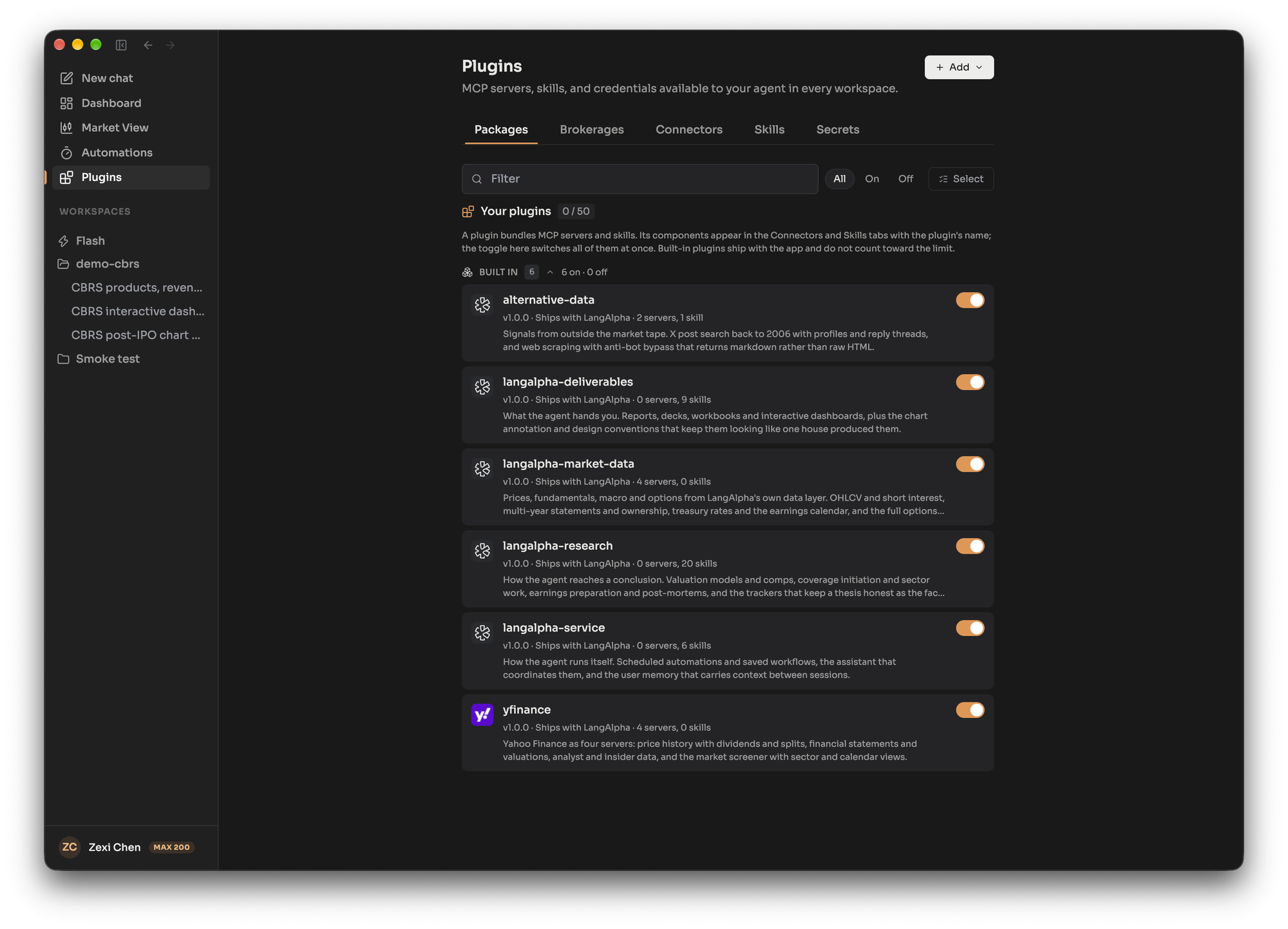
You manage everything on the **Plugins page**, whose tabs are Packages, Discover (when available), Brokerages, Connectors, Skills and Secrets.
### Installing a plugin
[Section titled “Installing a plugin”](#installing-a-plugin)
Choose Add, then **Install plugin**, and give it one of:
* a `.zip` or other archive you upload,
* a public `https` git URL on GitHub, GitLab, Codeberg or Bitbucket, or
* a direct `https` link to an archive.
When a repository holds several plugins you pick one. Claude, Codex and Cursor plugin repositories install as they are; their commands, agents and hooks are ignored. A repository with no `plugin.json` still installs if it contains `SKILL.md` folders: each becomes a skill of a plugin named after the repository. Limits: a package up to 64 MB, and up to 50 installed plugins per account.
The **Discover** tab lists a curated catalog of plugins you can install in one click. It only appears when an operator has configured a catalog.
## MCP servers
[Section titled “MCP servers”](#mcp-servers)
MCP (Model Context Protocol) is the standard way to give an AI agent tools. In LangAlpha an MCP server is installed on your account once and then **switched on per workspace**, so the same server has the same name and settings everywhere, and each workspace chooses whether it uses it. The built-in servers are on in every workspace by default.
Ways to add a server:
* **Form:** Add, then **Add MCP server**, and enter a URL, a command such as `npx -y `, or pasted `{"mcpServers": {...}}` JSON. For a remote address the form can check it first, before saving, and show the tools it offers. A server added here is saved switched off for your account until you turn it on. A server added from a workspace’s settings (MCP tab, Add server) is switched on in that workspace only.
* **Import:** **Import servers** takes a standard MCP configuration with several servers. Keys found in it are saved as secrets, and imported servers start switched off.
* **Plugin:** install a plugin that declares servers.
Rules for servers you add:
* A remote server must use a public `https` address. Local, private-network and `localhost` addresses are refused, and the address cannot contain credentials. Put a key in a header instead.
* A local server runs on your computer. Pin its version and run it isolated with `uvx` or `npx`; a bare `python` or `node` command is saved with a warning because it breaks when the shared environment changes.
* Names are a letter or underscore followed by letters, digits and underscores, up to 64 characters. The name becomes the module the agent imports.
* You can have up to 100 servers and 50 secrets.
### Secrets
[Section titled “Secrets”](#secrets)
Keys never go into a server’s configuration as plain text. Save them on the Secrets tab, then reference them as `${vault:NAME}` in an environment variable, argument or header value (for example `Bearer ${vault:NAME}`). A plain `${NAME}` is rejected. The agent’s code reads secrets through the vault and your keys are not pasted into chat. A secret belongs to your account, so every workspace and every server reads the same set.
### Sign-in (OAuth) connectors
[Section titled “Sign-in (OAuth) connectors”](#sign-in-oauth-connectors)
A server that uses OAuth shows a Connect button on its row under Connectors. You sign in with the provider, and LangAlpha stores and refreshes the token for you. This works for a server added from a workspace too.
### When changes take effect
[Section titled “When changes take effect”](#when-changes-take-effect)
Changes apply without a restart. A running session picks up a new or changed server within about 30 seconds, and often sooner; the turn already in progress keeps the servers it started with. Each server’s status in the workspace settings shows Connected, Pending, Error or Needs secret.
## Programmatic tool calling
[Section titled “Programmatic tool calling”](#programmatic-tool-calling)
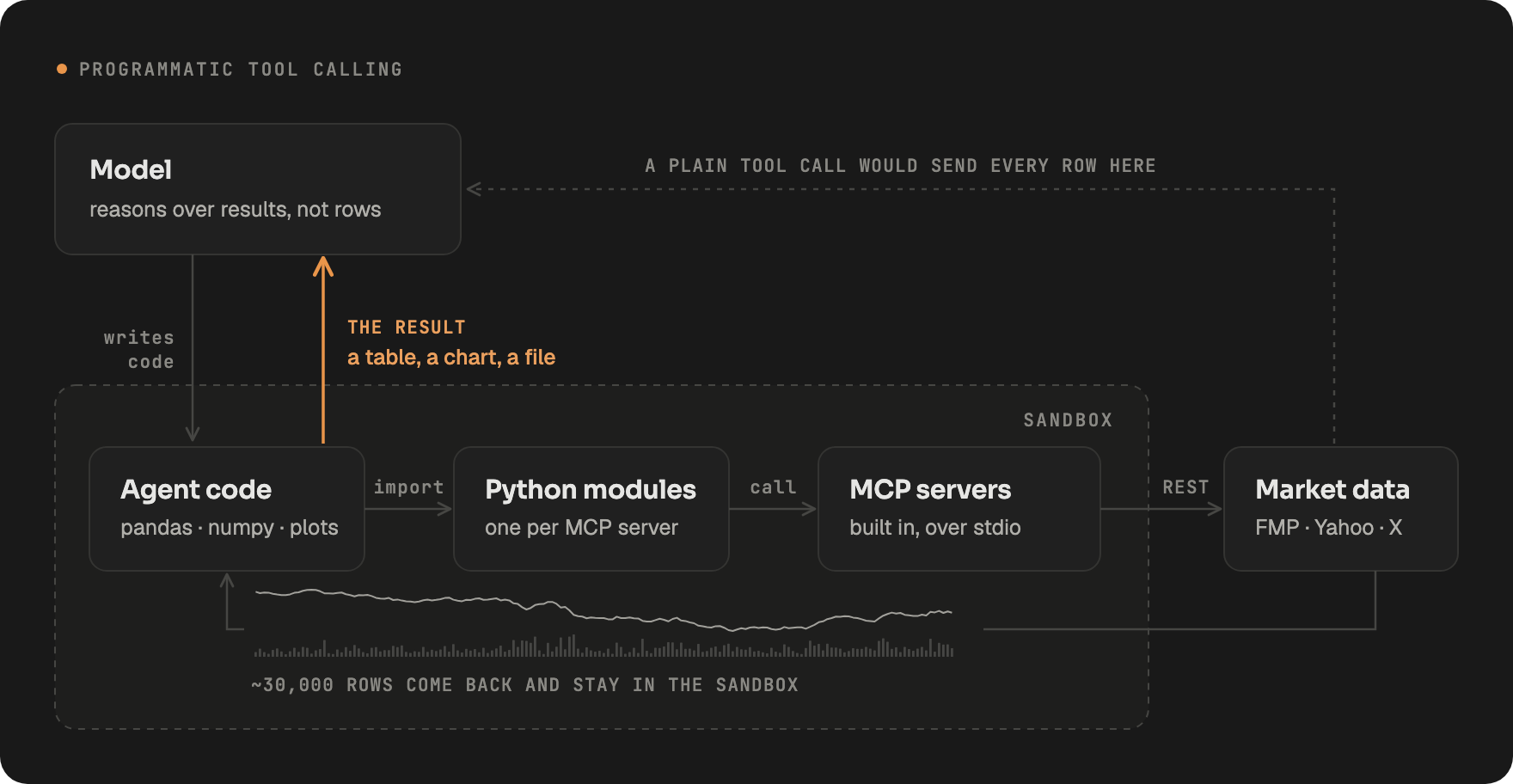
With ordinary tool calling, each tool result flows through the model’s context. Fetch five years of daily prices for 30 tickers and every row would have to pass through the model. With PTC, LangAlpha generates a Python module for each MCP server in the sandbox, and the agent writes a script that imports them, pulls the data, joins and charts it, and prints only a small result. The bulk rows stay in the sandbox files where later steps can reuse them, and the model’s context stays small.
Each tool takes one of three paths:
| Path | What happens |
| ---------------------- | ------------------------------------------------------------------------------------------------ |
| Sandbox code (default) | The agent calls the tool from Python it runs in the sandbox |
| Direct | The model calls the tool as a single tool call, which you and the interface can see as one event |
| Both | The tool is available both ways |
You can set Direct or Both per tool for remote servers (a server that uses a header for sign-in needs a successful connection check first). Local servers and servers on the older SSE transport always run through sandbox code. **Order tools are always direct**: placing, changing or cancelling an order must be one visible event that can be approved, never a line inside a script, and nothing on a server’s settings can change that. See [Brokerages and orders](/concepts/brokerages-and-orders/).
Hosted and self-hosted
**Hosted:** Plugins, servers, secrets and the Discover tab (when a catalog is offered) are managed on the Plugins page of your account.
**Self-hosted:** The Discover tab appears only when `PLUGIN_MARKETPLACE_URL` is set in `.env` (a private catalog also needs `PLUGIN_MARKETPLACE_TOKEN`). Built-in servers that need a vendor key use the keys in your `.env`. You can add a bundle of your own as a folder under `plugins/` (restart to load it), or declare or override a single server under `mcp.servers` in `agent_config.yaml`.
## Related
[Section titled “Related”](#related)
* [Skill, plugin or MCP server?](/compare/skill-plugin-or-mcp-server/)
* [Skills](/concepts/skills/)
* [Brokerages and orders](/concepts/brokerages-and-orders/)
* [Sandboxes and SSH](/concepts/sandboxes-and-ssh/)
# Sandboxes and SSH computers
> The four kinds of LangAlpha computer (Docker, Daytona, E2B and your own SSH machine), how to add a Linux server or Mac, Remote control, and what is sent to it.
A **sandbox** is an isolated machine where LangAlpha’s agent runs commands and code. LangAlpha has four kinds of [computer](/concepts/computers/), each backed by a different provider: **Docker**, **Daytona**, **E2B**, and **SSH**, which is a Linux server or Mac that you own. The first three are machines LangAlpha creates and can rebuild. An SSH computer is your own machine, so LangAlpha logs in to it and never replaces it.
A computer keeps the provider it was created with. To change providers, create a second computer and [move a workspace](/concepts/computers/#moving-a-workspace-to-another-computer) to it.
## The four providers
[Section titled “The four providers”](#the-four-providers)
| Provider | What it is | Stop behavior | Archive |
| -------- | --------------------------------------------------------- | ------------------------------------------------------------------- | ------------------------------------ |
| Docker | A container on the machine that runs the LangAlpha server | Stops the container; the disk stays | No |
| Daytona | A container-based cloud sandbox | Stops the sandbox; the disk stays | Yes, after 7 days stopped by default |
| E2B | A cloud microVM | Pauses the sandbox, memory and disk kept; resumes in about a second | No |
| SSH | Your own Linux server or Mac | Ends the computer’s own processes; your machine keeps running | No |
**Docker** runs each computer as a container on the machine that runs the LangAlpha server, so it needs no account anywhere else. A self-hosted install picks it with `SANDBOX_PROVIDER=docker`, which the `make config` wizard sets when you choose Docker. Its size is bounded by what the host has free, and Docker sandboxes share that host’s CPU, memory and disk.
**Daytona** and **E2B** are cloud providers that need an API key (`DAYTONA_API_KEY` or `E2B_API_KEY` in `.env`). Each size gets its own image, built the first time it is used, which can take a few minutes. E2B offers an Extra Large size that Daytona does not, and does not offer always-on.
**SSH** is described below. For how sizes, idle stop and archive work on each, see [Computers](/concepts/computers/).
Hosted and self-hosted
**Hosted:** The new computer dialog shows the providers the service offers to you, and your plan can limit which ones you may pick.
**Self-hosted:** `sandbox.provider` in `agent_config.yaml` (or `SANDBOX_PROVIDER`) is the default, and `sandbox.offered_providers` adds more. SSH is offered only if you list `ssh` there.
## Bringing your own machine over SSH
[Section titled “Bringing your own machine over SSH”](#bringing-your-own-machine-over-ssh)
An SSH computer lets the agent work on a Linux server or Mac you already have, with your files, tools and network. The agent runs as the login user you choose, in a folder of its own, `~/langalpha` unless you pick another (the dialog proposes the next free name if one is taken). On its first start LangAlpha installs a Python runtime under `~/.langalpha` on the machine, a download of about a gigabyte.
Caution
The agent can do anything the account you connect can do. Connect an account made for it rather than your own. The dialog labels connecting your own machine as a preview.
### Two ways to add a machine
[Section titled “Two ways to add a machine”](#two-ways-to-add-a-machine)
On a Mac, turn on Remote Login in System Settings under General, Sharing first.
1. **Run one command.** The dialog shows a `curl ... | sh` command. Run it on the machine, as the user the agent should work as. It authorizes LangAlpha’s key, reports the machine’s address and host keys, and LangAlpha connects at once. The command expires after 15 minutes, and running it again re-checks the machine.
2. **Enter an address.** Type `user@host` (add `:2222` for another port). The dialog shows your personal LangAlpha public key and the command that appends it to the machine’s `authorized_keys`. Run that, then press Connect.
LangAlpha pins the machine’s host key when you add it and refuses any later connection that presents a different one. If a machine is reinstalled, use Reconnect on its computer to pair it again.
From the CLI
`langalpha computers add --ssh user@host` adds a machine by its address from a terminal. If the machine does not accept LangAlpha’s key yet, it prints the command to run there first. See [computers add](/cli/computers/#computers-add).
By default LangAlpha only connects to public addresses, so a machine on a private network is refused unless the operator turns on `allow_private_addresses`. The server also limits how many SSH connection attempts one account can make per hour and how many SSH computers one account can have (20 by default).
### Machines behind a router or firewall
[Section titled “Machines behind a router or firewall”](#machines-behind-a-router-or-firewall)
A machine the server cannot reach, such as a laptop at home, can connect outward instead. When LangAlpha cannot dial the machine, the command installs a small service on it that keeps a tunnel open to the **tunnel gateway**. LangAlpha logs in through that tunnel, still end to end with the machine’s own SSH server, so the gateway only carries bytes it cannot read. The card shows a tunnel badge, and tunnel offline when the machine has stopped checking in.
Tunnels work only where the operator runs the gateway. A self-hoster starts it with the `ssh-gateway` Compose profile and sets `SSH_GATEWAY_ADDRESS` in `.env`.
### Remote control of your Mac
[Section titled “Remote control of your Mac”](#remote-control-of-your-mac)
**Remote control** (Preview) is the desktop app’s way to add the Mac it runs on, with no SSH server and no command to paste. The app bundles `langalpha-helper`, a small background program that holds the Mac’s tunnel and answers LangAlpha’s logins itself. It runs as a login item, so the agent can keep working with LangAlpha closed.
* It appears in the new computer dialog as **This Mac**, only in the Mac desktop app, and only when the server accepts SSH computers and runs the tunnel gateway. The server address must start with `https`.
* You confirm a prompt naming the server and your Mac account before anything is paired. macOS may also ask you to allow LangAlpha in Login Items.
* The agent works as your Mac account, with everything it can do, including reading credentials that command line tools keep and reaching your home or office network. Its work stays in the folder you pick, but nothing on the Mac holds it there.
* You can pause it from the LangAlpha menu or in System Settings under Login Items. Removing the computer turns it off and deletes its keys from the Mac.
### What the deployment sends to your machine
[Section titled “What the deployment sends to your machine”](#what-the-deployment-sends-to-your-machine)
Your machine belongs to you, so a LangAlpha server sends it very little. Server settings, the keys of built-in data servers and the GitHub bot token do not reach it. The only credential it receives is that computer’s own data token, which lasts an hour and ends when the computer stops.
The consequence is for tools that need a vendor key held by the server. By default, a built-in data tool that needs one (the Financial Modeling Prep tools, for example) answers that its client is unavailable on an SSH computer, while keyless tools such as Yahoo Finance prices and fundamentals work as anywhere. A built-in server that is served over HTTP with data-token authentication also works, because it needs no key on the machine. The agent still has code, files and the rest of its tools.
Hosted and self-hosted
**Hosted:** The service decides which data tools reach an SSH computer. Check a workspace’s tool list to see what is available there.
**Self-hosted:** Set `sandbox.ssh.trusted_host: true` in `agent_config.yaml` to send SSH machines the same keys any computer gets. Each machine’s owner can read them, so turn it on only where every user may hold those keys, such as a server only you use.
### An SSH computer is never rebuilt
[Section titled “An SSH computer is never rebuilt”](#an-ssh-computer-is-never-rebuilt)
LangAlpha cannot replace a machine it does not own. If the machine is unreachable, the computer waits for you. If its folder goes missing, the workspace offers to restore from its backup or keep the empty folder. Backups of workspace files are on by default and can be turned off per SSH computer, and they leave out version control and dependency folders.
Stopping an SSH computer ends only the agent’s own processes, and idle stop and always-on apply as on any computer. Removing the computer takes LangAlpha’s key and tunnel off the machine. Your files in the folder stay, unless you tick the option to delete LangAlpha’s files too.
## Trust between workspaces
[Section titled “Trust between workspaces”](#trust-between-workspaces)
Every workspace on one computer runs as the same operating system user. Their code can read each other’s files and the secrets and server connections shared on that computer. Choosing which tools a workspace has switched on shapes what the agent does, but it is not a security boundary. To keep work apart, put it on separate computers. The Chief of Staff is the exception: with more than one computer, it can read across all of yours.
## Related
[Section titled “Related”](#related)
* [Computers](/concepts/computers/)
* [Which computer should I use?](/compare/which-computer/)
* [Workspaces](/concepts/workspaces/)
* [Files and what persists](/concepts/files/)
# Sharing
> Share a LangAlpha thread or a single file with a link anyone can open without signing in, what visitors can see, what is removed, and how to turn a link off.
**Sharing** gives someone a link to read your work without a LangAlpha account. LangAlpha has two kinds of share link: a **thread link**, which shows a conversation, and a **file link**, which shows one file and the files it uses. A third kind, the **app link**, points at a web app the agent is serving from your computer and always stays private to you.
Anyone who has a thread link or a shared file link can open it without signing in. Treat the link as the password: share it only with people who should see the work.
## Sharing a thread
[Section titled “Sharing a thread”](#sharing-a-thread)
Choose Share on a thread and turn on the public link. The link shows the conversation as a read-only replay. The visitor sees the turns as you see them, but cannot send messages or change anything.
Two options control what else a visitor reaches. Both are off by default:
| Option | What a visitor can do |
| ------------------- | --------------------------------------------------------------- |
| Allow file browsing | Browse and read the files in the thread’s workspace folder |
| Allow file download | Download raw files. Turning this on also turns on file browsing |
File browsing is not limited to files the thread touched. It covers the whole workspace folder, apart from the workspace’s `agent.md` notebook, agent infrastructure folders and the server-held files in `.agents/`. Secrets you saved in the vault are masked in files that are served. If a workspace holds work you do not want to show, leave file browsing off.
### What is removed from a shared thread
[Section titled “What is removed from a shared thread”](#what-is-removed-from-a-shared-thread)
The server removes private details before anything leaves it, so the removal does not depend on the web page hiding them:
* **Orders and brokerage details.** Order calls, their arguments and results, receipts, and the decisions you made on approvals are dropped or emptied. A direct tool call whose arguments might name an order is emptied unless the call is shown to be harmless.
* **Approvals and questions.** The prompts the agent put to you are not shown, and a visitor cannot answer one.
* **Source records.** The per-turn records of which data and tools the agent used, which the Sources panel shows, are not sent. Workflow run details are not available in a shared view either.
* **Errors.** The text of error events is dropped, since it can name accounts or machines.
* **Account and workspace management.** Calls the Chief of Staff made to list, create or hand work to your workspaces and threads appear only as a name and id.
* **Wakeups and background notices.** Order details in a wakeup are removed, and the text of notifications the agent wrote for itself is blank.
* **Your ids.** Your user and workspace ids are stripped at every level of the stream.
Live charts still ask the visitor to sign in before they open.
### Turning it off
[Section titled “Turning it off”](#turning-it-off)
Press Stop in the share dialog. The link stops working at once. There is no expiry, so a link stays on until you stop it. If you share the same thread again later, it gets the same link back, so anyone who kept the old one can open it again.
## Sharing a file
[Section titled “Sharing a file”](#sharing-a-file)
Choose Share on a file, such as an HTML report, to create a file link. The link is **private** until you turn on Anyone with the link. A file link covers the file and nothing else in the workspace, and the conversation stays private.
Before the link opens to others, LangAlpha lists the exact files it will expose: the file itself plus the files it uses.
* Pages, stylesheets and Markdown links and images are found exactly.
* A path that only appears as a string inside a script is a best guess, and the list marks it “in script”.
* A page linked from your file is checked one step further. Pages linked from that page are listed but not searched, so a multi-page site does not pull in everything reachable from its menu.
You review that list, then turn sharing on. The server checks that the list is still the same when you confirm. If a file was added meanwhile, sharing is refused and you see the new list, so a share never widens without you looking at it.
Two limits apply, and sharing is refused rather than cut short: at most **200 files**, and at most **256 MB** in total. The workspace `agent.md` and hidden agent folders can never be shared.
### When the file changes
[Section titled “When the file changes”](#when-the-file-changes)
A file link is a frozen list. If the file later starts using a new image or stylesheet, the dialog shows that it uses files that are not shared, and visitors will not see them until you choose Update sharing. If the file stops using some shared files, the dialog offers to stop sharing them. Use View as visitor to check what a stranger sees.
A visitor never starts your computer. If the computer is running, they read the current files. If it is stopped, they read the last backup.
### Turning it off
[Section titled “Turning it off”](#turning-it-off-1)
Stop sharing returns the link to private, and only you can open it. The link does not expire and keeps the same address, so sharing it again later reuses the same link.
## App links
[Section titled “App links”](#app-links)
When the agent serves a web app from your computer, it gives you an app link. An app link never opens for visitors. Only you can open it, and only while you are signed in, so it shows a preview of your running app rather than sharing it. The Open links setting chooses whether app and file links in a reply open in the file panel or in your browser.
Hosted and self-hosted
**Hosted:** Links open on the service, and anyone who has one can open it without an account.
**Self-hosted:** Links open on your own server. A visitor can open one only if they can reach your install, so a server on a private network shares nothing outside it.
## Related
[Section titled “Related”](#related)
* [Files and what persists](/concepts/files/)
* [Threads and turns](/concepts/threads-and-turns/)
* [Workspaces](/concepts/workspaces/)
* [Brokerages and orders](/concepts/brokerages-and-orders/)
# Skills
> Skills are SKILL.md instruction folders the agent loads on demand. Learn the three tiers, slash commands, uploads and the 35 built-in skills.
A skill is a folder with a `SKILL.md` file that teaches the agent how to do one kind of work, such as building a DCF model, writing a morning note or producing a Word document. LangAlpha follows the open Agent Skills format: `SKILL.md` starts with a short header giving a `name` and a `description`, followed by instructions, and the folder can carry scripts, templates and reference files next to it. A skill is instructions and files only. It cannot add a new tool; tools come from [MCP servers](/concepts/plugins-mcp-ptc/).
## Three tiers
[Section titled “Three tiers”](#three-tiers)
| Tier | Who owns it | Where it applies |
| --------- | ---------------------------------------------------------------- | ------------------------------- |
| Built-in | LangAlpha | Every workspace, for every user |
| Yours | You, uploaded to your account (or added by a plugin you install) | Every workspace you have |
| Workspace | You, added to one workspace | That workspace only |
A workspace skill overrides one of yours with the same name, and the Skills tab marks it “Overrides your skill”. Built-in names cannot be reused: LangAlpha refuses an upload whose name or command matches a built-in skill, and a few commands (`subagent`, `compact`, `compaction`, `summarize`, `offload`, `truncate`) are reserved for chat controls. Built-in skills can be switched off but not removed.
## How the agent loads a skill
[Section titled “How the agent loads a skill”](#how-the-agent-loads-a-skill)
Skills load on demand so they do not crowd the agent’s context. Every turn the agent sees a manifest with **one line per enabled skill**: the skill’s name and its description. The full instructions are only read in when:
* you type the skill’s slash command in chat (type `/` in the message box to see the list), or
* the agent decides the description fits the task and reads that skill’s `SKILL.md`.
Because every description is listed on every turn, descriptions are capped at 1,024 characters, and `SKILL.md` itself at 64 KB (the agent reads all of it). Detail that is not always needed belongs in files next to `SKILL.md`.
## Slash commands and aliases
[Section titled “Slash commands and aliases”](#slash-commands-and-aliases)
Every skill you add answers to `/`. A skill can declare a `command:` alias in its header, which replaces the name as its slash command; it is read on the first upload, and dropped without a message if another skill already uses it. Commands use lowercase letters, digits and hyphens, up to 64 characters. You can also rename the command of a built-in skill from the Skills tab. Not every built-in skill has a command: the tables below say which do.
## Adding your own skills
[Section titled “Adding your own skills”](#adding-your-own-skills)
On the Plugins page, Add, **Upload a skill** accepts a skill’s folder, a `.zip` of one, or a single `SKILL.md` (you can also paste one in). Re-uploading a name replaces your existing skill. Limits:
| Limit | Value |
| ------------------ | ----------------------------------------------------------------- |
| Zip size | 2 MB |
| Unzipped size | 8 MB |
| One file | 1 MB |
| Files per skill | 64 |
| `SKILL.md` | 64 KB |
| Skill name | lowercase letters, digits and single hyphens, up to 64 characters |
| Description | up to 1,024 characters |
| Skills per account | 200 (32 MB in total) |
To add a skill to one workspace only, upload it from that workspace’s settings, Skills tab; it then runs only there. The agent can also create workspace skills itself: a folder placed at `.agents/skills//` in the workspace with a valid `SKILL.md` is saved as that workspace’s skill shortly after the turn completes. That is how you install a skill from a GitHub repository into one workspace: ask the agent to fetch the repository and copy the skill’s folder into the workspace’s skills. A workspace skill can later be moved to all your workspaces from the Skills tab.
To install skills from a public git URL for your whole account, use **Install plugin** on the Plugins page. A repository that has no plugin manifest but contains `SKILL.md` folders installs too: each one becomes a skill of a plugin named after the repository. See [Plugins, MCP servers and programmatic tool calling](/concepts/plugins-mcp-ptc/).
## Switching skills off
[Section titled “Switching skills off”](#switching-skills-off)
You can disable a built-in skill for your whole account, or for a single workspace. A workspace cannot re-enable a skill you disabled account-wide. Switching off a plugin switches off the skills it carries. If one skill relies on a shared layer (research-conventions), that layer stays available as long as any skill that needs it stays on.
## Built-in skills
[Section titled “Built-in skills”](#built-in-skills)
LangAlpha ships 35 skills, grouped here by the built-in plugin that carries them. Two are special: **onboarding** is hidden and runs automatically after you save your investing profile, and **research-conventions** is a shared layer of evidence and judgement rules that the research skills read, with no command of its own.
### Research (langalpha-research)
[Section titled “Research (langalpha-research)”](#research-langalpha-research)
| Skill | Command | What it does |
| -------------------- | ----------------------- | ----------------------------------------------------------------------------------------------------------- |
| 3-statements | `/3-statement-model` | Builds or repairs a linked income statement, balance sheet and cash flow model with scenarios and checks |
| catalyst-calendar | `/catalyst-calendar` | Lists dated events ranked by what they can change: earnings, regulatory decisions, macro releases |
| check-deck | `/check-deck` | Quality-checks an investment deck for number consistency, source coverage and language before it circulates |
| check-model | `/check-model` | Audits a model someone else built and reports issues without editing it |
| company-profile | `/company-profile` | Produces a one-page company profile slide, or a compact profile paragraph |
| competitive-analysis | `/competitive-analysis` | Compares competitors: positioning, scorecards, moat and market share |
| comps-analysis | `/comps-analysis` | Comparable company analysis: peer set, multiples and an implied value |
| dcf-model | `/dcf-model` | Builds a discounted cash flow valuation in Excel with scenarios and sensitivity grids |
| earnings-analysis | `/earnings-analysis` | Post-earnings update: beat or miss, EPS quality, call debate, revisions and thesis impact |
| earnings-preview | `/earnings-preview` | Pre-earnings setup: expectations, what to watch, call questions and scenarios |
| idea-generation | `/idea-generation` | Finds long and short candidates across a universe when no name is chosen yet |
| impact-analysis | `/impact-analysis` | Traces a macro, policy or industry shock to the stocks it affects |
| initiating-coverage | `/initiating-coverage` | First-time coverage of a company: research, model, valuation, charts and a 30 to 50 page report |
| market-watch | `/market-watch` | Tracks live prices for the tickers in your task (needs the Market watch feature turned on) |
| model-update | `/model-update` | Refreshes an existing financial model after earnings, guidance or filings |
| morning-note | `/morning-note` | Daily briefing on overnight news, movers, earnings and macro events |
| portfolio-diagnosis | `/portfolio-diagnosis` | Health check of your portfolio against your profile: concentration, exposure and risk fit |
| research-conventions | none | Shared evidence, judgement and market-data rules that every research deliverable follows |
| sector-overview | `/sector-overview` | Sector or industry landscape report |
| thesis-tracker | `/thesis-tracker` | Keeps a live thesis honest with pillar status, evidence and monitoring triggers |
| trade-pitch | `/trade-pitch` | Turns finished analysis on one security into a position with scenarios, risks and monitoring |
### Deliverables (langalpha-deliverables)
[Section titled “Deliverables (langalpha-deliverables)”](#deliverables-langalpha-deliverables)
| Skill | Command | What it does |
| --------------------- | ------------------- | ------------------------------------------------------------------------ |
| chart-annotation | `/chart-annotation` | Extra guidance for marking events and levels on charts |
| docx | none | Builds and edits Word documents, including tracked changes and comments |
| html-report | `/html-report` | Writes self-contained styled HTML reports that export to PDF |
| inline-widget | none | Renders charts, dashboards and tables directly in the chat |
| interactive-dashboard | `/dashboard` | Builds interactive dashboards such as stock trackers and sector heatmaps |
| pdf | none | Reads, fills and builds PDFs |
| pptx | none | Builds and edits PowerPoint decks and checks them for layout problems |
| ui-design | none | Design reference for typography, color and layout of visual output |
| xlsx | none | Builds and edits Excel workbooks with live formulas |
### Data (alternative-data)
[Section titled “Data (alternative-data)”](#data-alternative-data)
| Skill | Command | What it does |
| ------------ | --------------- | --------------------------------------------------------------------------------------- |
| web-scraping | `/web-scraping` | Fetches web pages as markdown, HTML or text, including pages that block simple requests |
| x-api | none | Searches X posts, profiles and reply threads for sentiment and event research |
### Platform (langalpha-service)
[Section titled “Platform (langalpha-service)”](#platform-langalpha-service)
| Skill | Command | What it does |
| ------------- | ------- | ---------------------------------------------------------------------------------------------- |
| langalpha-doc | none | Lets the agent look up how LangAlpha itself works |
| onboarding | hidden | Runs after you save your profile: imports holdings and watchlists, then proposes first tasks |
| run-workflow | none | Runs parallel subagent pipelines from a workflow script (available when workflows are enabled) |
The bundles `langalpha-market-data` and `yfinance` carry market-data MCP servers and no skills.
Hosted and self-hosted
**Hosted:** Built-in skills, uploads and the limits above apply as described.
**Self-hosted:** The same, plus an operator can add skills from a drop-in folder; those names become reserved too. Without object storage configured, a stored skill archive is limited to 512 KB. The workflow skill is on only when workflow orchestration is enabled in `config.yaml`.
## Related
[Section titled “Related”](#related)
* [Skill, plugin or MCP server?](/compare/skill-plugin-or-mcp-server/)
* [Plugins, MCP servers and programmatic tool calling](/concepts/plugins-mcp-ptc/)
* [Writing skills](/best-practices/writing-skills/)
* [Workspaces](/concepts/workspaces/)
# Threads and turns
> A thread is one conversation in a LangAlpha workspace and a turn is one run of the agent answering it. How steering, cancelling, approvals and compaction work.
A **thread** is one conversation with the LangAlpha agent, kept inside a workspace (or in Home, for the Chief of Staff). A **turn** is one run of the agent answering: it starts when you send a message and ends when the agent has finished its reply. A thread holds many turns, one after another, and each new turn sees the earlier ones.
## One live turn per thread
[Section titled “One live turn per thread”](#one-live-turn-per-thread)
A thread runs one turn at a time. If you send a message while the agent is still working, LangAlpha does not queue a second turn or refuse the message. It **steers** the running turn instead.
If the previous turn is still shutting down after a stop, or the thread is being compacted, a message is not steered. The server answers “wait a moment, then retry”, and the web app queues your message while a compaction finishes.
## Sending a message while the agent works
[Section titled “Sending a message while the agent works”](#sending-a-message-while-the-agent-works)
A message you send mid-turn is taken in before the agent’s next model call. The agent reads it as new input from you and changes course without losing the work already done. The web app marks such a message as “Steered”: taken in by a run already going.
Steering has a few edges worth knowing:
* If the turn ends before the agent reads your message, the message is not lost. It becomes the input of the next turn.
* Sending the same message twice (a double click, a retry from a flaky connection) steers once.
* Edits, regenerates and retries replace a turn, so they cannot be added to a running one. They are refused while another turn is live.
* An [automation](/concepts/automations-wakeups-commands/) run is a turn of its own and does not steer a running turn.
* The [Chief of Staff](/concepts/chief-of-staff-and-analysts/) steers the same way when it hands more work to an Analyst whose thread is already running.
You can also message a single background subagent that is still running. The message reaches it before its next model call.
## Stopping a turn and leaving a thread
[Section titled “Stopping a turn and leaving a thread”](#stopping-a-turn-and-leaving-a-thread)
Stop (cancel) ends the turn and interrupts the step the agent is on. The work saved so far stays in the thread, and any steering message the agent had not read yet is handed back to your message box so you can send it again.
Closing the tab, losing your connection or switching devices does **not** stop anything. The turn keeps running on the server. When you open the thread again, the web app reconnects to the live turn and catches up on everything it missed. If the turn has already finished, you see the finished result. That is what lets a long research turn run while you are away.
From the CLI
`langalpha threads cancel ` stops a turn, and `langalpha threads follow ` reconnects to one from any terminal. See [Thread commands](/cli/threads/).
## Approvals and questions pause a turn
[Section titled “Approvals and questions pause a turn”](#approvals-and-questions-pause-a-turn)
Some steps need you before the agent can continue:
* **Questions.** The agent can ask you a structured question with two to four options (you can also type your own answer, and some questions allow several options). The turn pauses until you answer or skip. A skipped question is passed back to the agent as skipped.
* **Approvals.** Live orders at a connected brokerage wait for your approval unless your trading permission says otherwise. Other actions, such as handing work to an Analyst or creating a workspace, can show an approval card too, and Settings lists which of them the agent may take without one. See [Brokerages and orders](/concepts/brokerages-and-orders/).
Your answer resumes the same thread, and the agent carries on from the point where it stopped.
From the CLI
`langalpha threads approve ` and `langalpha threads reject ` answer an approval or a question from a terminal, with `--message` for your answer. Orders are the exception: they are answered only in the app. See [threads approve](/cli/threads/#threads-approve).
## Subagents run inside a turn
[Section titled “Subagents run inside a turn”](#subagents-run-inside-a-turn)
The agent can delegate work to subagents that run in the background while it keeps going. Five come built in: `research`, `general-purpose`, `data-prep`, `equity-analyst` and `report-builder`. The Chief of Staff does not get `equity-analyst`, because new analysis goes to a workspace’s Analyst instead. Each subagent runs as a background task with its own card in the thread, which you can open, message or stop without ending the turn.
A subagent that finishes reports back to the thread. The report reaches the agent before its next model call, the same way your steering messages do, so the agent folds the result into its work. If the agent’s turn has already ended when a subagent finishes, the report starts a turn of its own. Saved [workflows](/concepts/automations-wakeups-commands/#workflows) use the same mechanism to run many subagents at once.
## Compaction of long threads
[Section titled “Compaction of long threads”](#compaction-of-long-threads)
A model can only read so much at once. When a thread’s context grows past the limit for the model in use, LangAlpha **compacts** it: the older turns are folded into a summary and the most recent part of the conversation is kept word for word. The agent carries on from the summary plus the recent turns.
Compaction does not delete anything. The full conversation stays saved and you can still scroll back through it. A compaction card in the thread shows when it happened. Settings lets you pick a compaction profile (how early it fires) and a compaction model.
Type `/compact` in the composer to compact by hand. It works only when the current turn has finished.
## Searching past threads
[Section titled “Searching past threads”](#searching-past-threads)
Every thread is saved as a transcript: your messages, the agent’s replies, its tool calls and results, and the work of its subagents. The agent can search the transcripts of earlier threads on the same computer, so when you say “like the model we built last week” or “what did we decide about the position size”, it looks the conversation up instead of guessing. The Chief of Staff uses the same search to answer questions about work in other workspaces.
A turn is saved to the transcript when it completes. One that ended interrupted or cancelled is saved by the thread’s next completed turn at the latest. Transcripts are read-only for the agent.
## Related
[Section titled “Related”](#related)
* [Chief of Staff and Analysts](/concepts/chief-of-staff-and-analysts/)
* [Workspaces](/concepts/workspaces/)
* [Automations, wakeups and background commands](/concepts/automations-wakeups-commands/)
* [Memory, memos and scratchpad](/concepts/memory-memos-scratchpad/)
# Workspaces
> A workspace is a folder on one of your computers with its own threads, files, notes, memory, skills and tools. How naming, layout, Home and trust work.
A **workspace** is where one body of work lives: a folder on one of your [computers](/concepts/computers/), together with its threads, files, notes and an Analyst of its own. You might keep one workspace per company, per theme or per portfolio. The folder is named after the workspace, so a workspace called “NVDA” is the folder `NVDA` on its computer, beside your other workspaces.
A second workspace opens in seconds because it is a new folder on a machine that is already running, not a new machine. The order of things is User, Computer, Workspace, Thread, Turn, and a workspace holds many [threads](/concepts/threads-and-turns/).
## Names and folders
[Section titled “Names and folders”](#names-and-folders)
The workspace name is also its folder name, so a few rules apply:
* A name is at most 80 characters and needs at least one usable character.
* Names are unique per user, ignoring case. “Research” and “research” would be the same folder on some disks, so they count as one name.
* Spaces and non-English letters stay as you typed them. Characters that break a path or a shell command (`/`, `\`, `:`, `$`, backticks, quotes and control characters) are replaced with a dash, and leading dots, dashes and spaces are dropped.
* A few names are reserved because a computer already uses them as folders: `Home`, `_internal`, `mcp_servers`, `tools` and `code`.
When you rename a workspace, the new name shows at once. The folder on the computer follows the next time the computer is opened for that workspace, between turns and never during one.
You choose the computer when you create a workspace. Without a choice, the new workspace goes on your [primary computer](/concepts/computers/#the-primary-computer). You can later [move a workspace](/concepts/computers/#moving-a-workspace-to-another-computer) to another computer, or duplicate it: a duplicate is named “name (copy)”, gets a copy of the files, and lands on the same computer. Files you add while creating a workspace are uploaded right after it is ready, up to 50 MB each.
From the CLI
`langalpha workspaces create ` creates a workspace from a terminal, and `--computer` picks the computer. See [Workspace commands](/cli/workspaces/).
## What is inside a workspace folder
[Section titled “What is inside a workspace folder”](#what-is-inside-a-workspace-folder)
The agent keeps a simple layout, and you can read and edit all of it in the file browser:
| Item | What it is |
| ------------------- | --------------------------------------------------------------------------------------------------------------------------------------------------------------------------------------------------------------------------- |
| `agent.md` | The workspace’s notebook, which the agent maintains: purpose, key findings, what each task produced and where. It is shown to the agent at the start of every conversation here. |
| `data/` | A shared folder for datasets the whole workspace uses. |
| One folder per task | Each task that produces files gets a folder named for it, for example `sector_analysis/`, with its own `data/` and `charts/` as needed. |
| `.agents/` | Agent infrastructure, behind the file browser’s system files toggle: this workspace’s memory and skills, tool wrappers and docs for the data servers enabled here, saved transcripts, scratch files and large tool results. |
The agent is told not to write task files loose at the top of the folder. See [Structuring workspaces](/best-practices/structuring-workspaces/) for patterns that work.
## What belongs to a workspace and what to your account
[Section titled “What belongs to a workspace and what to your account”](#what-belongs-to-a-workspace-and-what-to-your-account)
Some things are specific to one workspace, and others are yours everywhere:
* **Threads, files and `agent.md`** belong to the workspace.
* **Memory** has two tiers: user memory applies to every agent in every workspace, and workspace memory applies only to agents in this workspace. See [Memory, memos and the scratchpad](/concepts/memory-memos-scratchpad/).
* **Skills** you install on your account appear in every workspace, and you can switch one off in a single workspace. A skill uploaded inside a workspace runs only there, and overrides an account skill with the same name. See [Skills](/concepts/skills/).
* **MCP servers and connectors** are installed on your account and switched on per workspace. A connector you add from inside a workspace is on in that workspace only, and stays off in your other workspaces and in new ones until you switch it on there. Only servers switched on in a workspace have wrappers and docs there. See [Plugins, MCP servers and PTC](/concepts/plugins-mcp-ptc/).
## Home
[Section titled “Home”](#home)
**Home** is a special folder for the [Chief of Staff](/concepts/chief-of-staff-and-analysts/), the agent that works across your workspaces. It sits beside your workspace folders on your primary computer, and the Chief of Staff keeps its own `agent.md` there. Chat apps call this agent “All workspaces”.
Home is reserved. You cannot name a workspace `Home`, rename Home, delete it, or duplicate it. It moves only when you make a different computer primary.
## Workspaces share a computer
[Section titled “Workspaces share a computer”](#workspaces-share-a-computer)
Every workspace on a computer runs as the same operating system user, on the same disk. One workspace’s code can read another workspace’s files, and they share the computer’s MCP credentials. Turning a tool off in a workspace changes what the agent reaches for, but it is not a security boundary. If you need work kept apart, put it on separate computers. See [Sandboxes and SSH computers](/concepts/sandboxes-and-ssh/#trust-between-workspaces).
Starting or stopping the computer also affects every workspace on it, and they fill one disk together.
Hosted and self-hosted
**Hosted:** Your plan can limit how many workspaces you can create.
**Self-hosted:** No plan limits apply to workspaces.
## Related
[Section titled “Related”](#related)
* [Computers](/concepts/computers/)
* [Files and what persists](/concepts/files/)
* [Chief of Staff and Analysts](/concepts/chief-of-staff-and-analysts/)
* [Structuring workspaces](/best-practices/structuring-workspaces/)
# Build dashboards and annotate charts
> Ask LangAlpha for a chart in the chat, an HTML report, a live dashboard or drawings on a price chart, and see which output fits each request.
LangAlpha can show an answer as a picture in five ways, and the agent picks one from what you ask: a **widget** inside the chat, a **Python chart** saved as an image, an **HTML report** file you keep, a **live dashboard** served from your computer, or **annotations** drawn on a live price chart. This page says what each one is, how to ask for it and what you get, so you can name the one you want.
## Example request
[Section titled “Example request”](#example-request)
> Build an interactive dashboard of how much of Cerebras’s backlog rides on OpenAI, with the exposure ledger and a stress test, and merge in the event files from the other thread.
This is the dashboard request in the screenshot below. The agent builds the app in the workspace and opens it beside the chat.
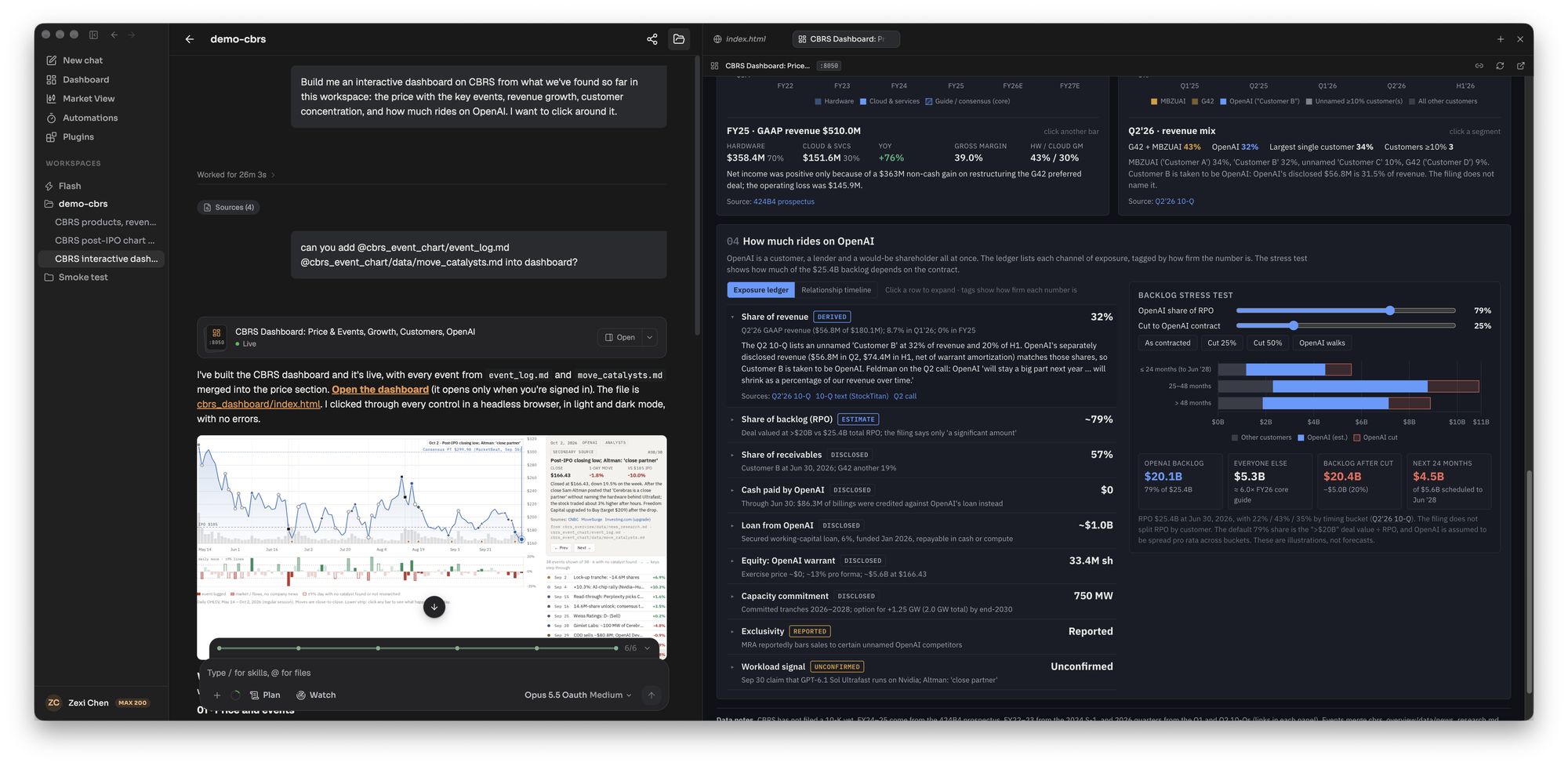
## Which output to ask for
[Section titled “Which output to ask for”](#which-output-to-ask-for)
| You want | Ask for | What you get | Where it lives |
| ---------------------------------------------------------- | ---------------------------------- | ---------------------------------------------------------------- | --------------------------------------------- |
| One chart, a metric row or a small table inside the answer | A quick chart or table in the chat | An interactive widget between the text, with data embedded in it | In the thread only, no file |
| A figure for a document | A chart for the report | A static image the agent draws with code | A file in the workspace |
| A page you keep, print or send | An HTML report | One self-contained .html file | A file in the workspace, with a PDF export |
| Live data, server-side logic or a multi-page app | An interactive dashboard | A running web app opened in a side panel | A preview that works while the workspace runs |
| A level, a pattern or an event marked on a stock’s price | Annotations on the chart | Drawings on a live chart | The chart, opened from a card in chat |
The skills behind these are `inline-widget`, `html-report`, `interactive-dashboard` and `chart-annotation`. The widget skill hands off to the dashboard skill when you need a multi-page app, live refresh or a server.
## What the agent does
[Section titled “What the agent does”](#what-the-agent-does)
**Widget.** It renders HTML or SVG straight into the chat, can pass it files from the workspace, and can make it interactive with sorting, toggles and hover. It can use common chart libraries from a CDN, and it cannot call other web addresses.
**HTML report.** It writes one styled file into the task folder. In the file panel it runs as a page, and you can view it fullscreen, open it in a new tab, download it, or save it as a PDF with a footer, page numbers and scale you set. Charts and tables are interactive, working over the data embedded in the file. See [Write an initiation report](/explore/initiation-report/) for one in use.
**Interactive dashboard.** It picks the simplest tier that works: a single HTML page, a FastAPI app with an HTML front end that polls for fresh data, or a FastAPI back end with a React front end for filtering and several pages. It then serves the app and opens it in a preview panel. The preview is live while the workspace runs, so for something you keep, ask for an HTML report.

**Chart annotation.** It calls a drawing tool with the ticker and timeframe, and the drawing lands on the live chart. Charts are identified by ticker and timeframe, so “NVDA, 1 day” and “NVDA, 1 hour” are separate charts, and several can be drawn in one turn. The types are price line, trendline, marker, vertical line, rectangle, text, event badge and Fibonacci retracement. You do not need to be on the chart page. Elsewhere in the app the drawing appears as a chart card in the chat, and clicking it opens the live chart beside the conversation. You can also select a region or a price level on the chart and send it to the agent, which then answers about that selection.
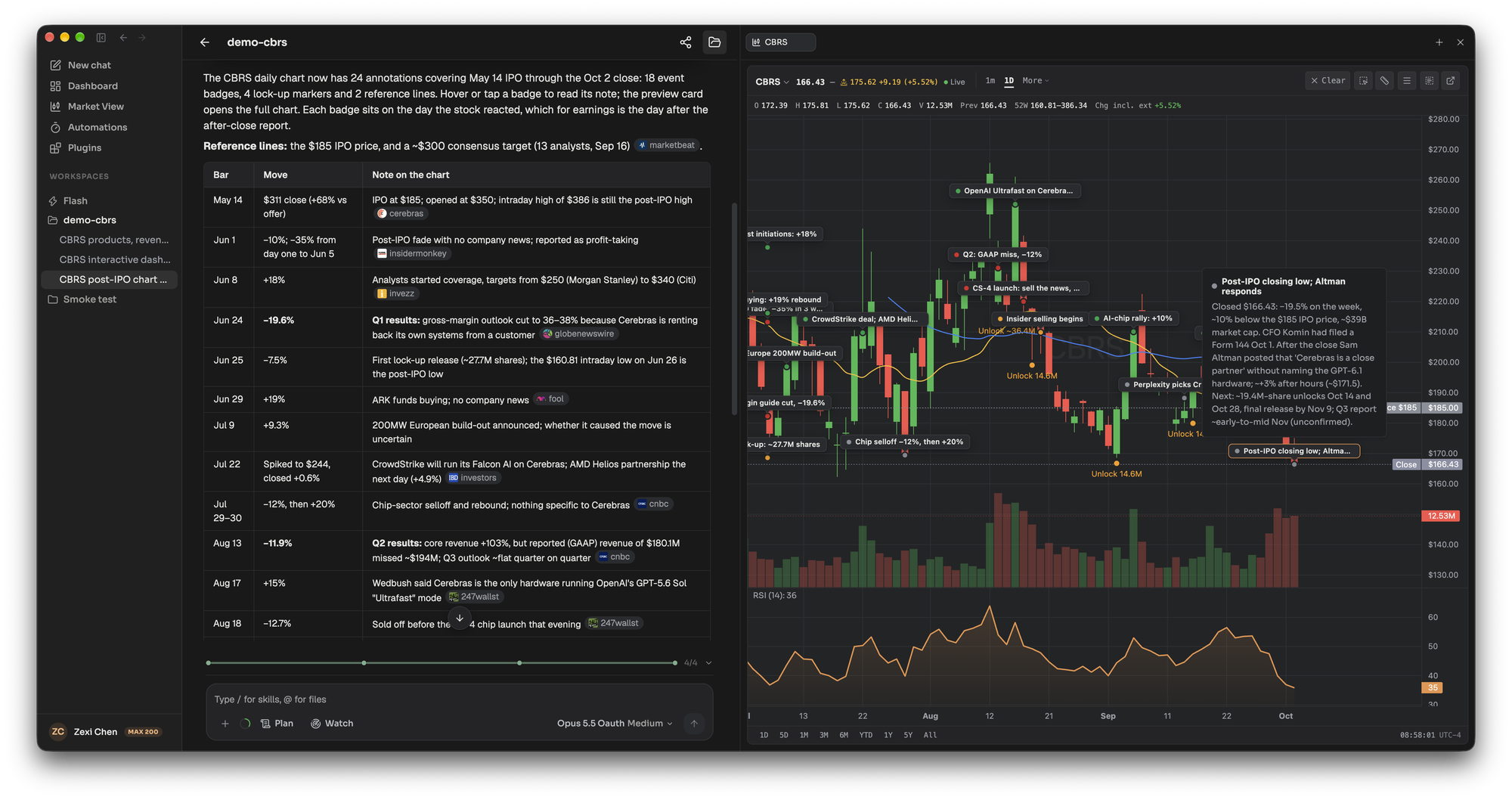
## Your own dashboard
[Section titled “Your own dashboard”](#your-own-dashboard)
Separate from what the agent builds, the Dashboard page is yours to arrange. It is one page made of widgets. Until you save a layout of your own you see the Morning Brief layout: a markets overview, the AI daily brief, your portfolio and watchlist, market news and an earnings calendar, with a chat box floating at the bottom of the page.
Click the pencil in the page header to edit the layout. A toolbar then offers four things:
* **Add widget** opens a gallery of 30 widgets across Markets, Intelligence, Personal, Agent and Workspace, with search.
* **Presets** replaces the layout with one of six: Morning Brief, Agent Desk, Researcher, Trader, Trader (TV) and Portfolio Steward.
* **Reset** returns to Morning Brief, replacing your widgets and layout, and cannot be undone.
* **Done** leaves edit mode.
In edit mode you drag, resize and remove widgets. Looking at the default layout saves nothing, and your layout is saved from your first edit on. The Portfolio + Watchlist widget switches between your watchlist and your holdings. The AI Daily Brief widget has a Generate Personalized Brief button that writes a brief from your watchlist and portfolio. If you add the Workbench widget, a chat box that can also resume a recent thread, the floating chat box goes away.
On a phone the dashboard shows the same widgets in one column, in the order the desktop grid reads them. Editing is a desktop feature, so the pencil does not appear there.
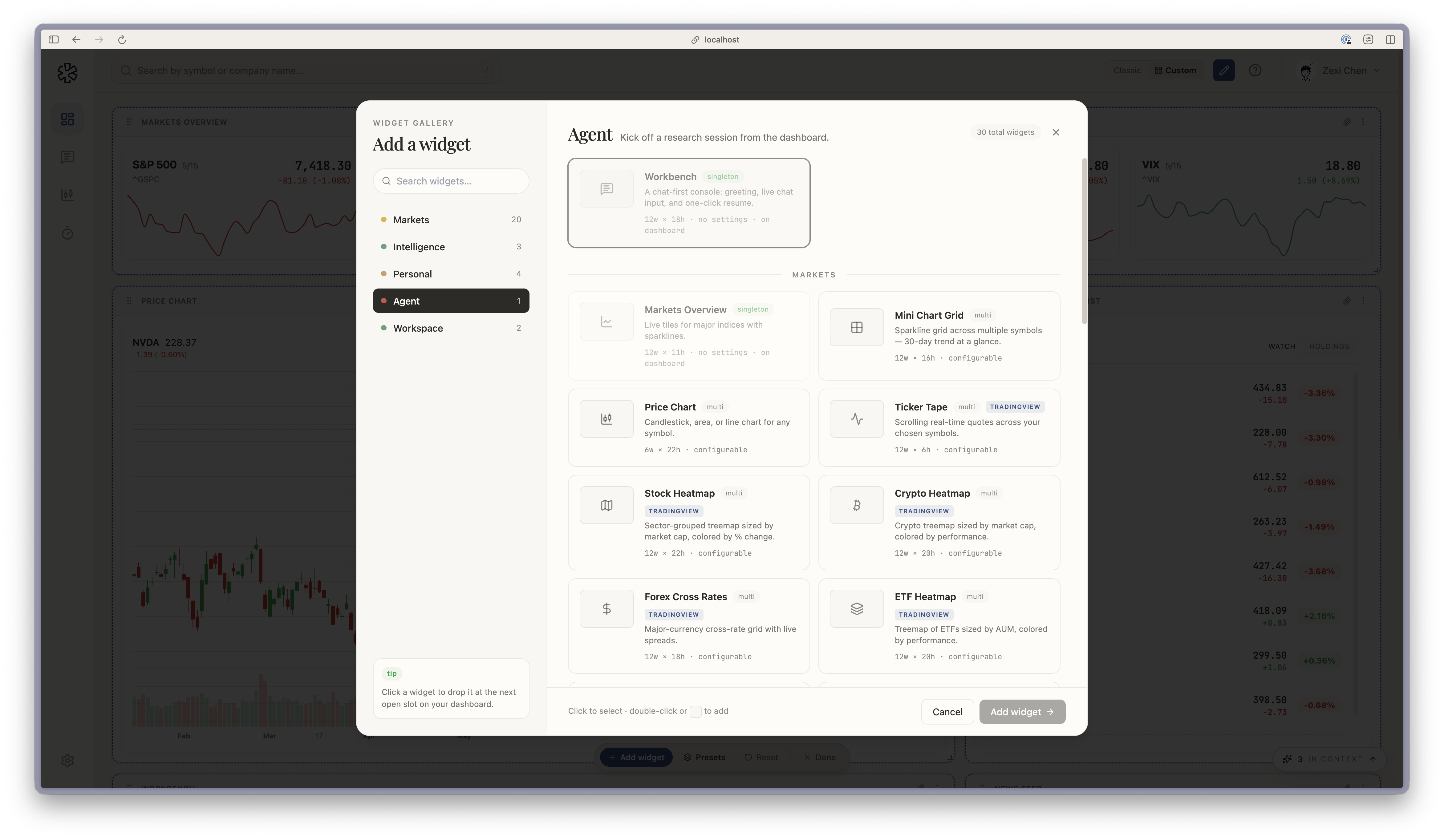
## Tips
[Section titled “Tips”](#tips)
* **Name the output.** “A chart in the chat” and “a report I can send” get different files, while “a dashboard” gets a running app.
* **Ask for a Python chart when it belongs in a document.** The annotation tools are for looking, and the skill itself says to draw a Python chart when the output is a deliverable. You can ask for both.
* **Use the live chart for levels.** Ask “what are the key support and resistance levels for NVDA?” and the agent can mark them where you can pan and zoom.
Hosted and self-hosted
**Hosted:** charts show live quotes for US equities, with extended hours.
**Self-hosted:** quotes come from Yahoo Finance or FMP, refreshed every 60 seconds and shown as delayed. Dashboards, reports, widgets and annotations work the same.
## Related
[Section titled “Related”](#related)
* [Write an initiation report](/explore/initiation-report/)
* [Skills](/concepts/skills/)
* [Files](/concepts/files/)
* [Computers](/concepts/computers/)
# Get results in Slack and other chat apps
> Have LangAlpha send reports and automation results to Slack, Discord, Telegram, Feishu or iMessage, and see what a self-hosted install does instead.
LangAlpha can send what it produces to a chat app. On the hosted platform you connect Slack, Discord, Telegram, Feishu or iMessage to your account, and then the agent can message you a result with files attached, and any automation can deliver its result to a chat when it finishes. A self-hosted install includes no chat apps. There, an automation run posts its start, completion and failure as JSON to a webhook address you set.
## Example request
[Section titled “Example request”](#example-request)
> Send the initiation report, the workbook, the dashboard link and the research notes to my Slack DM.
This is the request in the screenshot below. The agent attached the files and the message arrived as a direct message, with the report open in Slack.
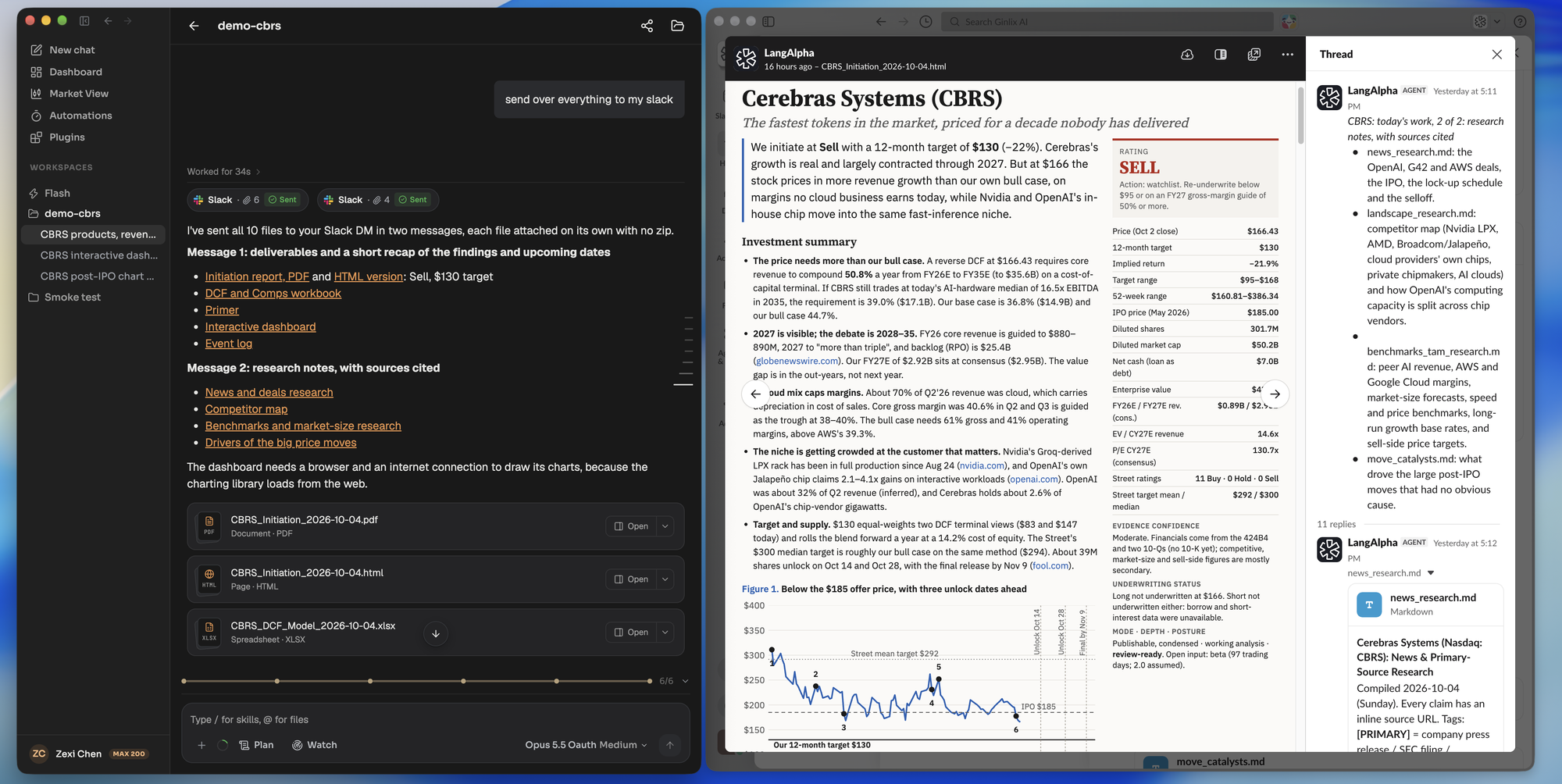
## Two ways to get results in a chat
[Section titled “Two ways to get results in a chat”](#two-ways-to-get-results-in-a-chat)
**Ask the agent to send it.** In any thread, ask for something to be sent to you or to a chat. The agent sends text up to 20,000 characters and up to 10 files in one message. It can reach the conversation it is in, your direct messages, and the shared chats you allowed. The Chief of Staff can attach files from Home or from any workspace. In the web app each send shows as a delivery card with its status: sent, partly sent or failed.
**Deliver an automation.** On the Automations page, open More options on an automation and choose Delivery. You can pick an app, which lands in the workspace’s default chat, then the app’s preferred chat, then your direct messages, or name one chat. You can mark a chat as the workspace’s default. With no app connected the picker says “No apps connected” and offers a link to connect one. You can also ask the agent to set delivery when it creates the automation, as in [Watch a stock and act on a price move](/explore/price-move-automation/).
## What the agent does with an automation delivery
[Section titled “What the agent does with an automation delivery”](#what-the-agent-does-with-an-automation-delivery)
1. Before the run starts, the messaging service resolves each delivery entry to one chat and holds the run.
2. The agent is told where to send and uses its send tool, so the result arrives as a message with its files.
3. When the run ends, a chat the agent did not reach gets the final answer. A failed or stopped run posts a short notice instead.
4. A reply in that chat thread continues the run’s conversation.
If the messaging service cannot take a run, delivery falls back to the webhook, described below.
## Connect an app
[Section titled “Connect an app”](#connect-an-app)
Hosted and self-hosted
**Hosted:** open Settings, then Integrations, then Chat apps. Each app shows Set up or Manage, which opens your account console where you connect it. Inside a chat, `/connect` also starts linking your account where the app supports it. iMessage appears in the list once it is linked.
**Self-hosted:** the Integrations section does not exist and no chat app is included. Set `AUTOMATION_WEBHOOK_URL` in `.env` and each automation run that chooses a delivery method POSTs JSON there for `automation.started`, `automation.completed` and `automation.failed`. Add `AUTOMATION_WEBHOOK_SECRET` and each request carries an `X-Webhook-Signature` header, `sha256=` followed by the HMAC-SHA256 of the request body. Without the URL, an automation can still save a delivery choice, but runs post only in the app. If you run your own channel gateway, set `CHANNEL_GATEWAY_URL` and the agent gets the messaging tools too. See [Chat apps](/concepts/chat-apps/#self-hosted-webhook-and-gateway).
## What the agent can send, and where it works
[Section titled “What the agent can send, and where it works”](#what-the-agent-can-send-and-where-it-works)
Each chat conversation runs in All workspaces (the Chief of Staff) or in one workspace (that workspace’s Analyst), which you choose with `/workspace`. A chat’s conversation is an ordinary thread, so the reply is the same one you would get in the web app, and it shows there marked as coming from the app. For commands and routing rules per app, see [Chat apps](/concepts/chat-apps/).
## Tips
[Section titled “Tips”](#tips)
* **Ask for files by name.** “Send me the PDF and the workbook” attaches both. Up to 10 files go in one send.
* **Send results where you read them.** A daily briefing to a DM and a team report to a shared chat are separate automations.
* **Check the delivery card.** A partly sent or failed send names what did not go.
* **Expect a notice on failure.** A run that fails or is stopped posts a short notice to the chat instead of a result.
## Related
[Section titled “Related”](#related)
* [Chat apps](/concepts/chat-apps/)
* [Automations, wakeups and background commands](/concepts/automations-wakeups-commands/)
* [Watch a stock and act on a price move](/explore/price-move-automation/)
* [Hosted or self-hosted?](/get-started/hosted-or-self-hosted/)
# Prepare for earnings
> Ask LangAlpha for an earnings preview, a catalyst calendar and automations that run before each report, then a post-print update once the numbers are out.
An earnings preview is a pre-report note on one company: where the market’s expectation sits, what could clear or miss it, what to listen for on the call, and how the stock is likely to react. In LangAlpha you ask for it by name, or run the `/earnings-preview` command, and the Analyst builds it from your workspace’s data tools. For several companies, you add a catalyst calendar and an automation that runs each preview on its own before the report. After the print, the `earnings-analysis` skill writes the update.
## Example request
[Section titled “Example request”](#example-request)
> Build a catalyst calendar for NVDA, AMD, AAPL, MSFT, GOOGL, AMZN, META and TSLA through June. For each earnings date, set an automation that runs a pre-earnings analysis at 8:00 AM on the morning of the report and sends it to me in Slack.
This is the kind of request behind the screenshots on this page: one thread built a calendar for eight companies and created eight automations. For a single name, ask “Preview NVDA’s next earnings” or type `/earnings-preview`.
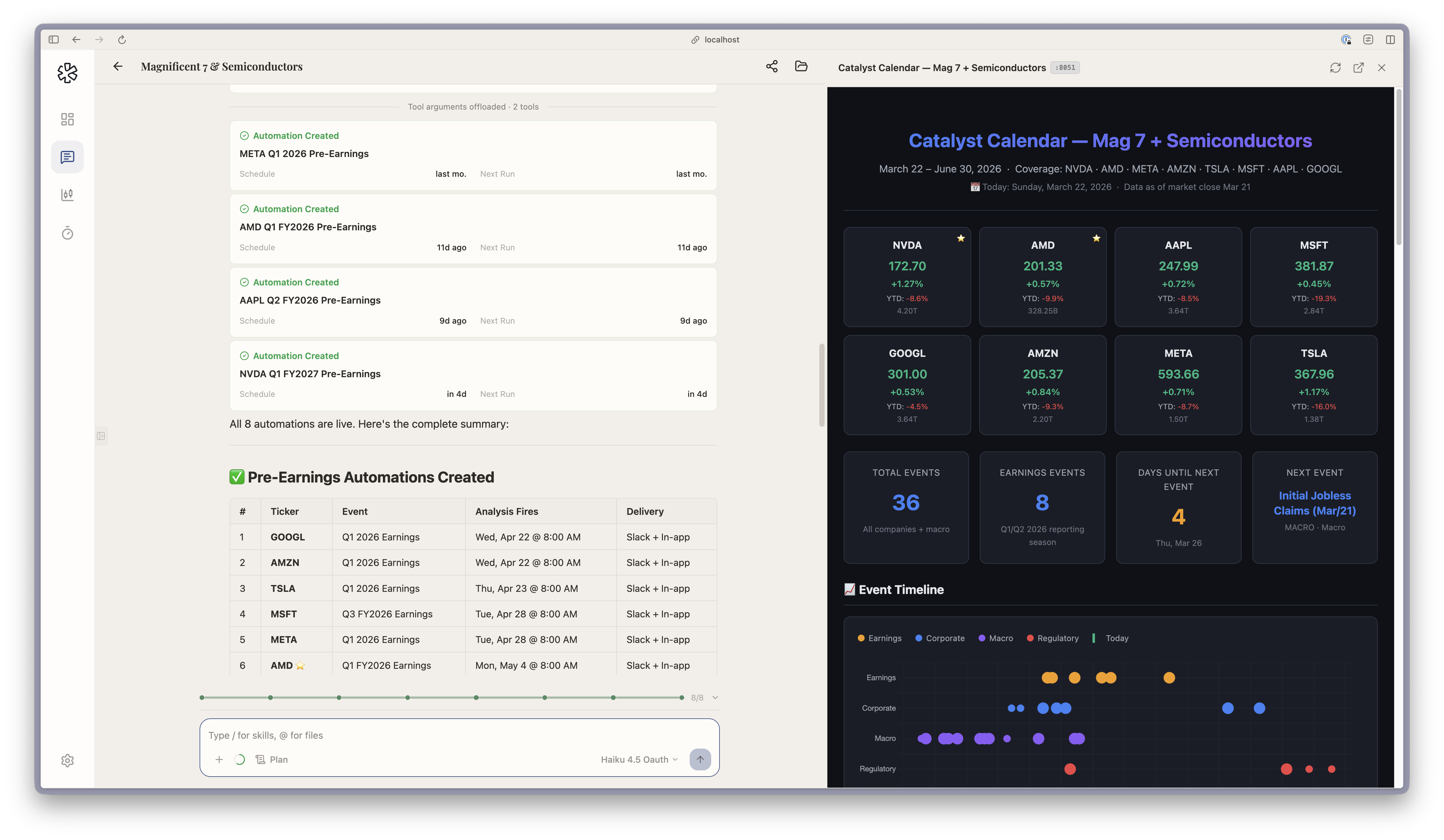
## What the agent does
[Section titled “What the agent does”](#what-the-agent-does)
1. **Freezes the clock.** The preview records the as-of time and maps the reporting period, so every table and chart uses the same period labels.
2. **Builds the expectation bar.** The skill keeps five sources apart: the company’s guide, published consensus, a whisper number when one is genuinely sourced, the agent’s own base case, and last quarter’s reported run-rate. It then states which one the stock is trading against.
3. **Checks earnings quality and picks the metrics.** It looks at what could flatter or hurt the reported EPS, bridges the guide to an implied bar, chooses the metrics that decide the quarter, and reads through from peers that already reported.
4. **Writes scenarios.** Bull, base and bear are set against the bar, not against last year, each with a driver, a management tell, a falsifier and a likely reaction. The reaction column is checked against how the stock moved after past reports.
5. **Writes the call questions.** Three or four ranked must-watch questions, each with why it matters, the answer that validates the view, the answer that breaks it, and phrases to listen for. Everything else goes into an overflow list.
6. **Lists what is missing.** The note closes with a missing-evidence block: each input it could not get, what would supply it, and which conclusion it blocks. A section without its input keeps its heading and shows a labelled gap instead of being shortened.
For a calendar across names, `catalyst-calendar` (also a command) ranks dated events by what they can change, such as earnings, regulatory decisions and macro releases, rather than by how soon they are.
## What you get back
[Section titled “What you get back”](#what-you-get-back)
* **Preview note.** A full note with the sections above, ending with a position action. Ask for a formatted document and it is built as a Word file. Ask for a shorter version and the skill rebuilds the note at that depth instead of cutting it.
* **Catalyst calendar.** An Excel workbook you can sort and filter by priority, class and date, plus a weekly preview note in Markdown. Ask about one date and you get a single-event brief. The skill keeps a version fit to leave your desk (dates, sources, confidence, public expectations) in a separate file from the one that carries your own positions and targets.
* **Automations.** Each one shows on the Automations page with its schedule, and finishes as Completed once it has run. Delivery can include a chat app, see [Get results in Slack and other chat apps](/explore/deliver-to-slack/).
* **Post-print update.** The `earnings-analysis` skill writes a Word update of eight to twelve pages by default, a one-pager on request, or only the call debate map when that is the whole ask. `/model-update` then refreshes your financial model for the new quarter and logs each change.
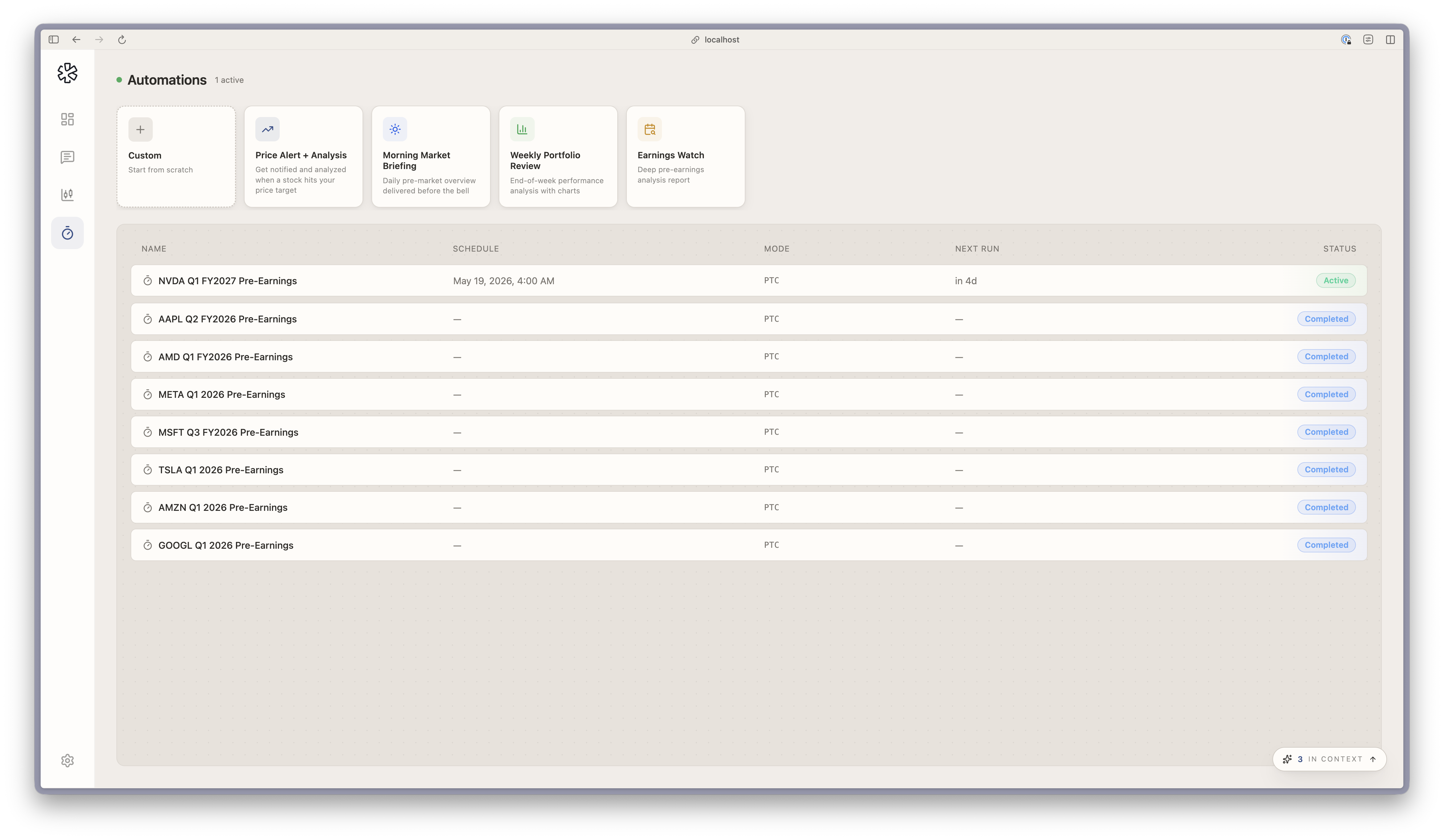
## Set it up as an automation
[Section titled “Set it up as an automation”](#set-it-up-as-an-automation)
The Automations page has an **Earnings watch** template: a one-time run, in a workspace, with the instruction “Run a deep earnings analysis for {symbol}” that reviews statements, estimates, past surprises and options activity and writes a pre-earnings report. Pick the date and time, name the workspace, and set delivery under More options. You can also ask the agent in chat to create it, as in the example above.
Hosted and self-hosted
**Hosted:** the preview can use options chains and snapshots for the implied move.
**Self-hosted:** options and market-structure data are not available, so the implied move is not one of the inputs you will get. Automations still run, and a self-hosted install posts each run’s result to your webhook instead of a chat app.
## Tips
[Section titled “Tips”](#tips)
* **Name the company and the quarter.** The skill maps the reporting period first, so naming it avoids a wrong guess.
* **Run it where your research lives.** In the workspace that already holds your model and notes, the agent can start from them.
* **Read the missing-evidence block first.** It tells you which conclusions to hold loosely.
## Related
[Section titled “Related”](#related)
* [Automations, wakeups and background commands](/concepts/automations-wakeups-commands/)
* [Skills](/concepts/skills/)
* [Build valuation models](/explore/valuation-models/)
* [Get results in Slack and other chat apps](/explore/deliver-to-slack/)
* [Chat apps](/concepts/chat-apps/)
# Write an initiation report
> Ask LangAlpha for an initiation report on a stock, with research, an Excel model, a valuation and charts, delivered as a Word report, PDF or HTML page.
An initiation report is the first full write-up on a company: the business, a financial model, a valuation, a rating and the argument for or against owning the stock. In LangAlpha you ask the Analyst in a workspace for one, and it runs the `/initiating-coverage` skill. It researches the company, builds an Excel model with a valuation, draws the charts and assembles the report. By default the report is a 30 to 50 page Word document that comes with the Excel model. You can ask for something shorter, as a PDF or an HTML page, and read it in the file panel beside the chat.
## Example request
[Section titled “Example request”](#example-request)
> Write it up like a sell-side initiation on CBRS: rating, price target, the thesis, what the market is pricing in, the scenarios, peers, key risks, and the charts. Use the research and the model we already have. Keep it to about ten pages and give me a PDF I can read here.
This is the request from the CBRS example run shown on this page. Replace CBRS with your ticker. If you start from nothing, ask for the whole run in one message, for example “Initiate coverage on \[ticker] and run the whole initiation”. A request that names no task and does not ask for the whole run, such as “write an initiation report for \[ticker]”, gets the list of five tasks back and a question about which to begin with.
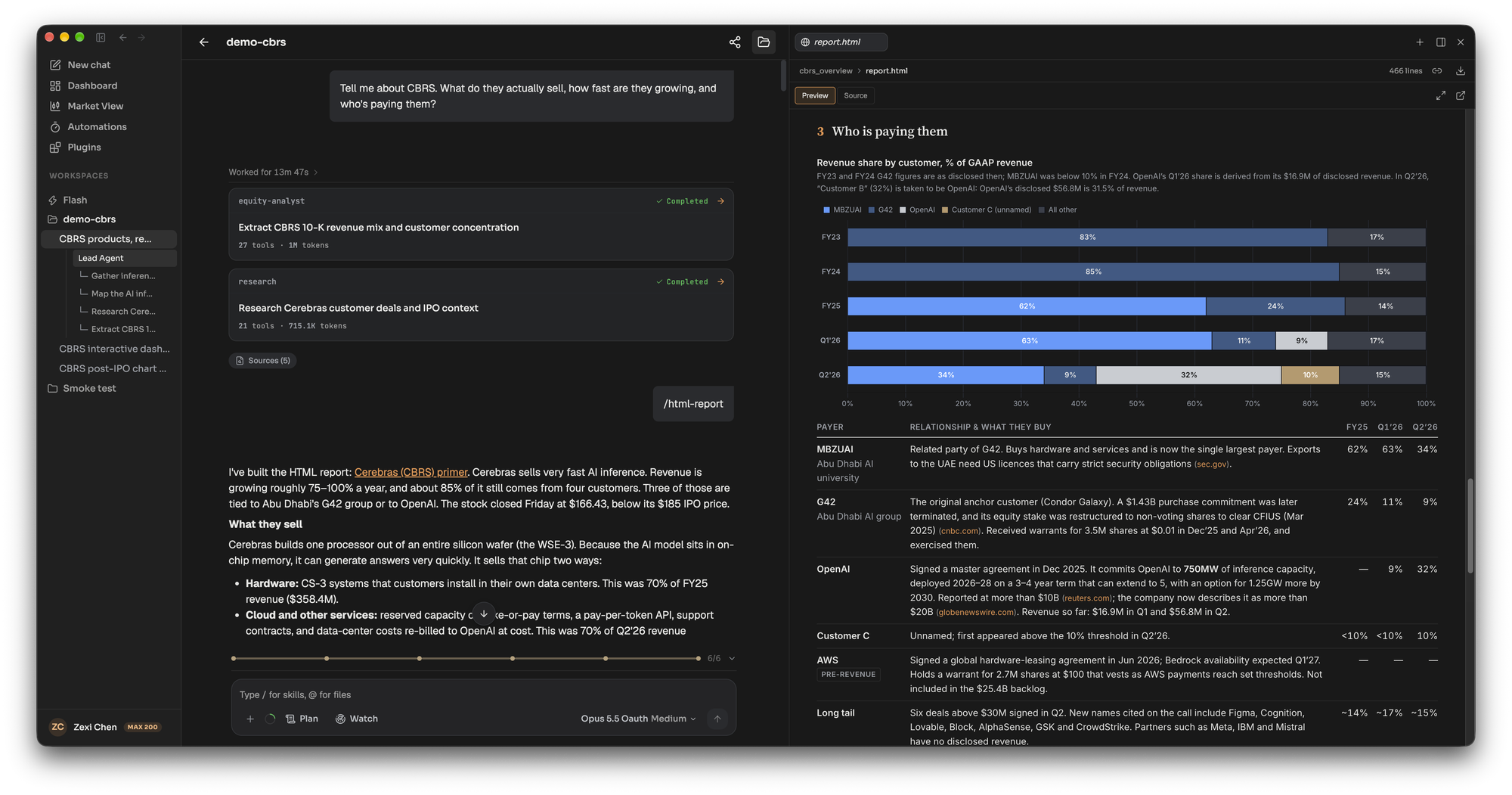
*Research comes first: four subagents work the question under the lead agent, and /html-report turns their findings into a primer.*
## What the agent does
[Section titled “What the agent does”](#what-the-agent-does)
1. **Researches in parallel.** The Analyst hands questions to subagents. The research subagent searches the web, the equity-analyst runs code against financial data and builds models and charts, data-prep gathers bulk data, and report-builder writes documents. Their notes and data land as files in the workspace, so a later thread can build on them.
2. **Names the mode.** Before any task, the skill classifies the initiation into one of eight modes and writes down the mode and the reader it serves. The mode decides what content is required and what is cut.
3. **Runs five tasks, one per request by default.** Each task checks that its inputs exist, delivers its file and stops, so you can review before the next one. If you asked for the whole run, it continues and names each task as it finishes.
4. **Stops on a missing input.** Tasks 3, 4 and 5 depend on earlier ones. If an input is missing the agent names the task that supplies it instead of building a placeholder.
5. **Declines to invent a target.** If the valuation or the capital structure cannot be established, the report is labelled a preliminary or watchlist initiation, lists the evidence needed, and carries no price target.
6. **Puts the verdict on the cover.** The cover carries the rating (Buy, Hold or Sell) or posture, the price target or the preliminary label, evidence confidence, underwriting status and the initiation mode. Evidence confidence and underwriting status are separate fields on purpose.
| Task | File |
| ---------------------- | ------------------------------------------------------------------- |
| 1. Company research | Markdown research document, 6,000 to 8,000 words |
| 2. Financial modelling | Excel model |
| 3. Valuation analysis | Markdown analysis, plus valuation sheets added to the same workbook |
| 4. Chart generation | Zip of 25 to 35 charts at 300 DPI |
| 5. Report assembly | Word report, 30 to 50 pages |
## What you get back
[Section titled “What you get back”](#what-you-get-back)
* **Word report (.docx)** at 30 to 50 pages, with the charts embedded and every source linked.
* **Excel model (.xlsx)** with live formulas, a Cover sheet first and a Checks sheet last. See [Build valuation models](/explore/valuation-models/).
* **Markdown notes** for the research and the valuation, and a **zip of PNG charts**.
* **A shorter PDF or HTML version** when you ask for one. In the CBRS run the agent wrote a ten-page PDF that rates the stock Sell with a $130 twelve-month target, plus an HTML version. It told the user that the skill’s default is a 30 to 50 page Word report and that it wrote a condensed version because that was the request.
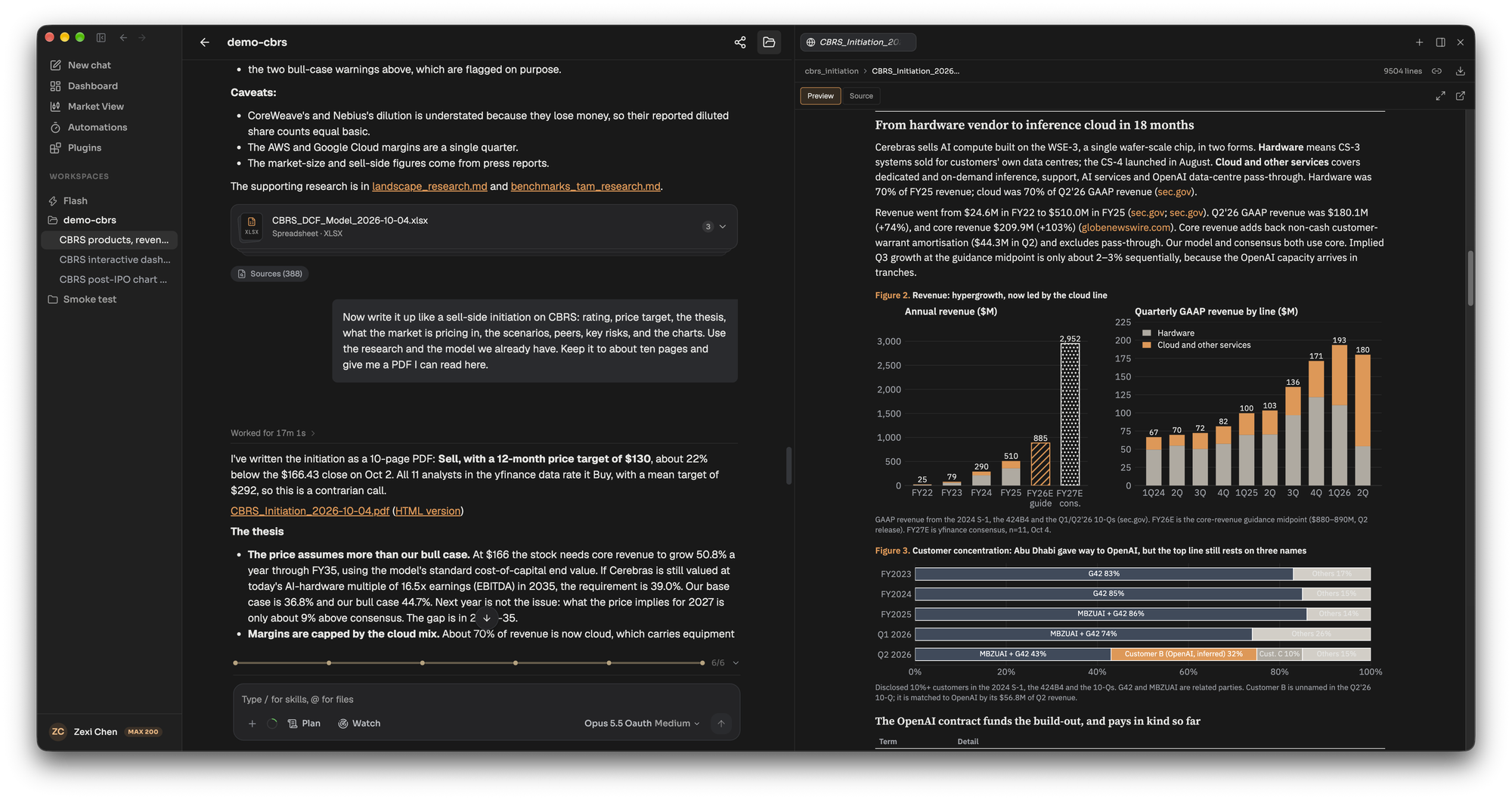
The file panel shows an HTML report rendered or as source, and offers a PDF export for it. A PDF opens in the PDF viewer, where you can flip pages and zoom.
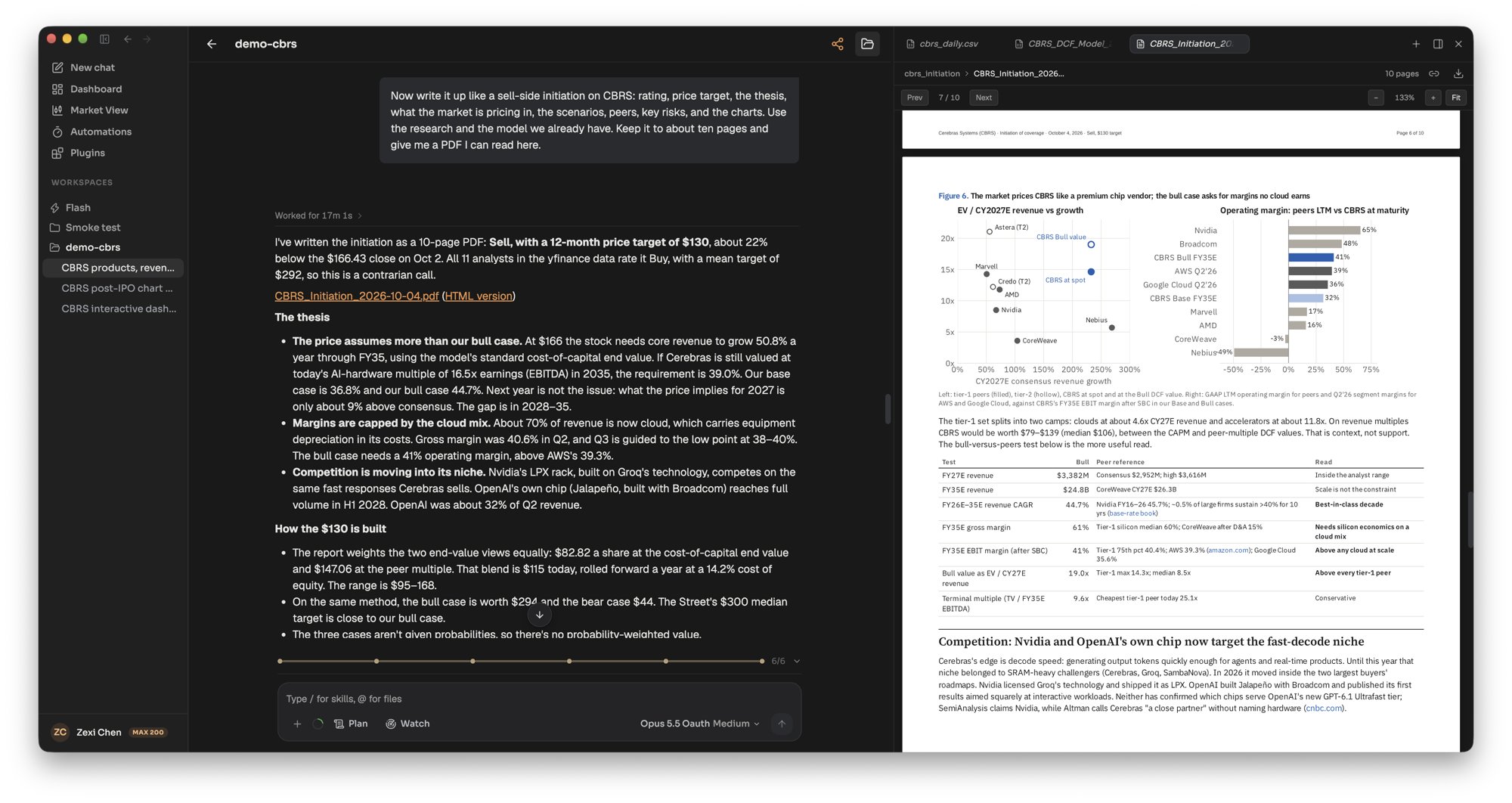
## Tips
[Section titled “Tips”](#tips)
* **Do the research and the model first, in the same workspace.** The write-up above reused the research and the DCF workbook from earlier threads. Saying “use the research and the model we already have” points the agent at them.
* **Say the format and length you want.** Without it you get the skill’s default: a 30 to 50 page Word report. “About ten pages, as a PDF” gets the condensed version. For a styled HTML page, use `/html-report`.
* **Open Sources under the answer** to see what the agent read: web pages, SEC filings, market data and subagent reads.
* **Expect a skeleton for thin coverage.** For a recent listing or a company with sparse disclosure, the skill delivers a research agenda and the model it would need, and says so on the first page, instead of filling gaps with plausible detail.
* **Your own files stay as they are.** When you give the agent a model or a draft, it makes a versioned copy and marks what changed.
## Related
[Section titled “Related”](#related)
* [Build valuation models](/explore/valuation-models/)
* [Skills](/concepts/skills/)
* [Chief of Staff and Analysts](/concepts/chief-of-staff-and-analysts/)
* [Research output best practices](/best-practices/research-output/)
# Review your portfolio
> Ask LangAlpha to check your holdings for concentration, exposure and risk against your investing profile, and keep it current with a weekly review.
A portfolio review in LangAlpha is a health check of the holdings you have saved, measured against the investing profile you filled in: how concentrated you are, how your money splits by sector, region and asset class, how much is cash, and whether the volatility and drawdown fit your risk level. You start it by asking, “diagnose my portfolio”, or by running `/portfolio-diagnosis`. It ends in a short note of findings and two or three follow-up tasks, never in trades.
## Example request
[Section titled “Example request”](#example-request)
> Run a health check on my portfolio. Am I too concentrated, and does the risk fit what I said I wanted?
If you have not saved any holdings yet, the agent says the check needs them and asks for a few positions as ticker and quantity.
## Where your holdings come from
[Section titled “Where your holdings come from”](#where-your-holdings-come-from)
The agent reads the portfolio, the watchlists and the investing profile you saved. You can fill them in these ways:
* **First run.** After you save your profile, the onboarding skill imports holdings and watchlists from a brokerage you connected, without asking first, or reads screenshots of your positions you attached. A screenshot import is shown to you as a table to confirm before anything is saved. Cash balances are not saved, but the check uses them when it has them. It then proposes three first tasks, and the first is usually a health check on your holdings.
* **The dashboard.** Add a holding or a watchlist symbol from the dashboard’s Portfolio and Watchlist widgets.
* **A connected brokerage.** When one is connected, the check takes positions and cash from it, and its quantities and values win over your saved file. If they differ, the agent says so in one line and offers to re-import. See [Brokerages and orders](/concepts/brokerages-and-orders/).
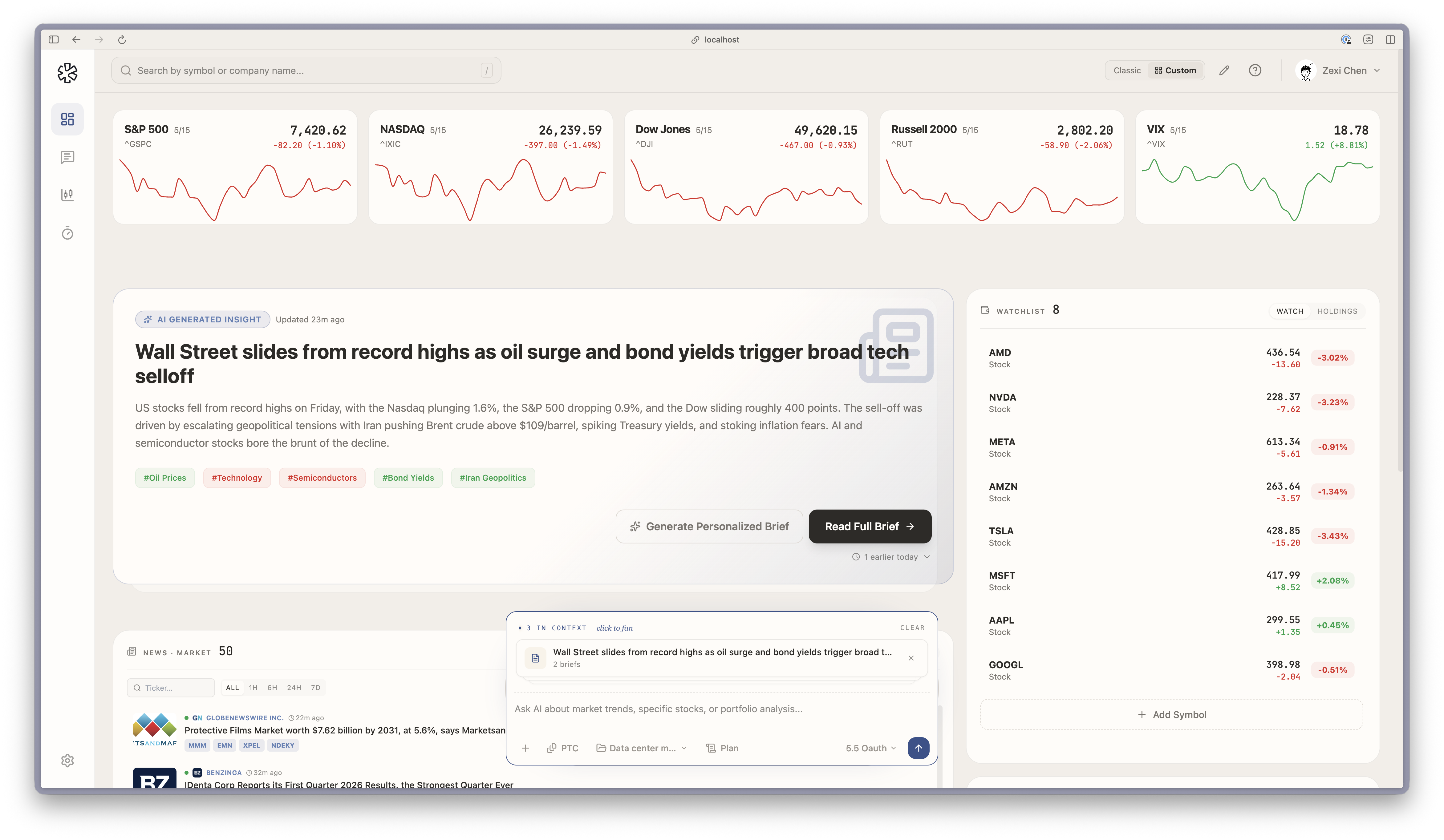
## What the agent does
[Section titled “What the agent does”](#what-the-agent-does)
1. **Pulls a year of prices** for every position, the benchmark for your main market (for example SPY for US holdings) and any currency pairs, and converts everything to your base currency.
2. **Measures concentration.** The largest position’s weight, the top five combined, and an effective number of positions. A broad index ETF counts as diversified on its own.
3. **Measures exposure** by sector, region and asset class, and compares each with the markets, instruments and sectors you said you want.
4. **Measures risk** by replaying today’s weights over the past year: annualized volatility, beta to the benchmark, and the one-year maximum drawdown. Holdings with under 60 days of history stay out of these figures.
5. **Judges the fit** against bands for your risk level, from conservative (volatility under 10%) to aggressive (over 22%). It flags, for example, a position over about 20%, one sector over about 40%, or cash over about 20%.
6. **Writes about 200 words.** A one-sentence headline with its number, three to five findings that each carry a number and what it is compared with, a data line naming what was left out and why, and two or three next tasks.
The skill saves its figures with the as-of date, so the next run can lead with what changed.
## Keep it going
[Section titled “Keep it going”](#keep-it-going)
| Task | How |
| --------------------------------------- | --------------------------------------------------------------------------------------------------------------------------------------------------------------------------------------------------------------------- |
| Is a position’s reasoning still intact? | `/thesis-tracker` keeps pillar status, an evidence ledger and monitoring triggers, and gives two separate verdicts: the company thesis and the security call. |
| What should I look at next? | `/idea-generation` screens a universe and returns a short ranked list, the rejected names, the method and a comparison table. When you supply holdings, it says which candidates add exposure and which duplicate it. |
| What happened overnight? | `/morning-note` writes a one-page briefing on overnight news, pre-market movers, earnings and macro events. |
| Check it every week | The **Weekly portfolio review** automation template runs Fridays at 22:00 US market time, in a workspace, and asks for returns against benchmarks, sector allocation, risk metrics and positions that need attention. |
Set the weekly review up on the Automations page, or ask the agent to create it. Delivery can go to a chat app, see [Get results in Slack and other chat apps](/explore/deliver-to-slack/).
## Tips
[Section titled “Tips”](#tips)
* **Fill in the profile.** With no risk level the check reports the risk numbers without saying whether they fit.
* **Run it in a workspace for your portfolio.** The saved figures live in that workspace, so later runs can compare.
* **Ask for the next task by name.** The agent offers tasks like a stress test of your largest position against a 40% drawdown. Pick one and it becomes a new request.
Caution
LangAlpha is not financial advice. The review reports numbers and offers tasks. It does not tell you to buy or sell.
## Related
[Section titled “Related”](#related)
* [Brokerages and orders](/concepts/brokerages-and-orders/)
* [Skills](/concepts/skills/)
* [Automations, wakeups and background commands](/concepts/automations-wakeups-commands/)
* [Watch a stock and act on a price move](/explore/price-move-automation/)
* [Build valuation models](/explore/valuation-models/)
# Watch a stock and act on a price move
> Ask LangAlpha to watch a stock and run an analysis when its price crosses a level or moves by a percentage, as an automation or as a wakeup in a thread.
A price-move automation tells the agent to run an instruction when a stock or index crosses a level or moves by a set percentage, and the server watches the price for you, so nothing has to be open. You can set it on the Automations page, or ask the agent in chat. There are two other ways to follow a price: the market watch, which shows live prices to the agent while it works, and a price wakeup, which brings the agent back into the same thread when a level hits. This page shows which to use.
## Example request
[Section titled “Example request”](#example-request)
> Wake the agent when CBRS rises 15% from the previous close, analyze what drove it, and send me the result in Slack.
This is the automation in the screenshot below. The agent summarizes the trigger and the instruction and asks for your yes before it creates the automation.
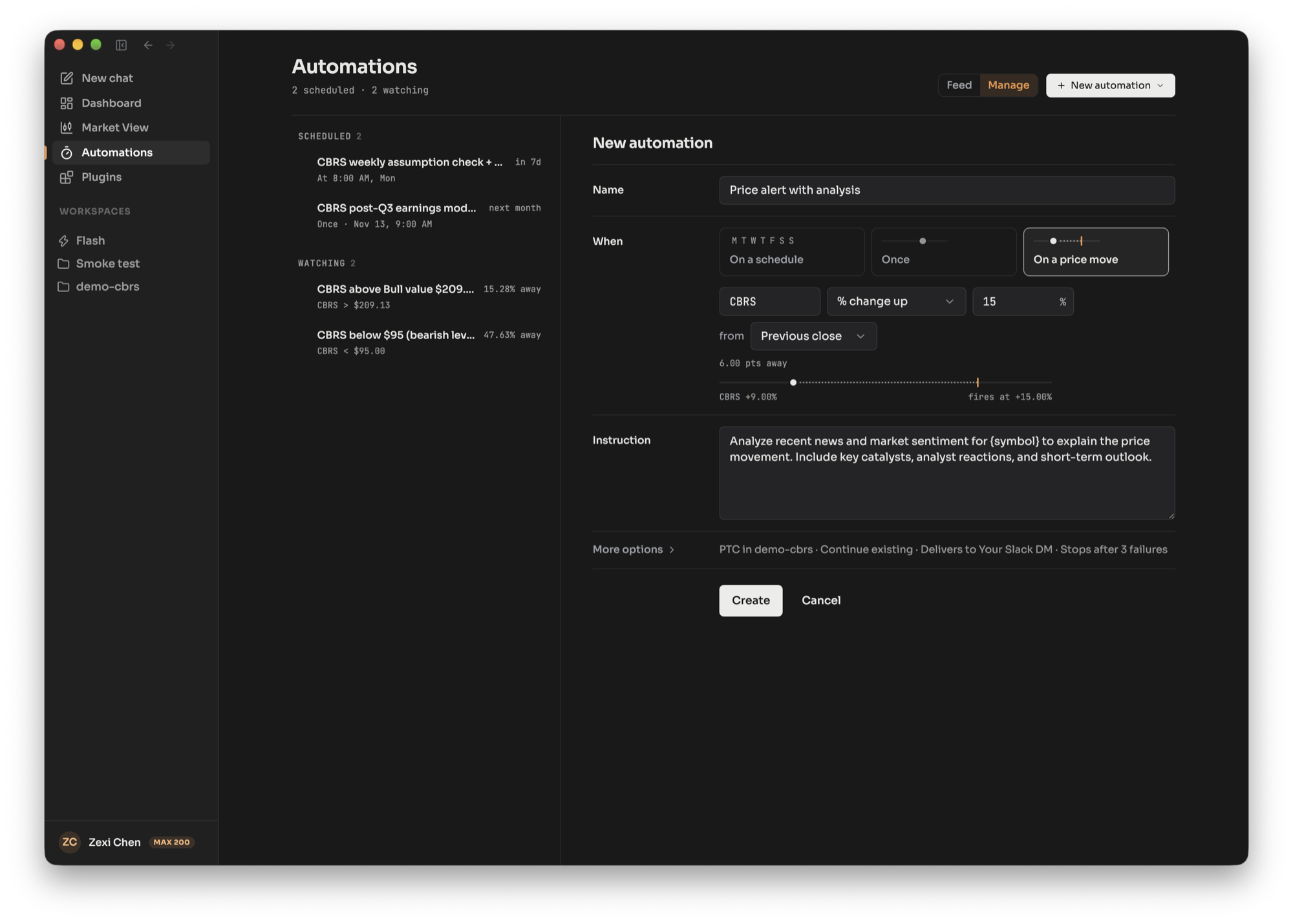
## Three ways to follow a price
[Section titled “Three ways to follow a price”](#three-ways-to-follow-a-price)
| | Market watch | Price wakeup | Price automation |
| ----------- | ------------------------------------------------------------------------------------------------------ | ------------------------------------------------------------------------------------------- | ------------------------------------ |
| What it is | Live prices shown to the agent during a turn | A follow-up turn the agent sets in its own thread | A saved automation that starts a run |
| Who sets it | The agent, or you with the Watch control in the message box | The agent, as a price target | You or the agent |
| Fires a run | No, it only shows prices while the agent works | Yes, in the same thread | Yes, in a new or an ongoing thread |
| Limits | Up to 10 symbols per thread, a stamp about every 25 seconds, expires after about 6 hours of inactivity | Up to 10 pending wakeups per thread, lasts through the next full market session, fires once | One US stock or index per automation |
For the full wakeup rules, see [Automations, wakeups and background commands](/concepts/automations-wakeups-commands/). For a decision guide, see [Automation or wakeup?](/compare/automation-or-wakeup/).
## What the agent does
[Section titled “What the agent does”](#what-the-agent-does)
1. **Watches the price on the server.** The monitor subscribes to the symbols in active price automations and checks them against your conditions. It does not need your browser or the agent to be running.
2. **Evaluates your conditions.** On the Automations page you choose a symbol, then a condition: price goes above, price drops below, % change up, or % change down. A percent condition measures from the previous close or from the day’s open. If you add several conditions to one automation, all of them must hold.
3. **Starts a run.** The run uses your instruction, in the workspace you chose or in Home. The Price alert template’s instruction asks the agent to analyze news and sentiment for the symbol and explain the move, with catalysts, analyst reactions and a short-term outlook.
4. **Re-arms or finishes.** A **one-shot** automation fires once and completes. A **recurring** one fires again after a cooldown of at least 240 minutes. Leave the cooldown empty and it fires at most once per trading day.
5. **Delivers the result.** The run is a thread you can open, and the result can go to a chat app. See [Get results in Slack and other chat apps](/explore/deliver-to-slack/).
The automation detail page shows how far the price is from its trigger, for example “25.66% away”, with a bar from the current price to the level where it fires. It also has Run now, Pause, Edit and Delete.
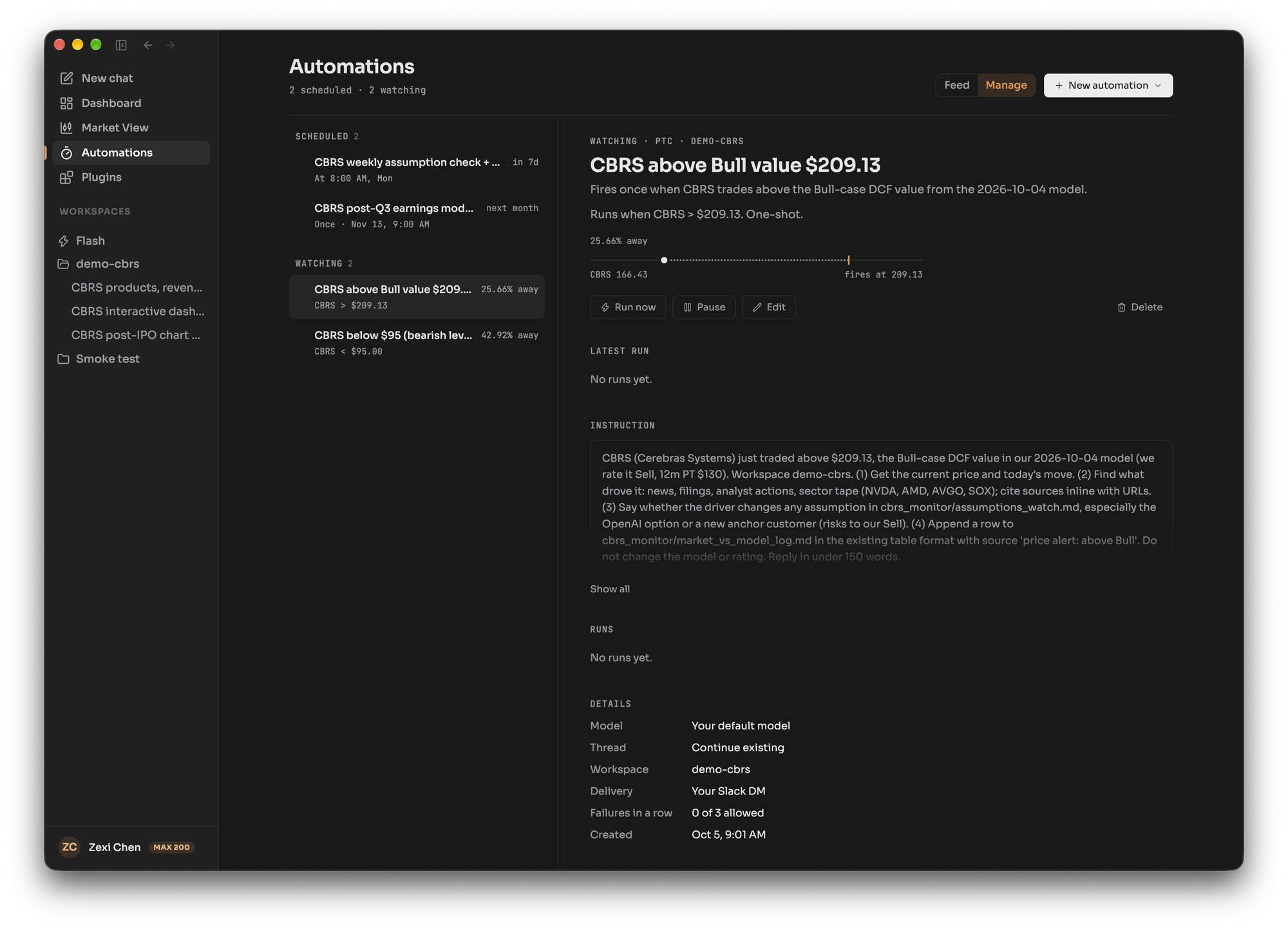
## Price targets in a thread
[Section titled “Price targets in a thread”](#price-targets-in-a-thread)
When you are already in a thread, the agent can set a price target for itself instead of an automation. A target is a price wakeup, and you can ask for one in plain words: “tell me if NVDA drops below 190” or “wake me if it moves 3% from now”. The agent states what it set, when it lapses and what it will do when the target hits.
* **Level or move.** A target is a price above or below a level, or a move up or down by a percentage. A percentage is measured from the previous close, or from the price when the target was set.
* **Refused up front.** The agent is told at once when a target cannot work: the price is already past the level, or the stock is already up or down by that much from the previous close; a fall of 100% or more; or a crypto, currency or futures symbol. A stock listed outside the US goes by its exchange suffix, as in 0700.HK, and a bare number is refused.
* **How long it lasts.** A target lasts through the market’s next full session, so one set on a Friday evening still covers Monday. About an hour before it lapses without hitting, the agent is woken to set it again or let it go.
* **What a hit does.** A target fires once. If the agent is in the middle of a turn, the alert reaches it before its next model call. If the thread is idle, the hit starts a new turn with no message from you, which uses your usage like any other turn. If the thread cannot start a turn, because you reached your usage limit for instance, the alert waits and the agent sees it on your next message.
* **Seeing and cancelling targets.** Pending targets appear in the wakeups chip above the message box. Open it to see each one’s state and when it lapses, and to cancel one or all of them. A target that has already fired and is on its way to the agent cannot be cancelled.
Targets are on by default and are part of the Wakeups setting: turning it off in Settings, Experiments cancels every pending target. A target is separate from the market watch and needs no watch, because the server checks the price itself.
## Limits
[Section titled “Limits”](#limits)
* **Symbols.** A price automation watches a US stock or an index. Crypto, currency and futures symbols are refused.
* **Failures.** After a set number of failed runs in a row (3 by default) the automation switches itself off. Resume it from the Automations page.
* **Market hours.** Prices only move while a market is trading. Outside the session there is nothing to cross.
Hosted and self-hosted
**Hosted:** price triggers fire on live ticks.
**Self-hosted:** price triggers poll every 30 seconds against delayed quotes (Yahoo Finance or FMP, refreshed every 60 seconds), so a trigger can fire a minute or more after the move. Your install must be running for it to fire. Options and market-structure data are not available.
## Tips
[Section titled “Tips”](#tips)
* **Write the instruction as a task.** The run starts cold, with only your instruction and the workspace’s files. Say what to look for, where to save it and how long the answer should be.
* **Pick a level from your own work.** A level taken from a valuation model, such as a bull-case value, gives the alert a reason.
* **Use a wakeup when you are already in a thread.** Ask “tell me if it drops 3% today” and the agent sets one, no automation needed.
## Related
[Section titled “Related”](#related)
* [Automations, wakeups and background commands](/concepts/automations-wakeups-commands/)
* [Automation or wakeup?](/compare/automation-or-wakeup/)
* [Get results in Slack and other chat apps](/explore/deliver-to-slack/)
* [Hosted or self-hosted?](/get-started/hosted-or-self-hosted/)
# Build valuation models
> Ask LangAlpha for a DCF, a comps table, a three-statement model or a model audit, built as live Excel workbooks with a Cover sheet, a Checks sheet and sources.
A valuation model in LangAlpha is an Excel workbook the Analyst builds in your workspace from a saved script, with live formulas rather than pasted values, a Cover sheet first and a Checks sheet last. Four skills cover the common jobs: `dcf-model` for a discounted cash flow, `comps-analysis` for trading comparables, `3-statements` for an integrated income statement, balance sheet and cash flow, and `check-model` to audit a workbook someone already built. The first, second and fourth are also slash commands: `/dcf-model`, `/comps-analysis` and `/check-model`.
## Example request
[Section titled “Example request”](#example-request)
> Who else is going after the same inference business, and how does Cerebras stack up against the public ones like Nvidia, AMD and Broadcom? Add a comps sheet to the workbook and tell me if our bull case still looks sane next to them.
This is the request from the CBRS example run in the screenshot below. The workbook already held a reverse DCF, and the agent added a comps sheet and answered the question.
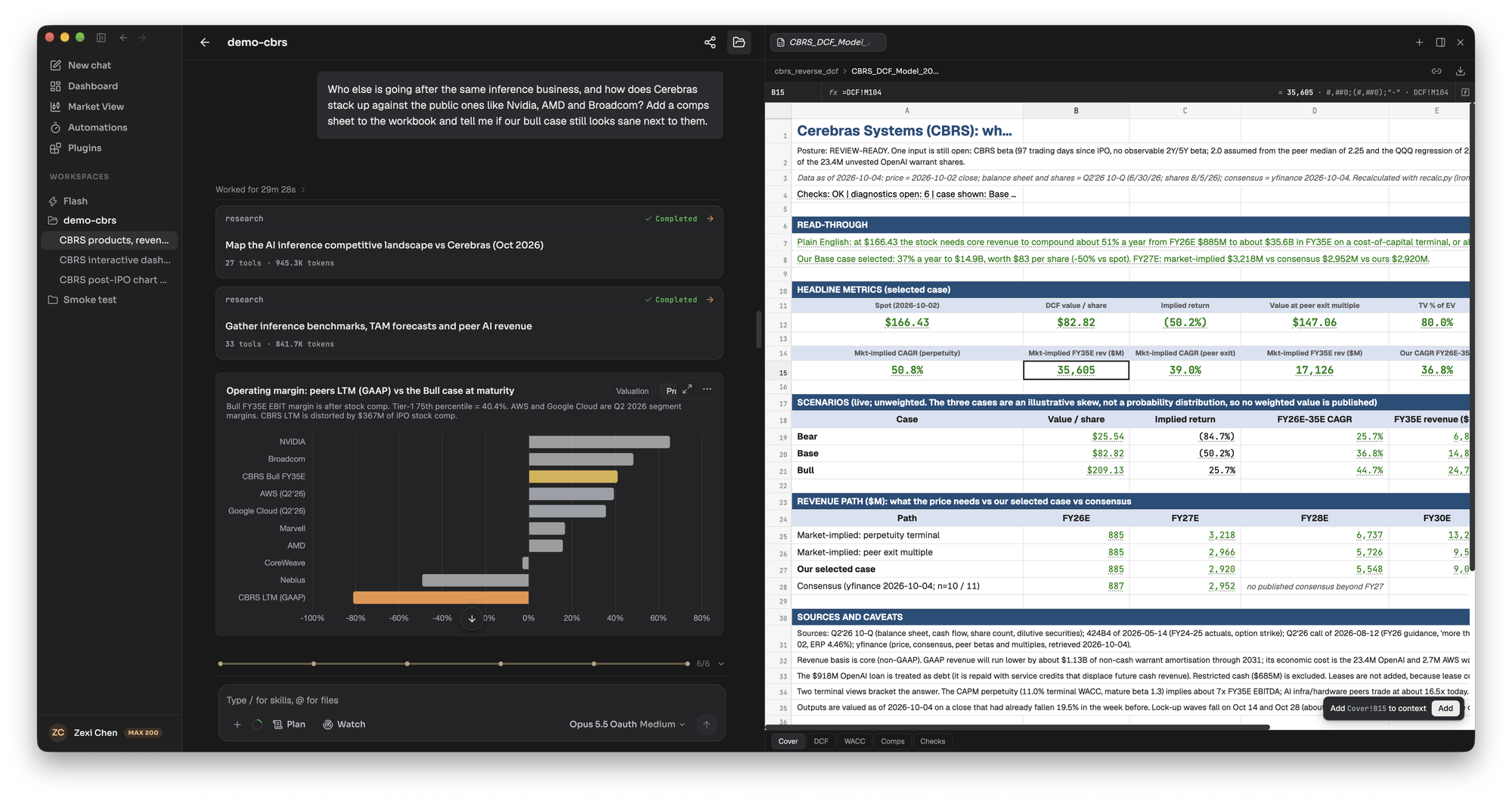
## What the agent does
[Section titled “What the agent does”](#what-the-agent-does)
**DCF.** It retrieves and validates the data, reads three to five years of history, builds revenue and operating-expense projections, computes free cash flow, sets a cost of capital, applies terminal value, and bridges enterprise value to equity value. The workbook carries three scenarios and three sensitivity grids. Each grid has a highlighted centre cell that must equal the model’s headline output, and the build fails if it does not. A reverse DCF can solve for the growth or margin the current price implies. The skill needs the current price and net debt with their dates, and if one cannot be sourced it writes the input as required and absent, with a comment on what was searched, instead of defaulting it.
**Comps.** It frames the table, builds a peer set with a role for each name, fixes one basis for periods, currency and scale, pulls data with an as-of date on every row, and builds the enterprise value bridge. Headline statistics come from the closest peers (tier 1) only, and the names it excluded are listed in the deliverable. With fewer than three close peers the output is labelled screen-grade and falls back to a named single analogue.
**Three-statement model.** It keeps reported history on its own sheet, marks the boundary between history and forecast, puts every scenario switch on one control sheet, and holds only formulas on the calculation sheets. A balance check runs for every period.
**Model audit.** `check-model` reads your .xlsx or .xlsm, recalculates it, and reports without editing it: structure and formulas, integrity checks, a source tie-out ledger and reasonableness checks. The report opens with a readiness posture and ends with an issue log routed to whoever should fix each item.
All four build or read the workbook from a script, run a recalculation, and audit it before delivery. Every input in a model the skills build carries a comment naming its source.
## What you get back
[Section titled “What you get back”](#what-you-get-back)
* **An .xlsx workbook.** DCF and comps workbooks open on a Cover sheet with headline tiles that link to the model, and end on a Checks sheet with a roll-up that must read OK before delivery. Open it in the file panel’s spreadsheet viewer, where you can select a cell and add it to the chat.
* **A written read of the result.** The DCF skill asks for a valuation range with the drivers that move you across it, not a single point.
* **A PDF or other report on request.** In the NVDA, AMD and GOOGL run below, the agent delivered the Excel model, then built a PDF report with a report-builder subagent when asked.
* **A versioned copy of your model.** `/model-update` and the editing rules in the skills copy your file and mark what changed instead of overwriting it.
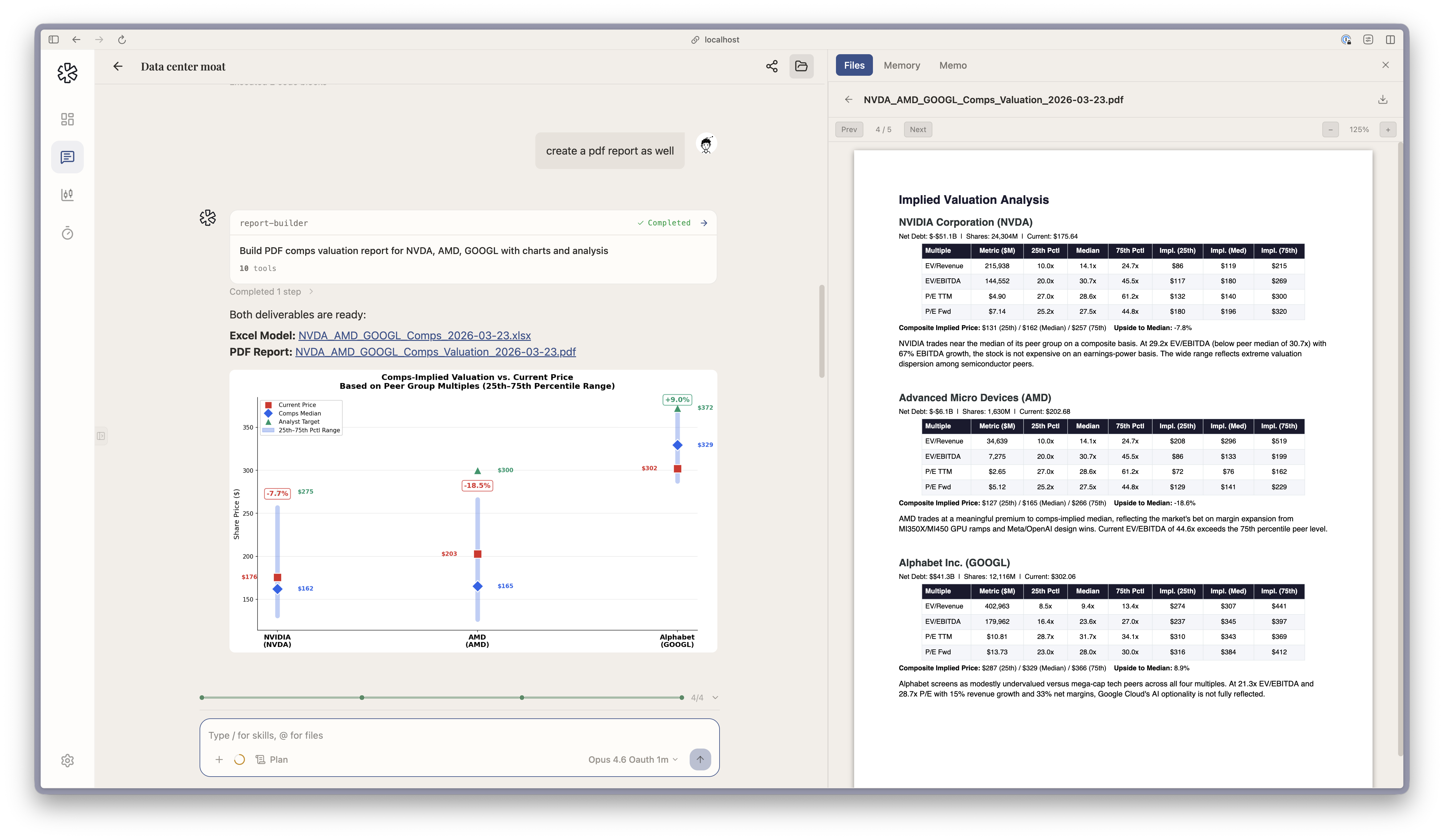
## Tips
[Section titled “Tips”](#tips)
* **Give the model a workspace to live in.** Later requests such as “add a comps sheet” or “update for the new quarter” work on the same file.
* **Say what you want asked of the model.** “What does the price imply” gets the reverse DCF. “What should it trade at” gets comps.
* **Bring your own model for an audit.** Attach the workbook and ask the agent to check it. It reports and leaves your file alone.
* **Expect labelled gaps.** Where an input is missing or stale, the skills mark it rather than fill it in.
## Related
[Section titled “Related”](#related)
* [Write an initiation report](/explore/initiation-report/)
* [Prepare for earnings](/explore/earnings-preview/)
* [Skills](/concepts/skills/)
* [Files](/concepts/files/)